Settings in Aida Jet:
After logging into Aida Jet, you'll see your profile icon and name in the upper-right corner of the screen. Hover over the profile icon to open the Profile menu.
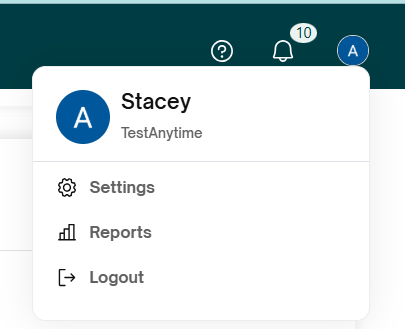
From the dropdown, click on Settings to open the settings page.
Overview of Settings Options
Within the Settings, you can update your company profile, customize brand colours and logos, manage email preferences, set alerts, and connect third-party integrations.
Left Sidebar Navigation
The sidebar on the left provides access to individual setting categories, with visual indicators showing progress (in percentages or checkmarks):
- User
- Company
- Brand
- Sender Email
- Alerts
- Integrations
1.USER
The User Details Panel is where you can view and update your personal information within your Aida Jet profile. Keeping these details accurate ensures smooth communication and helps personalize your experience on the platform.
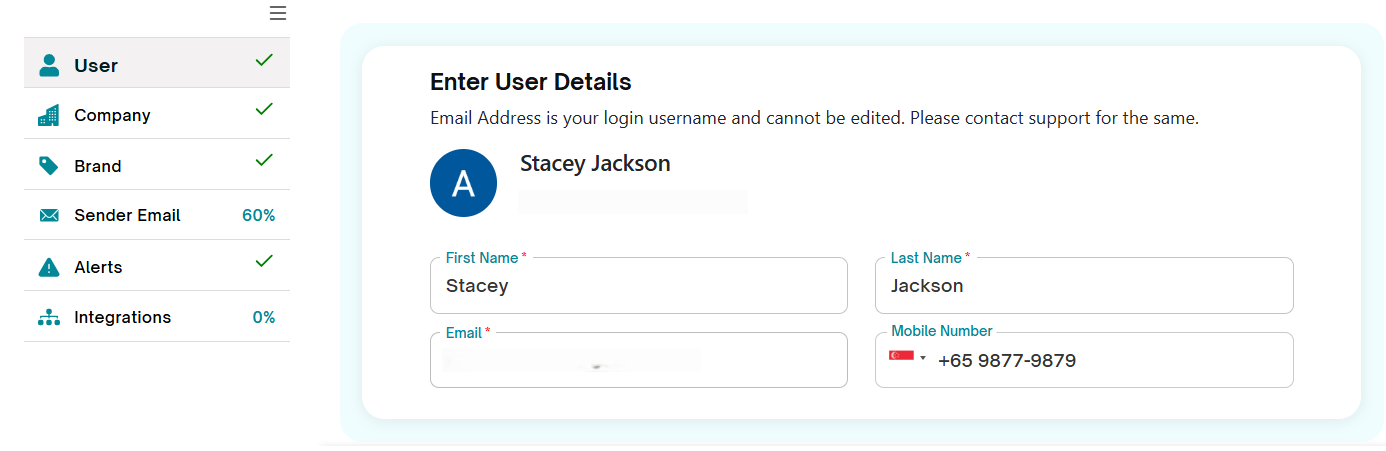
Modify user profile:
- Email Address
Your email address is shown prominently but cannot be changed here, as it serves as your login ID. Please contact Aida Care through the support ticket platform if you need to change the email address. - Profile Initials
A circular avatar is automatically created from your initials, helping to visually identify your account. Click on the profile icon to choose to upload your photo or remove it. - First Name and Last Name
These fields are editable, allowing you to update your name details as needed. - Mobile Number
You can add or modify your mobile number, with a country code selector to support international formats.
Make the desired changes to your first name, last name, profile photo or mobile number. Click the Save button at the bottom right of the panel to apply and save your updates.
Delete Account: Danger Zone:
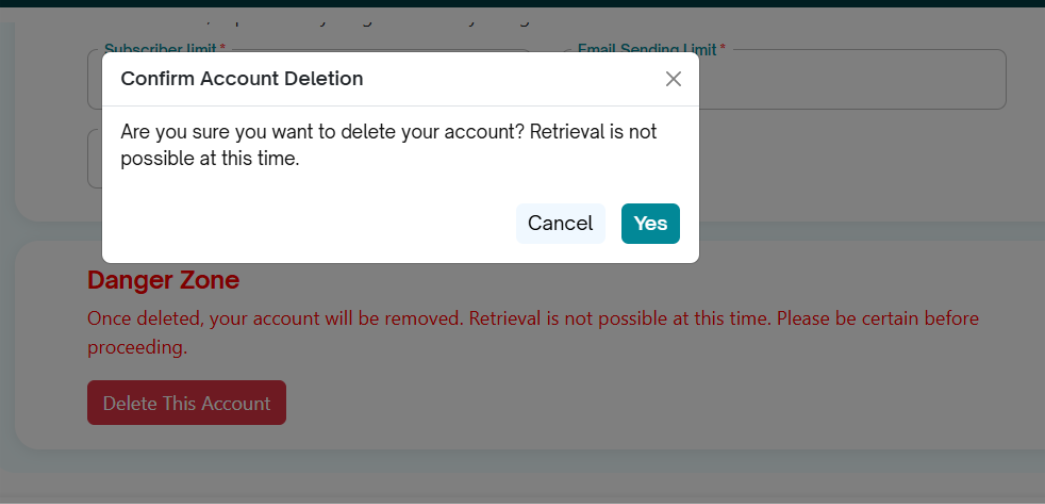
The Delete Account option allows you to permanently remove your AidaJet account. Please read carefully before proceeding, as this action cannot be undone.
Steps to Delete Your Account:
Navigate to your User Profile.
Scroll down to the Danger Zone section.
Locate the Delete this Account button.
Click Delete this Account.
Confirm the action when prompted.
⚠️ Warning: Once your account is deleted, all data associated with it will be permanently removed and cannot be recovered. Make sure you are certain before proceeding.
2.Subscription
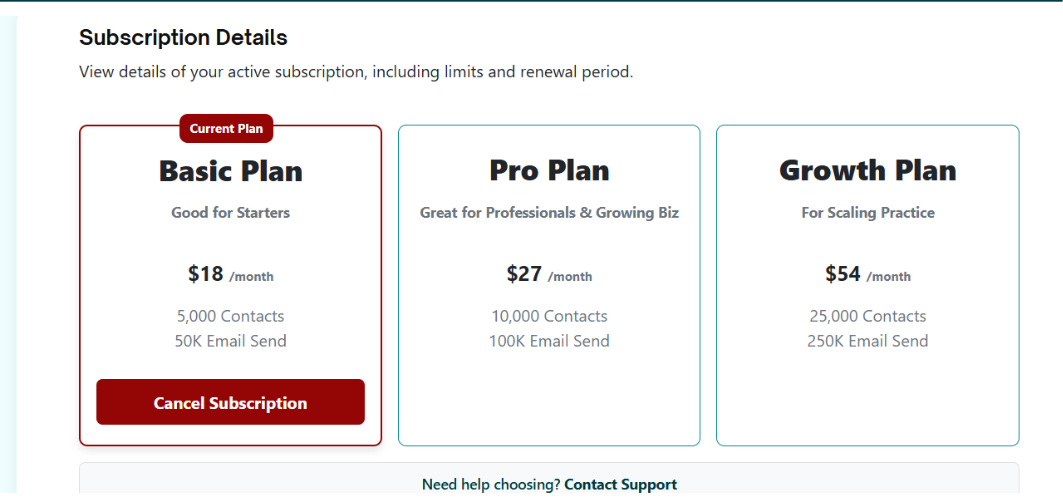
AidaJet offers three Subscription plans — Basic, Pro, and Growth
- Basic Plan
Cost → USD 18 / Month
Includes:
Up to 5 active newsletter series
Up to 5,000 subscribers
50,000 emails per month
Ideal for individuals, startups, or anyone who wants to try AidaJet before upgrading.
- Pro Plan
Monthly Billing →USD 27 / Month
Includes:
Up to 10,000 subscribers
100,000 emails per month
Up to 10 active newsletter (automation) series
Best for: Small businesses and growing teams who want advanced features and more scale.
- Growth Plan
Monthly Billing → USD 54 / Month
Includes:
Up to 25,000 subscribers
250,000 emails per month
Unlimited newsletter (automation) series
Best for: Larger organizations that need higher volume and more advanced automation.
3.Company
Click on Company in the left-hand navigation panel under Settings, to access Company Details form. This section is essential for configuring the newsletter series and tailoring content creation based on organizational information.
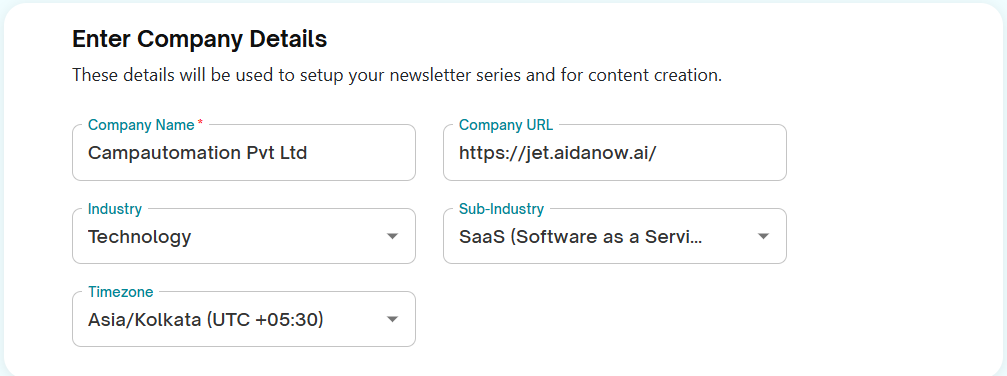
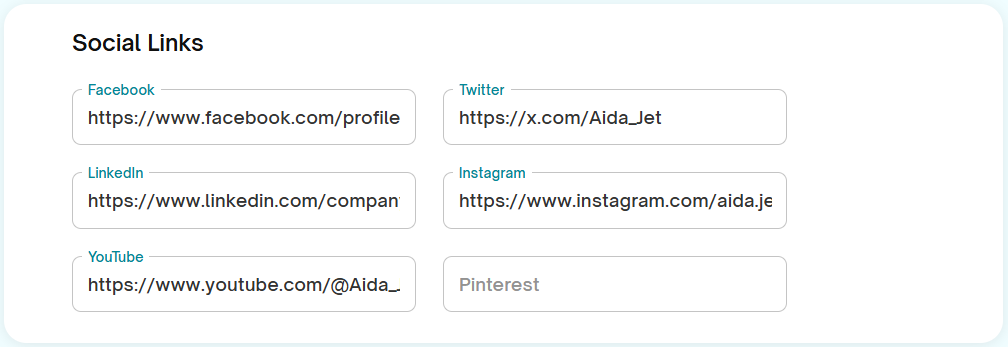
- Company Name – Required field where users input the organization’s official name.
- Company URL – Optional field for the company’s website.
- Industry – Dropdown menu to select the broader industry category.
- Sub-Industry – Dropdown dependent on the industry, for more specific classification.
- Time zone – Select the company’s time zone to schedule emails and newsletters accurately.
- Social link: Facebook, Twitter, LinkedIn, Instagram, YouTube, Pinterest.
- Once you enter your company name and website URL, Aida Jet’s smart AI will automatically populate your social business page URL. You can edit it here if any changes are needed.
Update the company details:
Click into any text field or dropdown to update your company details. After editing, click the Save button to confirm your updates.
4.BRAND
The Brand section under Settings allows users to define and apply brand-specific design elements, ensuring that all newsletters maintain a consistent and professional visual identity.
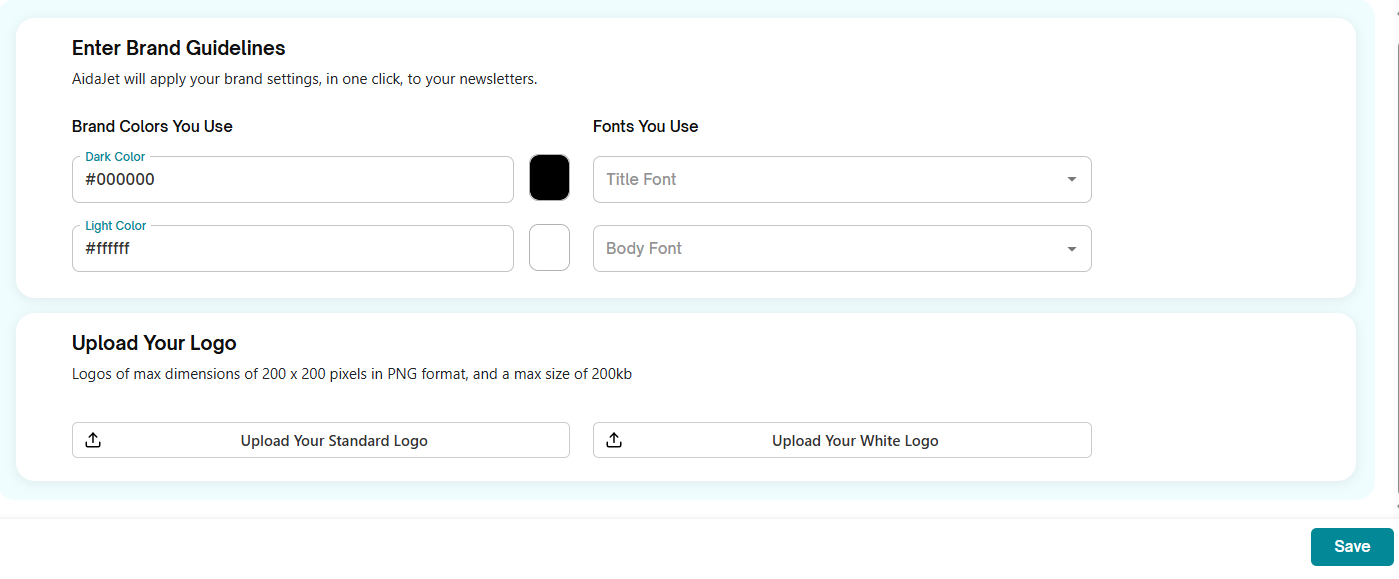
Brand Colors:
- Dark Color: Primary brand color used for headers, titles, and key elements (e.g., #000000).
- Light Color: Secondary or background color (e.g., #ffffff).
Both colors include a color picker for easy selection.
Fonts:
- Title Font: Dropdown to select the font for headings.
- Body Font: Dropdown to select the font for the main content text.
Upload Your Logo:
- Upload Your Standard Logo: Used in general display and email headers.
- Upload Your White Logo: Typically used on dark backgrounds for better visibility.
- Requirements: Logos should be in PNG format, max dimensions of 200x200 pixels, and a maximum size of 200KB.
Update Brand Settings:
Customize your brand by updating the colors, font, and logo as needed.
Once you're done making changes, click the "Save" button to apply your updates.
5. Sender Email
The Sender Email section in the settings is crucial for ensuring that your newsletters are sent from verified and trusted email addresses.
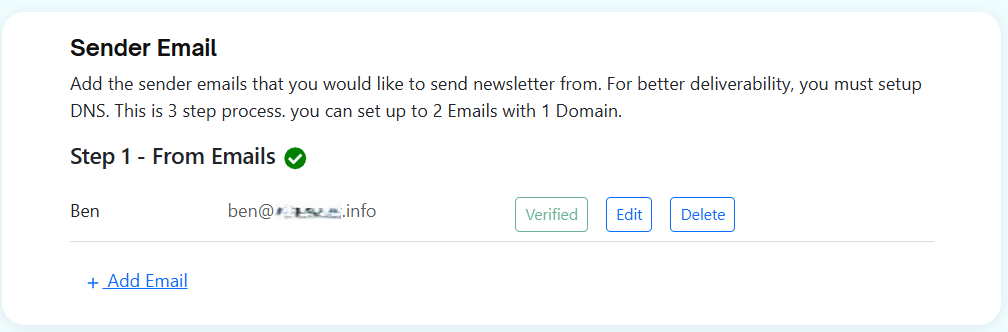
From Emails:
- + Add Email: Allows users to add the email addresses they want to use as the "from" address in outgoing emails. Adding an email will initiate the domain verification process.
Domain Verification Panel
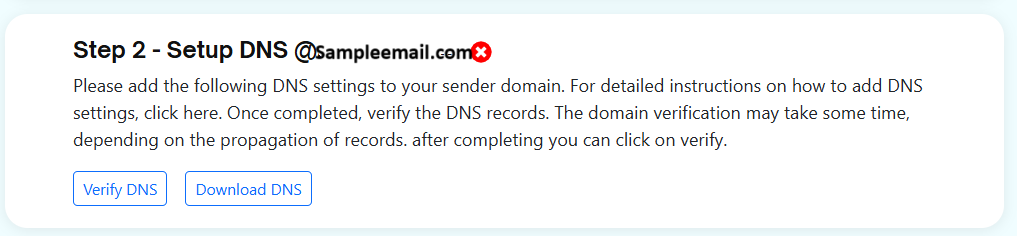
- No Domain Found: If no domain is associated yet, this message is displayed.
- Verify DNS: Starts the verification process by checking if the necessary DNS records are correctly set for the domain.
- Download DNS: Provides a downloadable file containing the DNS records (likely TXT, CNAME, etc.) needed to set up domain authentication.
To start sending emails through Aida Jet, you’ll need to add and verify your sender email address. Follow these steps:
- Add Your Sender Email Address
Enter the email address you’d like to use for sending emails. Please note:- You can only use one domain per user.
- You may add two email addresses as long as they belong to the same domain.
- Complete the Verification Process
After entering your email address:- Check your inbox for a verification email and confirm it.
- Update your DNS records as instructed in this article to verify your domain ownership.
- Verification Indicators
- Once the domain is successfully verified, it will appear with a green tick.
- Your verified email address will appear with Verified or Not Verified status, and options to edit or delete.
Make sure to complete both steps of the verification process to ensure successful email delivery.
6.Alerts
The Alerts section allows users to receive automated email reminders before their scheduled newsletter send dates. This helps keep your team proactive and on schedule.
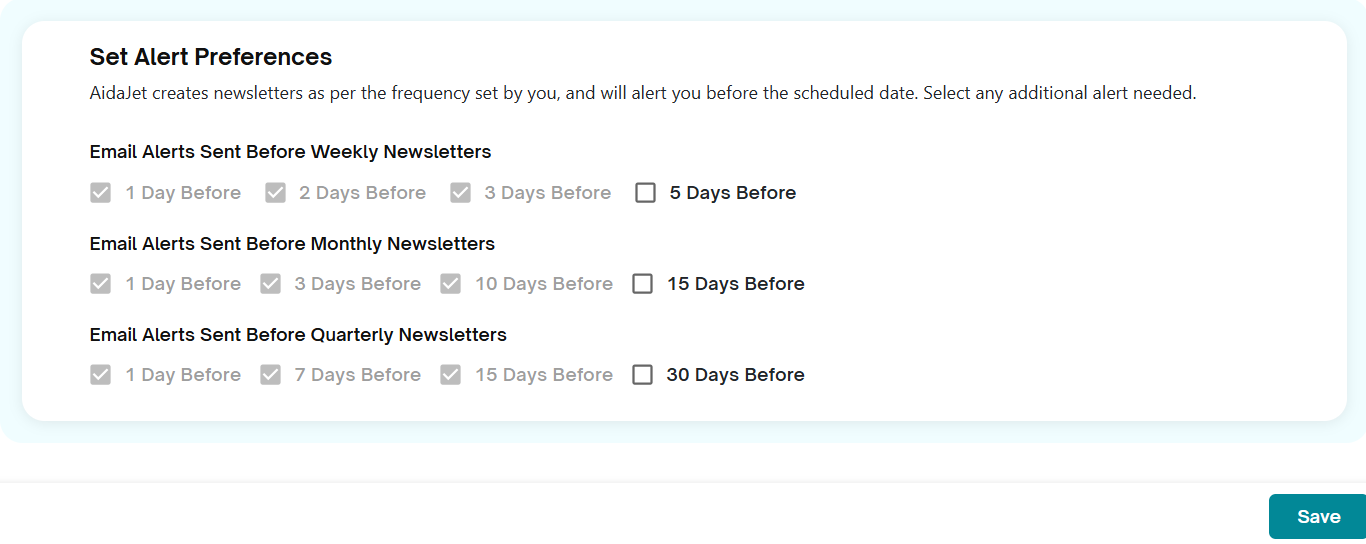 Configure Alerts:
The Alerts feature in AidaJet allows you to receive reminder notifications before your newsletters are due—whether they are weekly, monthly, or quarterly. These alerts ensure your team is notified in advance to prepare and schedule campaigns effectively.
Alert Configuration Options:
Weekly Newsletters - Options include:
1 day before
2 days before
3 days before
5 days before (Can be selected/un-selected)
Monthly Newsletters
Ideal for businesses that run monthly updates. Options include:
1 day before
3 days before
10 days before
15 days before(Can be selected/un-selected)
Quarterly Newsletters
For long-form or seasonal content planning. Options include:
1 day before
7 days before
15 days before
30 days before(Can be selected/un-selected)
Only the last option under each section can be selected/un-selected.
Make the selection and click “Save” to apply your changes.
After saving, email alerts and dashboard notifications will be triggered based on your selections.
7. Integrations:
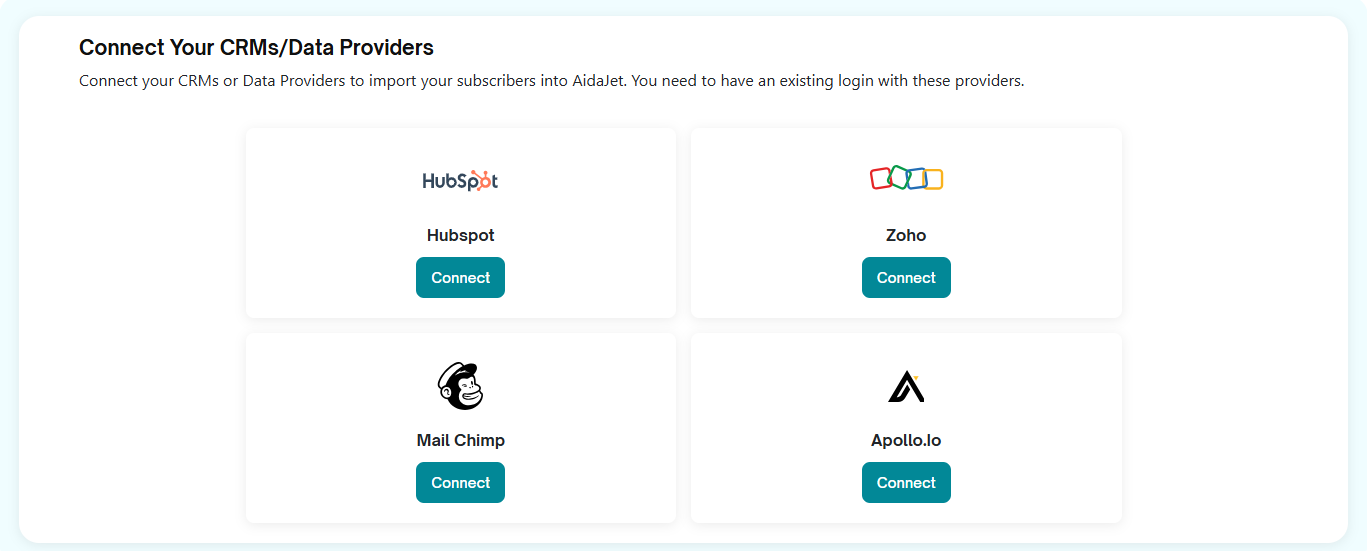
Integrations allows you to connect AidaJet with your existing CRM or data provider platforms to seamlessly import subscriber data. This step enhances your workflow by syncing contacts and ensuring your newsletters reach the right audience.
1.Available Integrations
You can connect with the following platforms:
- HubSpot
- Zoho
- Mailchimp
- Apollo.io
2.Connection Requirement
You must have an active account with each provider you wish to connect.
To Connect:
- Click the Connect button under the desired platform.
- A new window will prompt you to log in and authorize access.
- Once approved, AidaJet will be ready to import your contact/subscriber lists.
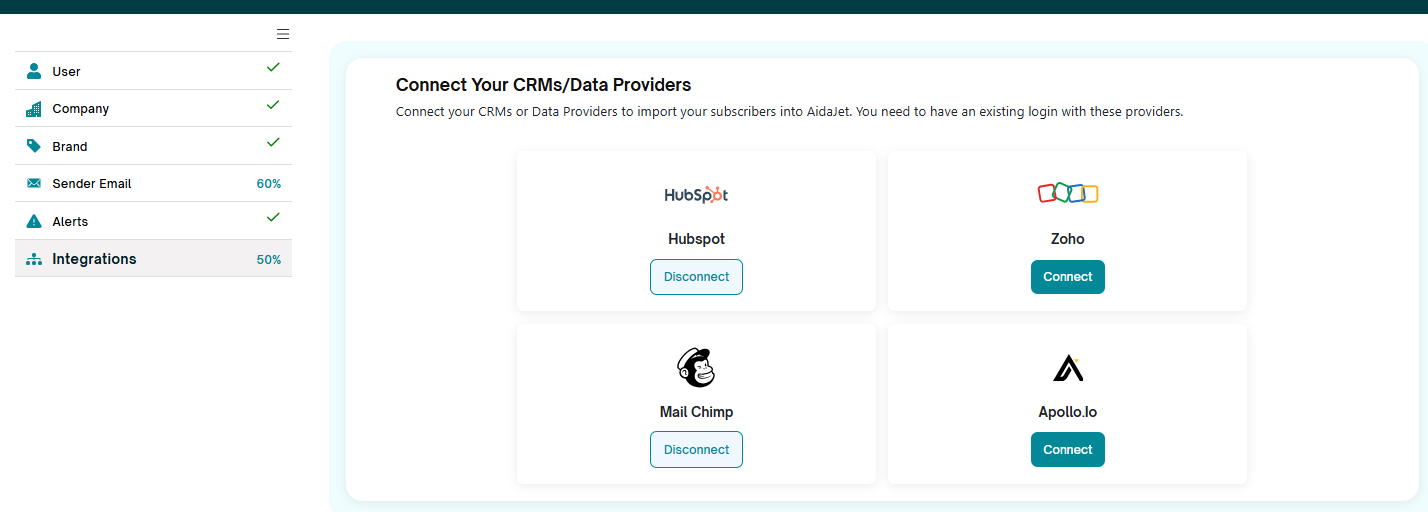
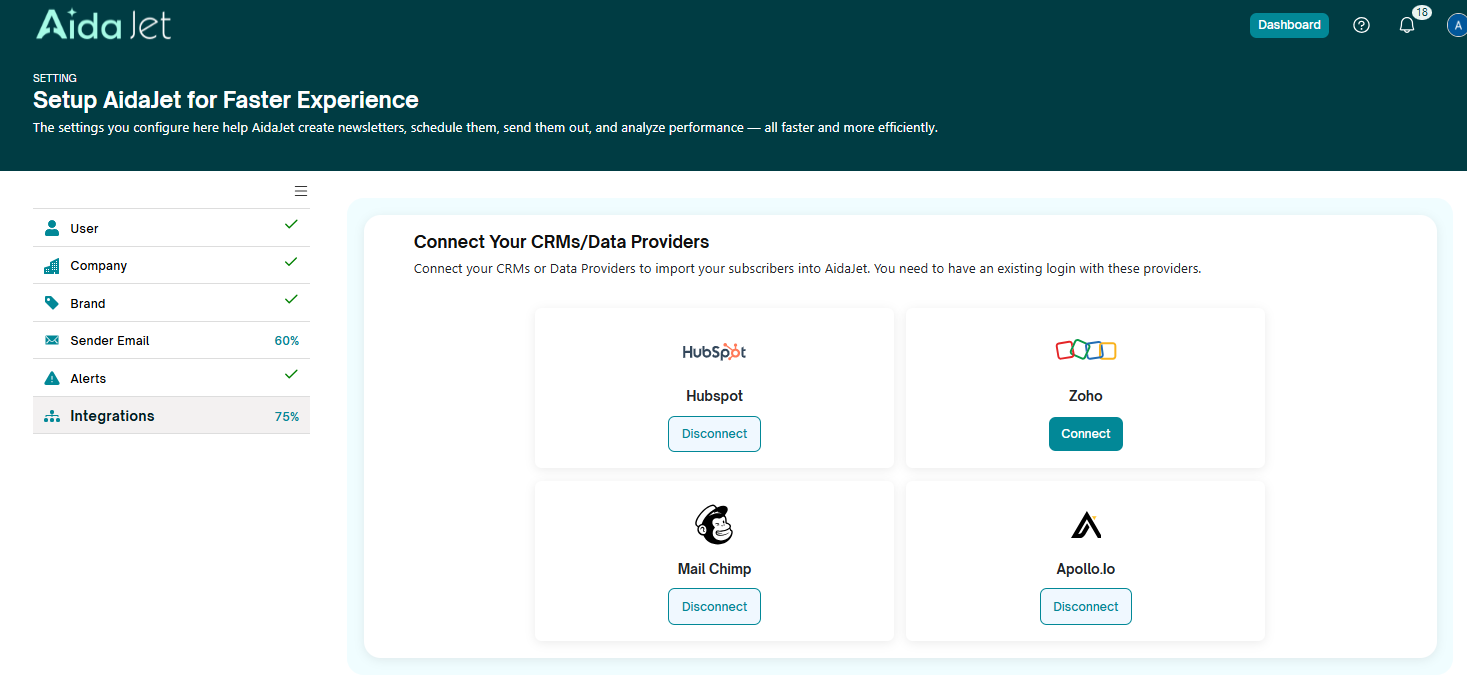
Once the platforms are connected, the connect button will change to disconnect, allowing you to disconnect from an application if desired.
Hubspot Integration:
Step1: Click on Connect button under Hubspot.
Connecting AidaJet to Hubspot screen appears:
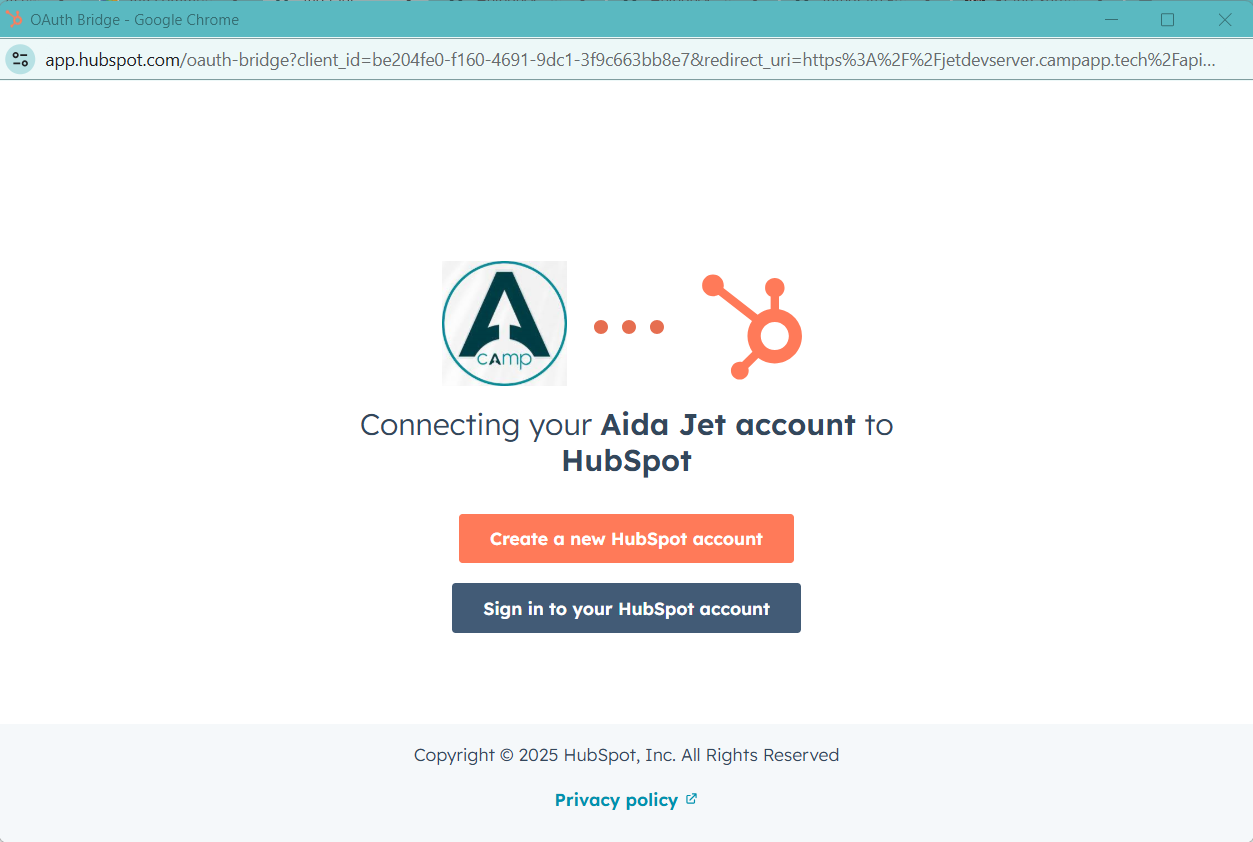
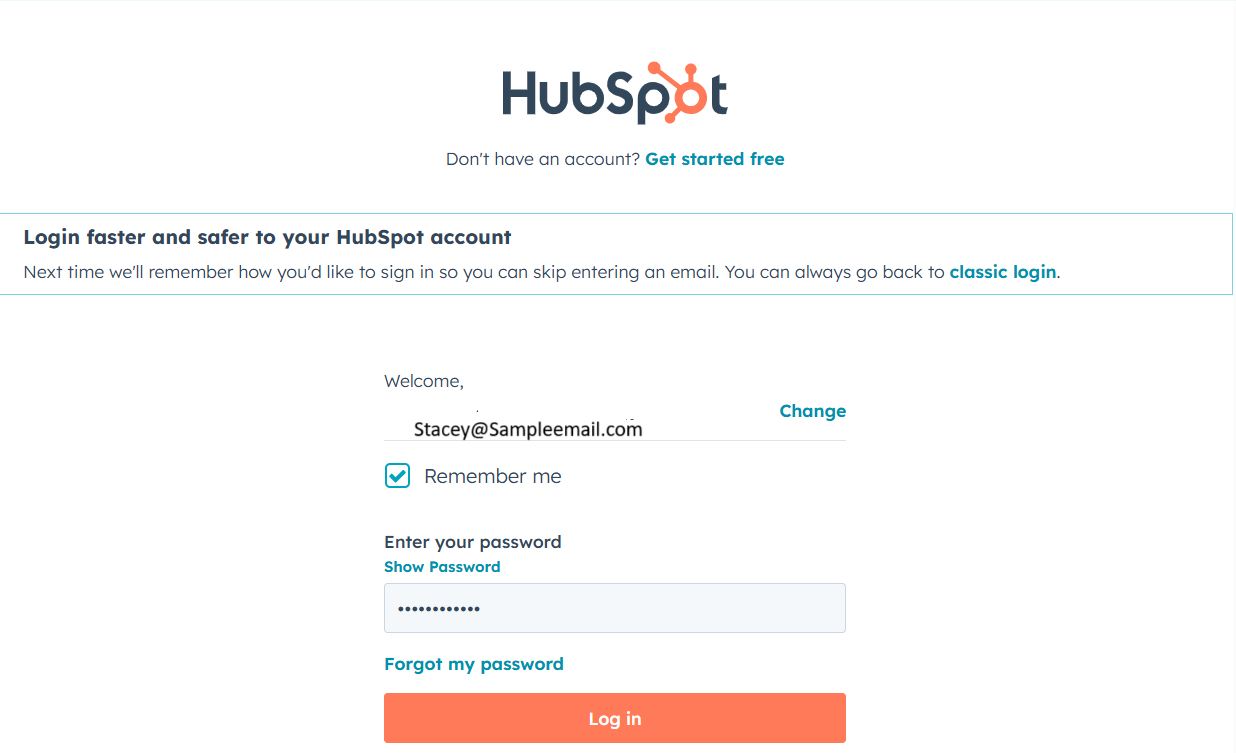
Step 2: Sign-in to your hubspot account or create a new account.
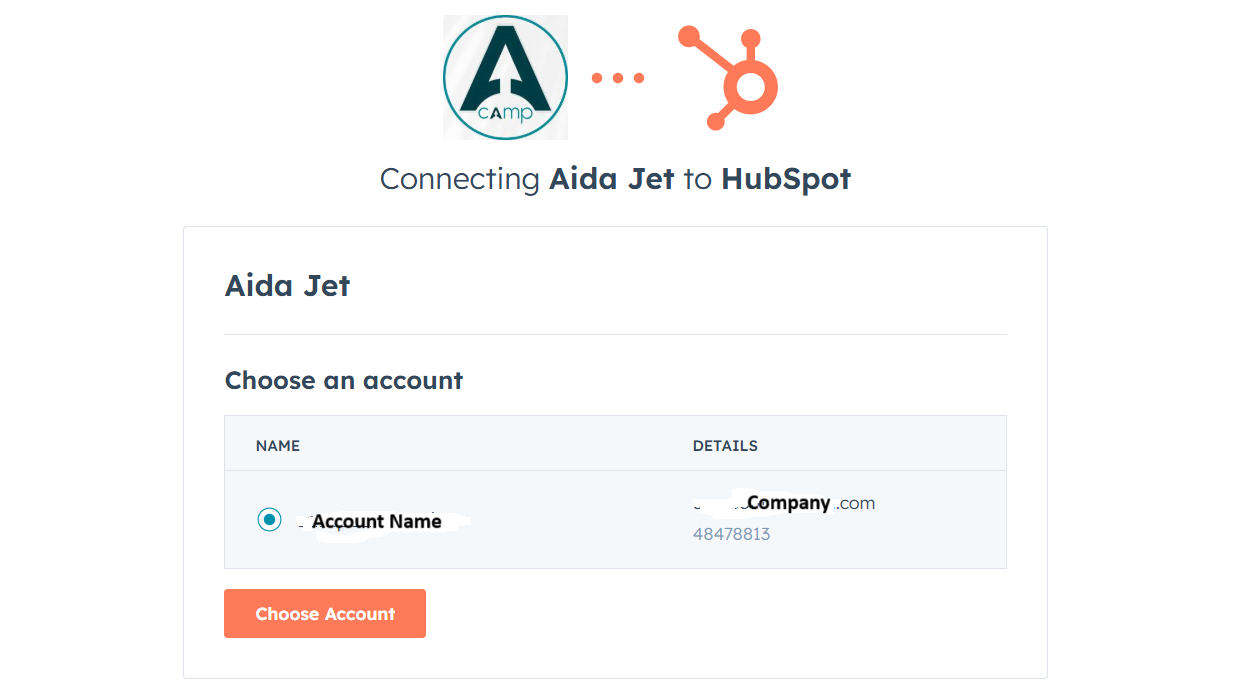
Step 3 : Select the account name to connect to AidaJet and click on Choose Account.
"Connected successfully to Hubspot!" message appears. Now, Close the Pop up and Refresh the AidaJet screen.
Zoho Integration:
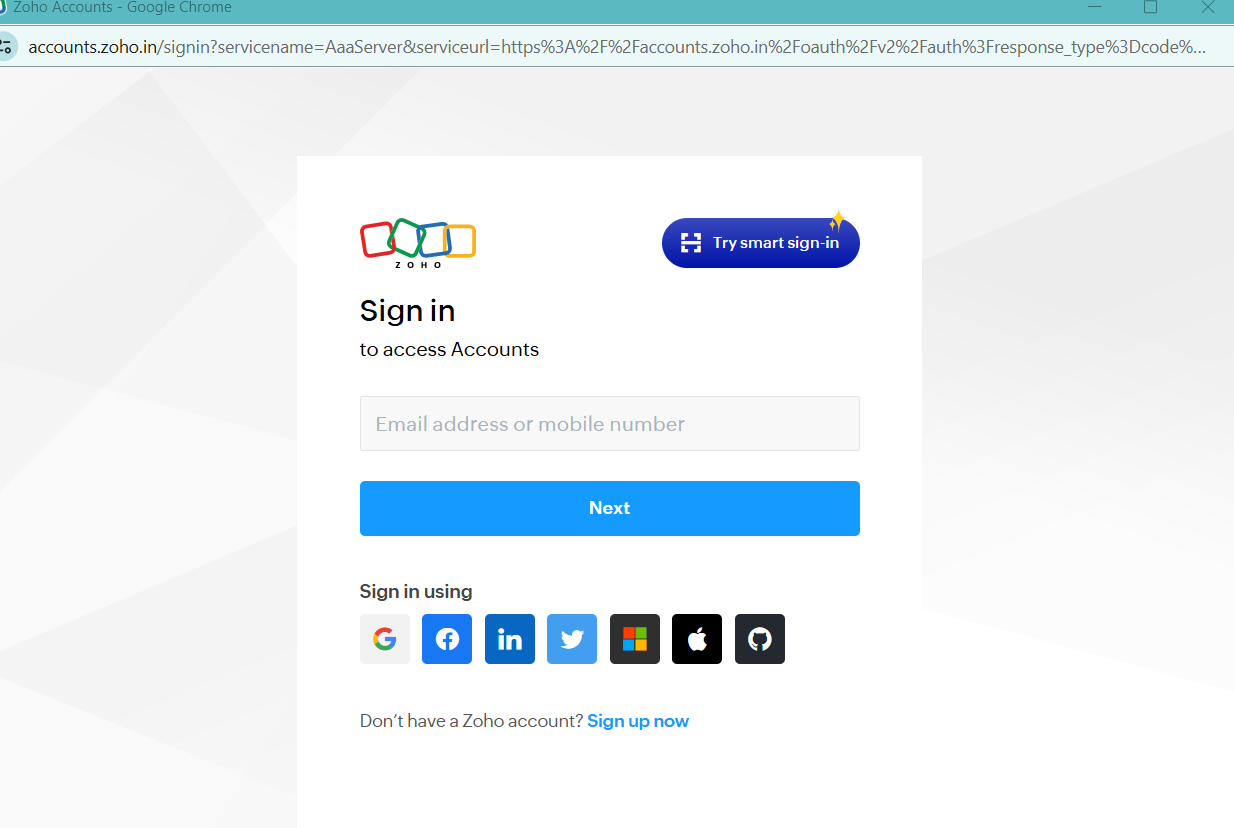
Step 1: Click on Connect button under Zoho. Sign in to Zoho account screen appears. Enter the credentials and login.
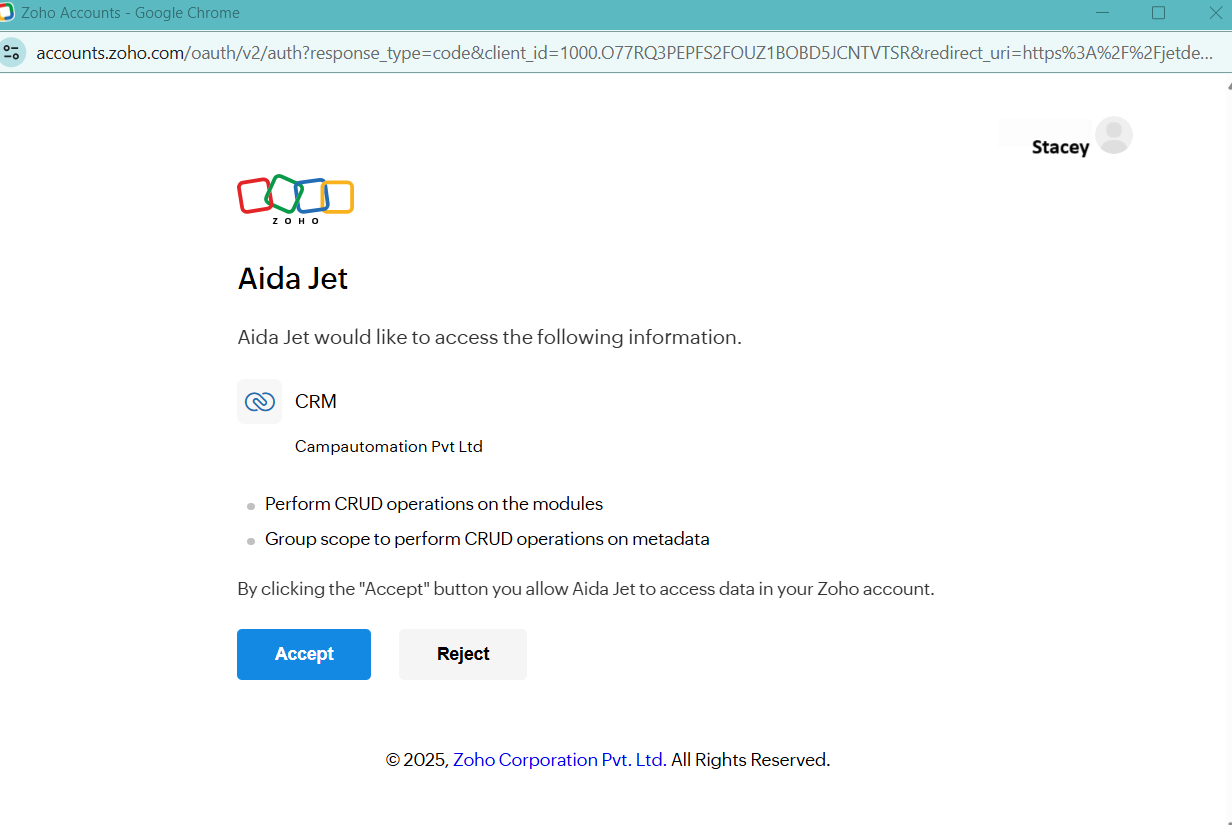
Step 2 : You are asked to Authorize Aida Jet connection to Zoho. Click on Accept.
Step3: Successful connection is confirmed. Close the pop-up screen and refresh the settings page to see the connection.
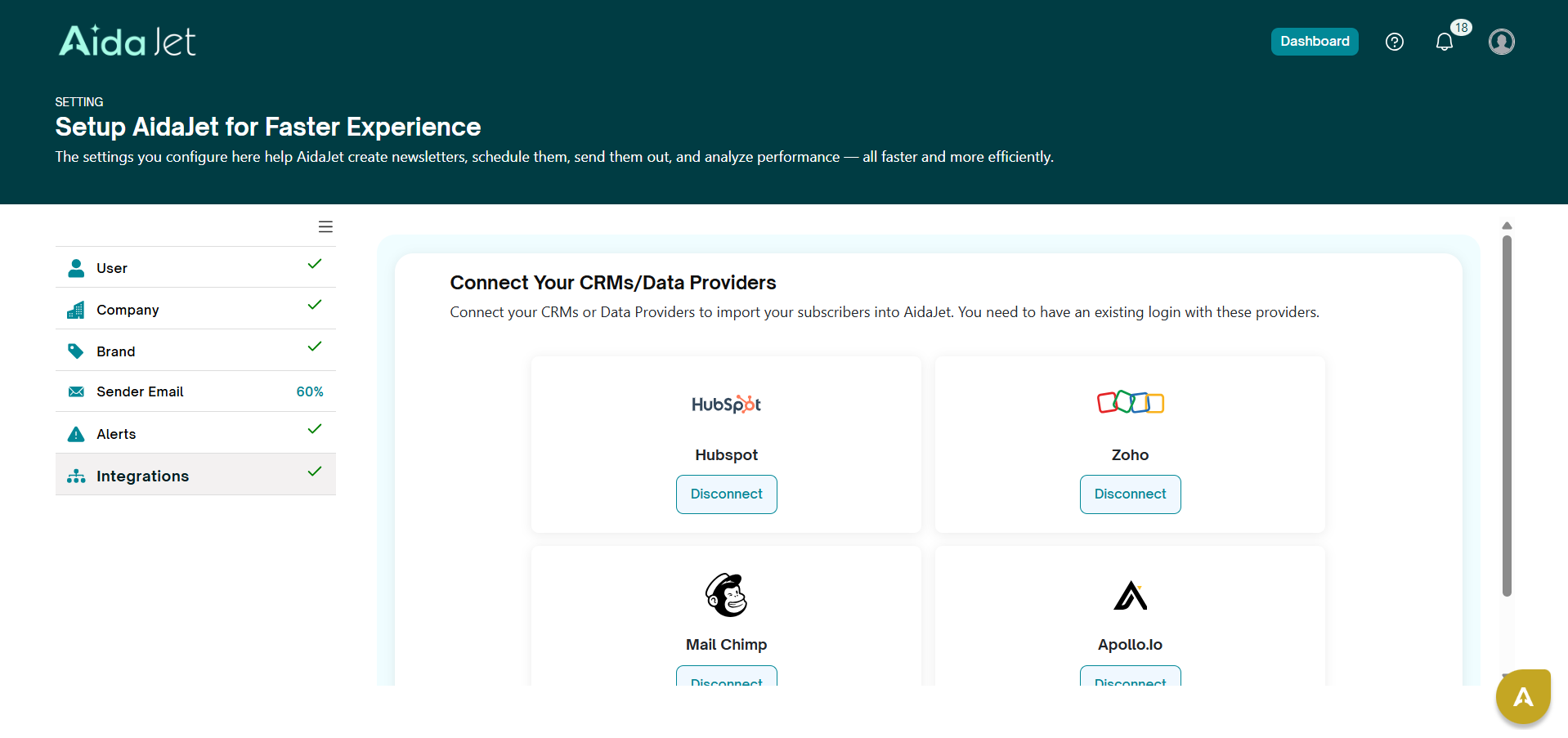
Mailchimp Integration:
Step1: Click on Connect button under MailChimp.
Connecting AidaJet to MailChimp screen appears. Sign-in to MailChimp account :
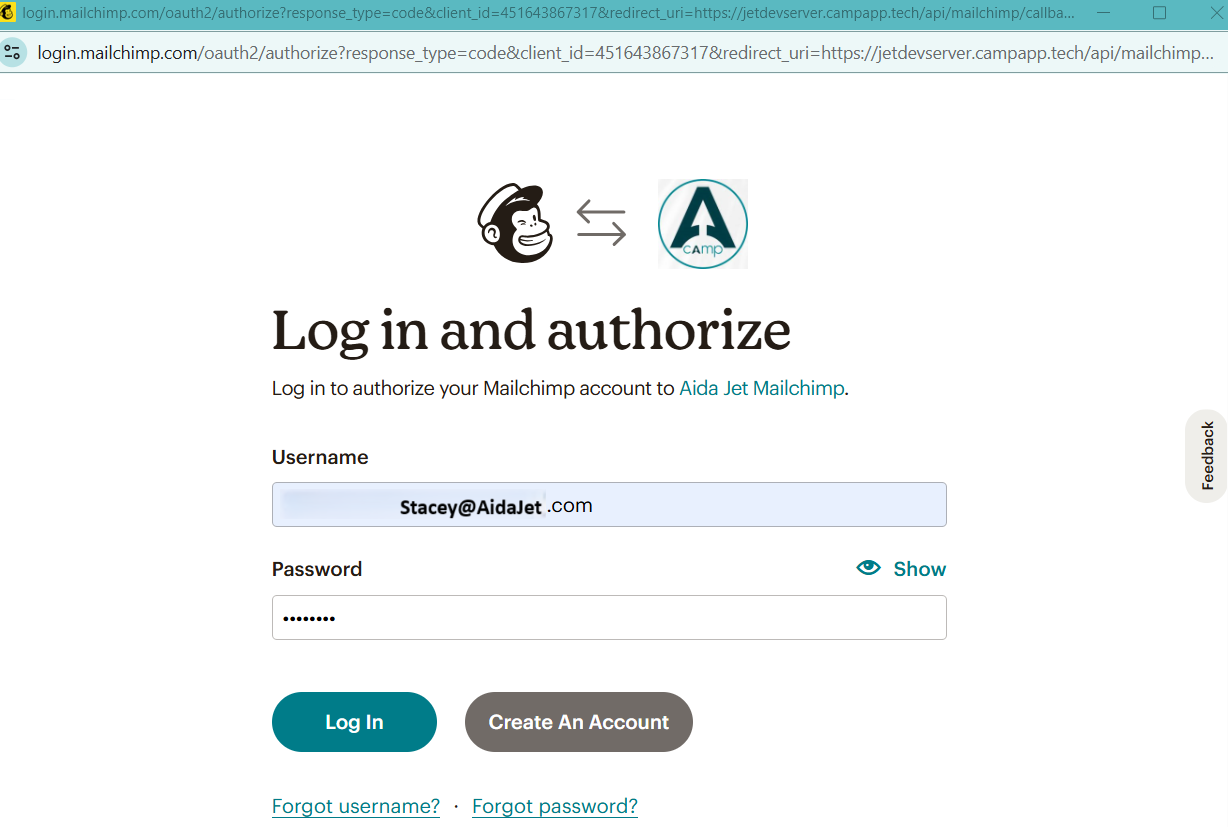
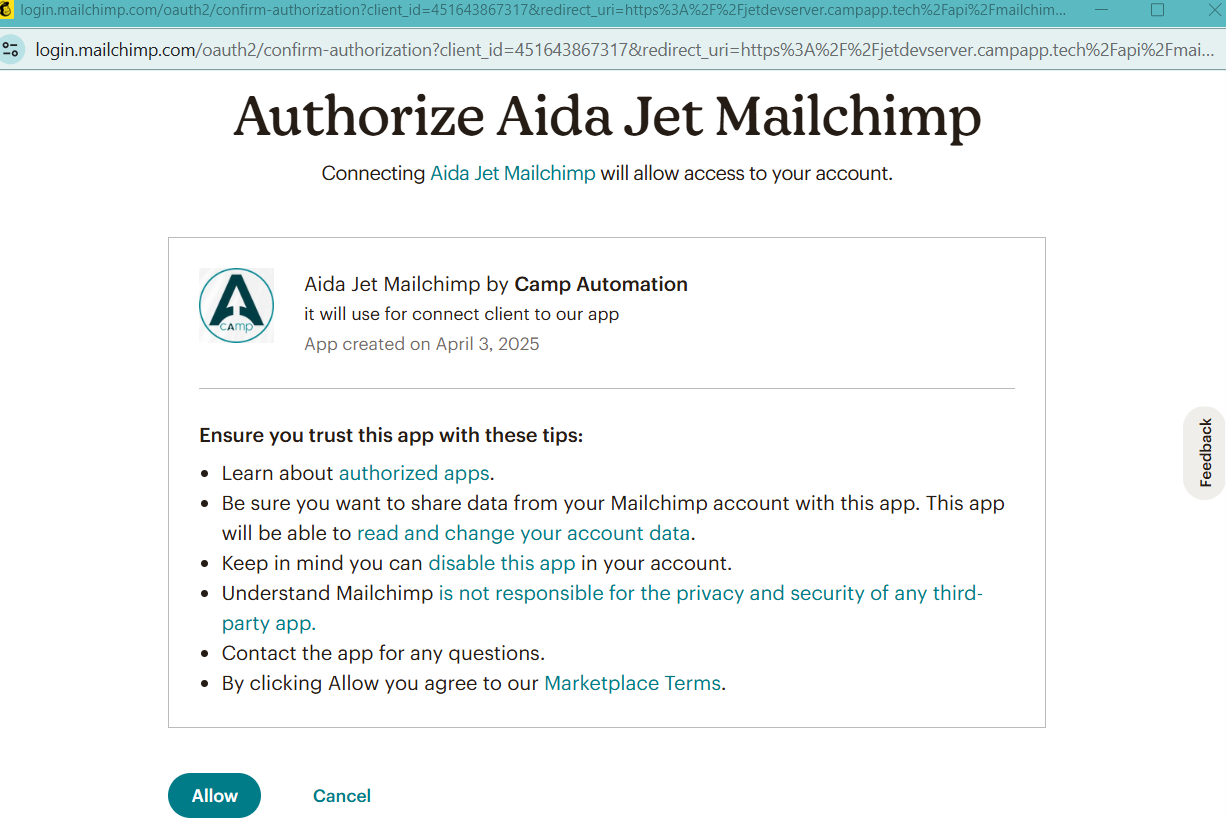
Step2 : You are asked to Authorize Aida Jet connection to Mailchimp. Click on Allow.
Step3: Successful connection is confirmed. Close the pop-up screen and refresh the settings page to see the connection.
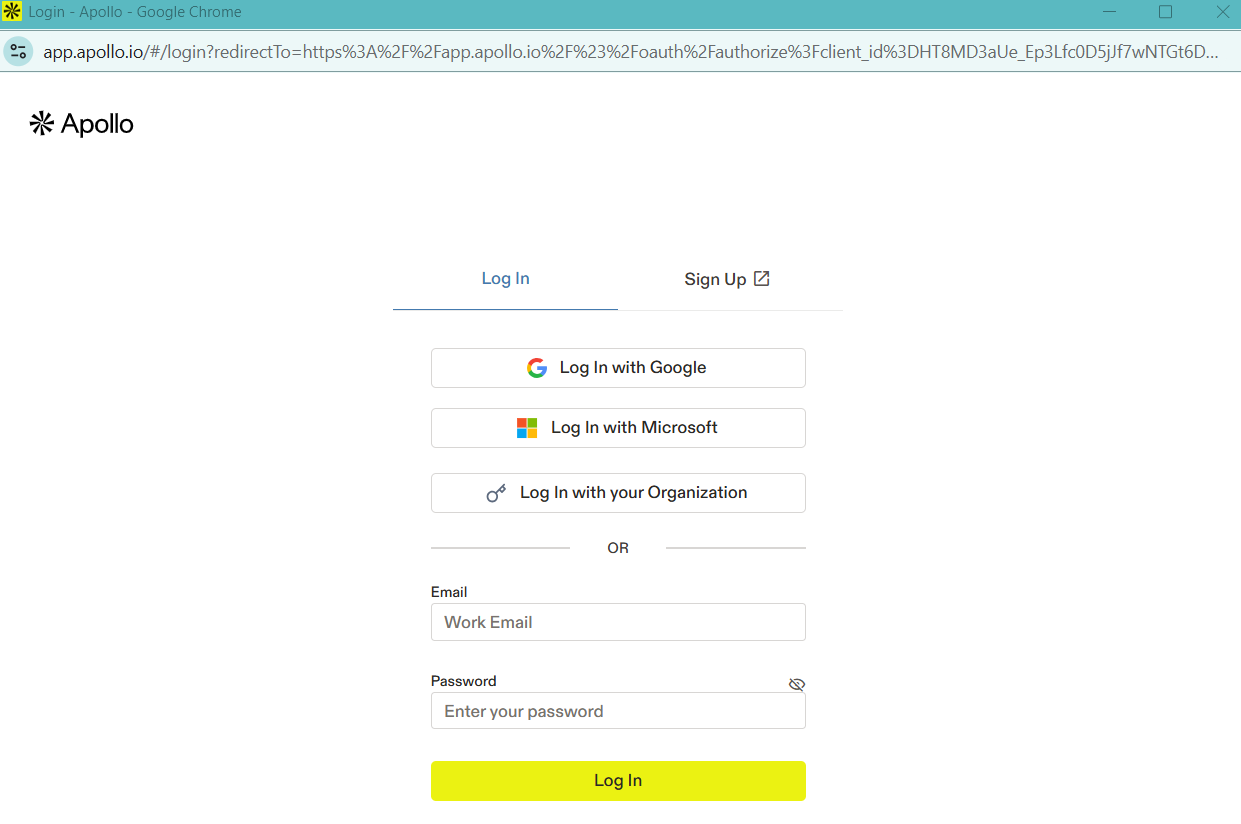
Apollo.io Integration:
Step 1:
Click on Connect button under Apollo.io.
Login to Apolloi.io screen appears. Sign-in to Apolloi.io account :
Step2:
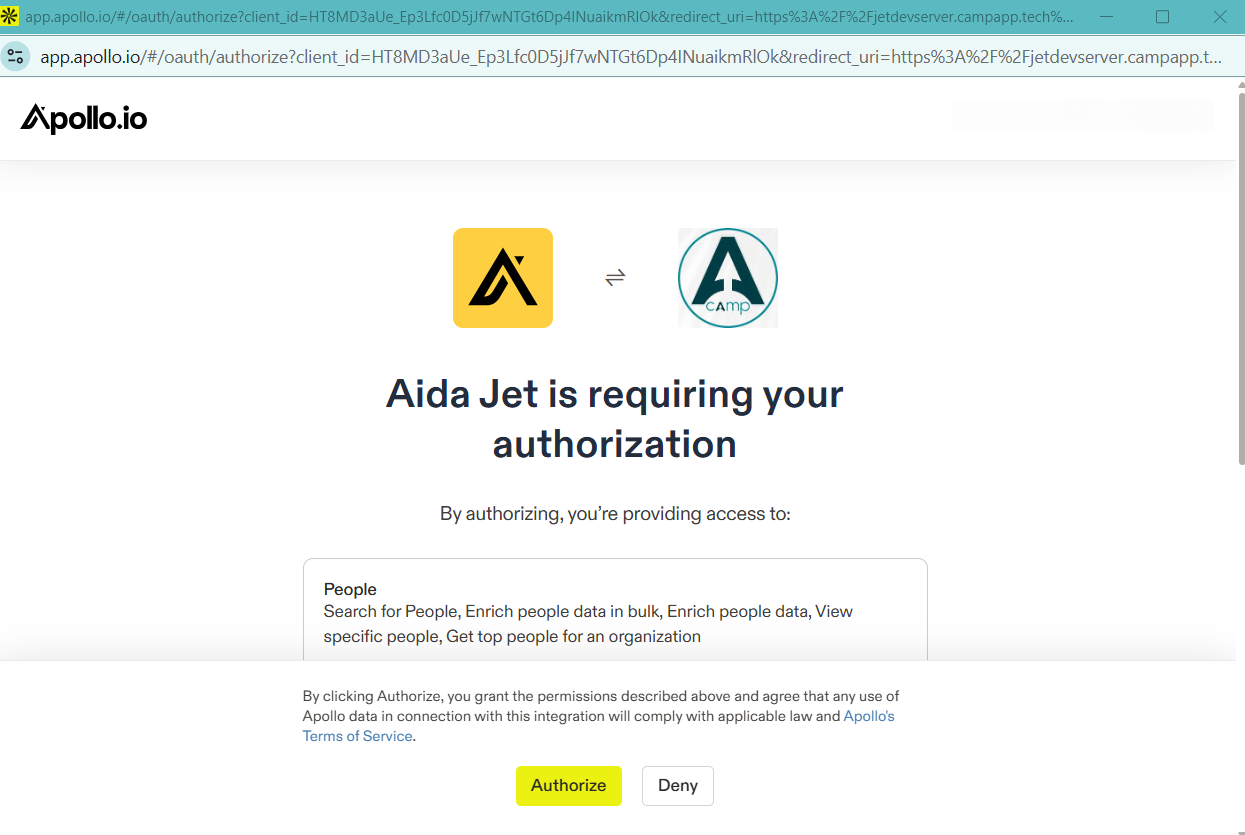
You are asked to Authorize Aida Jet connection to Apollo.io. Click on Authorize.
Step3: Successful connection is confirmed. Close the pop-up screen and refresh the settings page to see the connection.
Was this article helpful?
That’s Great!
Thank you for your feedback
Sorry! We couldn't be helpful
Thank you for your feedback
Feedback sent
We appreciate your effort and will try to fix the article