Quick AI Chat – Create a Newsletter in Seconds
The Quick AI Chat Creator lets you build a newsletter in just a few seconds through a simple, chat-based flow. It’s available in the Free, Basic, Pro, and Growth plans. Use this feature when you want to provide a few key details and quickly generate a newsletter draft.
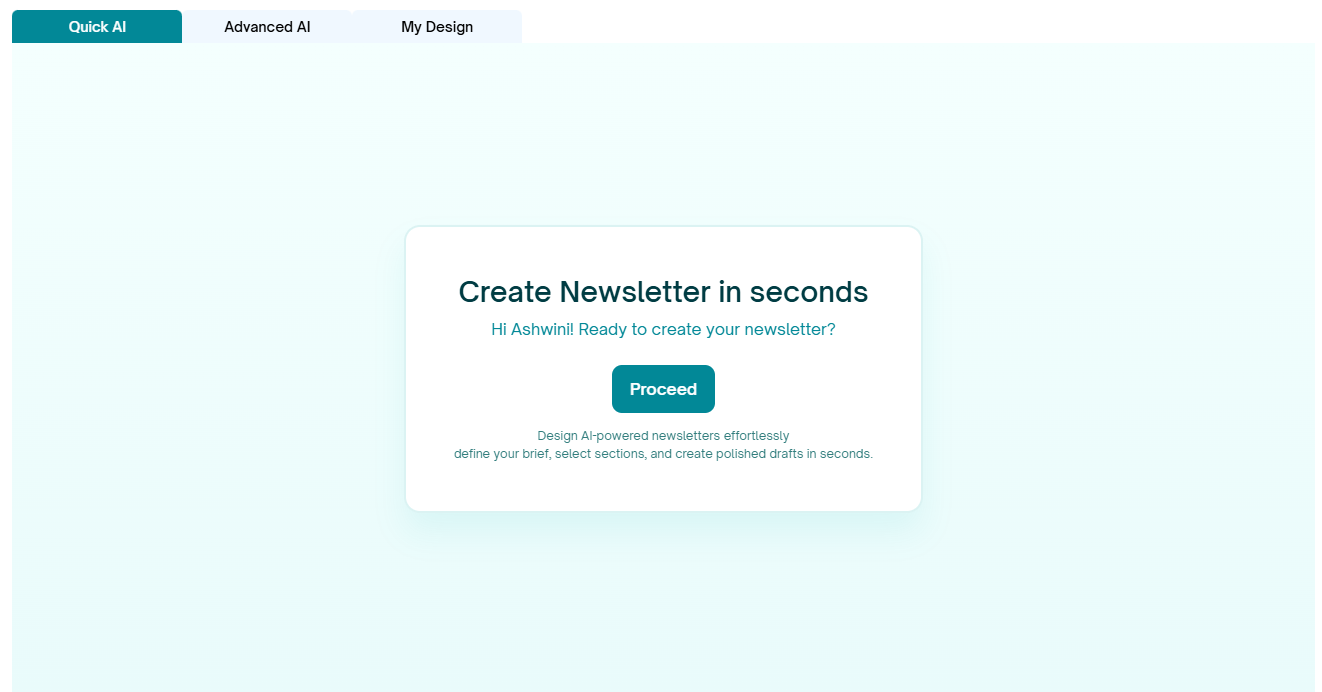
Steps to Use Quick AI Chat
1. Click Proceed → Opens the Quick AI chat window.
2. Provide a brief → Up to 100 words (e.g., “Announcing Aidajet launch with Free, Pro, and Growth plans”).
3. Select sections → Choose from options like:
Blogs/Articles, Promotions/Offers, Company Updates, News/PR, Case Studies/Testimonials, Other, Season Greetings, Event Announcement
4. Choose tone → Examples: Professional, Friendly, Conversational, Playful, Persuasive, Neutral.
5. Review summary → Chatbot shows your chosen brief, sections, and tone.
6. Confirm generation → Click Yes, create.
7. Newsletter generated → Instantly get a draft you can edit, customize, and finalize.
✅ That’s it! With Quick AI Chat, your newsletter is ready in just a few interactions.
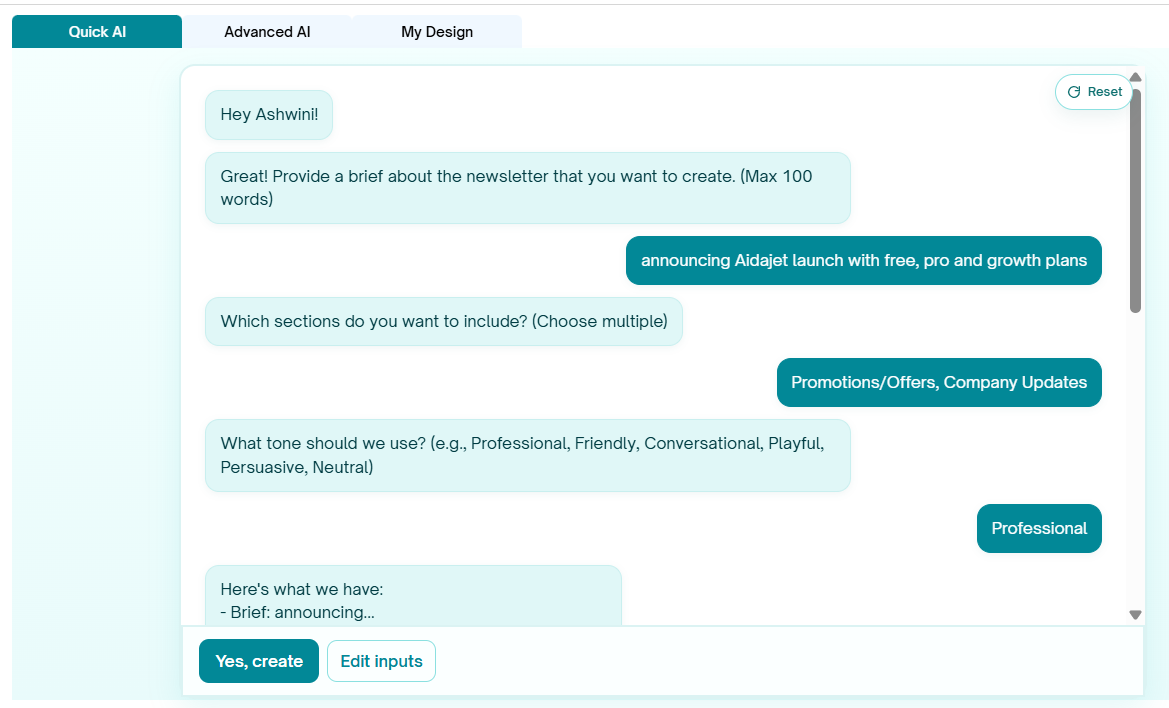
Example Conversation:
Chatbot: Hey Ashwini!
Great! Provide a brief about the newsletter that you want to create. (Max 100 words)
You: announcing Aidajet launch with free, pro and growth plans
Chatbot: Which sections do you want to include? (Choose multiple)
Promotions/Offers
Company Updates
Chatbot: What tone should we use? (e.g., Professional, Friendly, Conversational, Playful, Persuasive, Neutral)
You: Professional
The chatbot summarizes your choices before generating:
Brief: announcing Aidajet launch with free, pro and growth plans
Sections: Promotions/Offers, Company Updates
Tone: Professional
- Confirm with Yes, create.
The AI instantly drafts your newsletter based on your inputs.
You can then edit, customize, and finalize your content before sending.
Next --- > Newsletter Editor
Was this article helpful?
That’s Great!
Thank you for your feedback
Sorry! We couldn't be helpful
Thank you for your feedback
Feedback sent
We appreciate your effort and will try to fix the article