You will reach the newsletter editor in three ways, either through Quick AI, Advance AI or My Design.
The newsletter editor offers several options in the header to customize and finalize your newsletter:
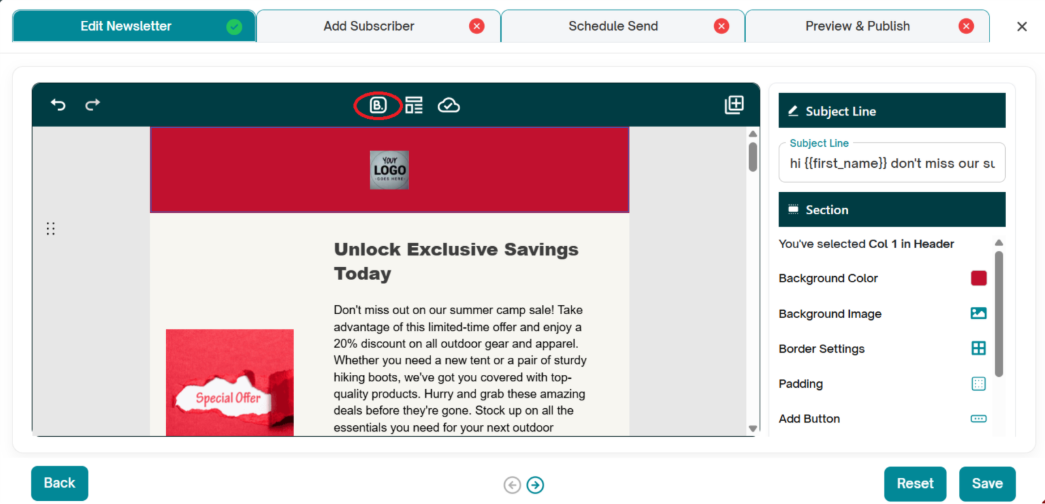
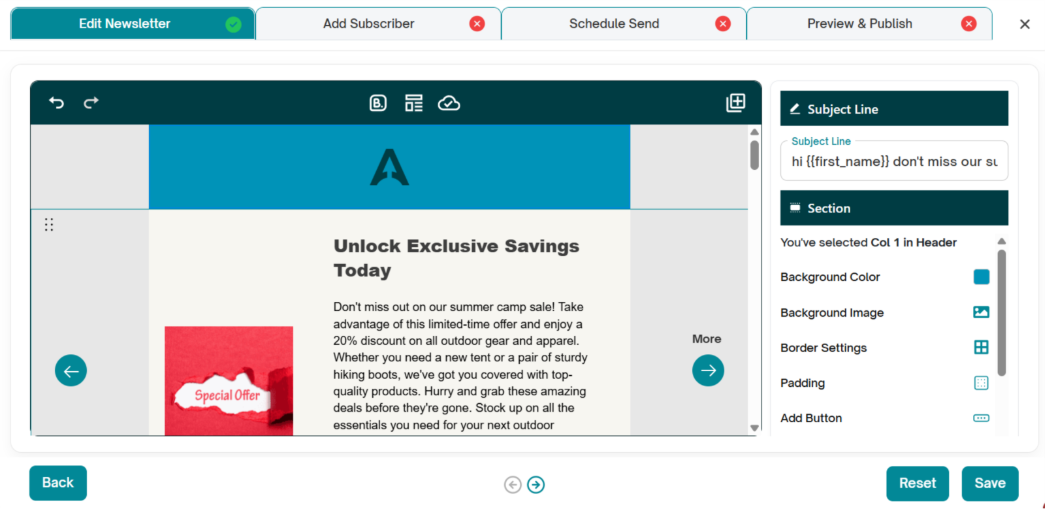
1. Apply Brand Settings – Ensure your newsletter aligns with your brand’s style.
- Update the company's brand color ,font and logo under settings.
- Click on the Apply brand settings option in the editor.
- The newsletter will change the background color and section color to reflect the brand colors.
- The newsletter font will change to the brand font.
- The header will update with the company logo.
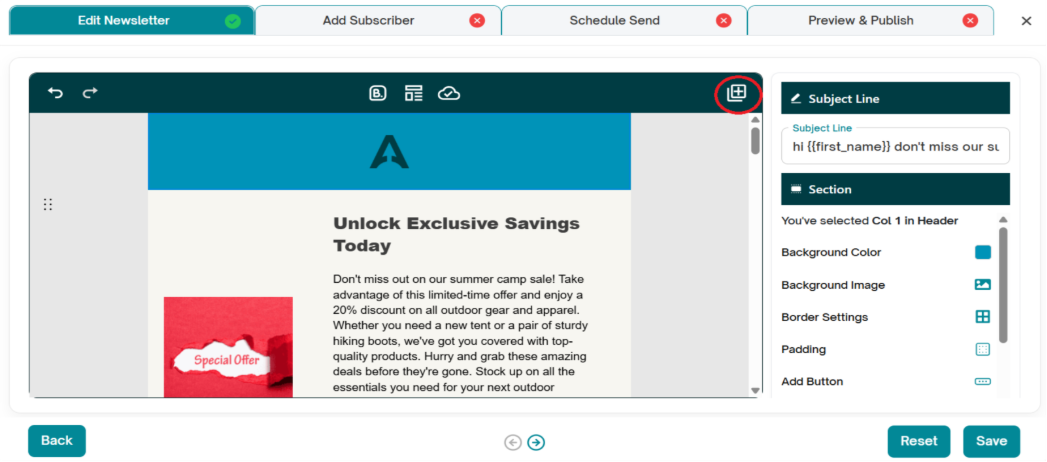
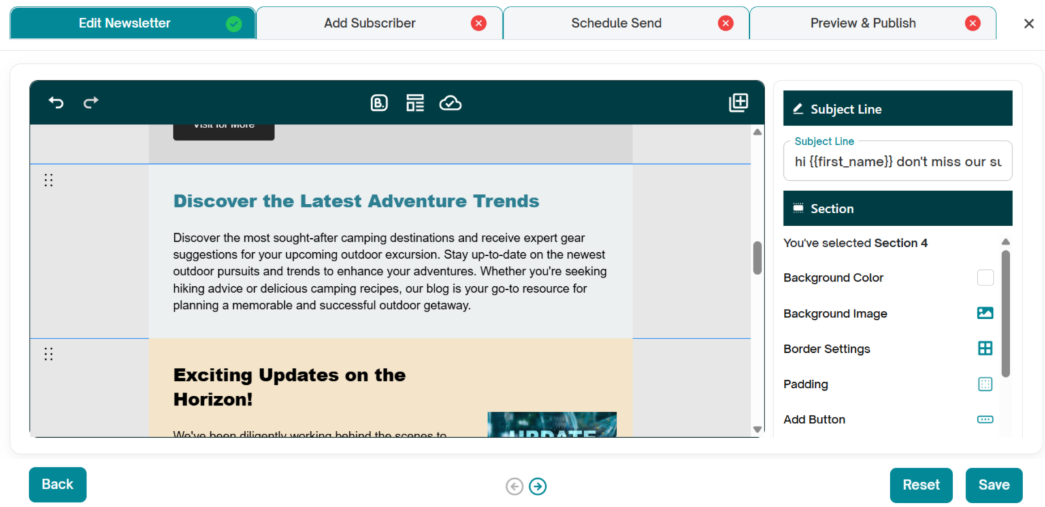
2. Add Section – In case you have missed adding a section while creating the newsletter, you can insert additional content sections as needed.
1. Click the plus (+) icon in the upper-right corner.
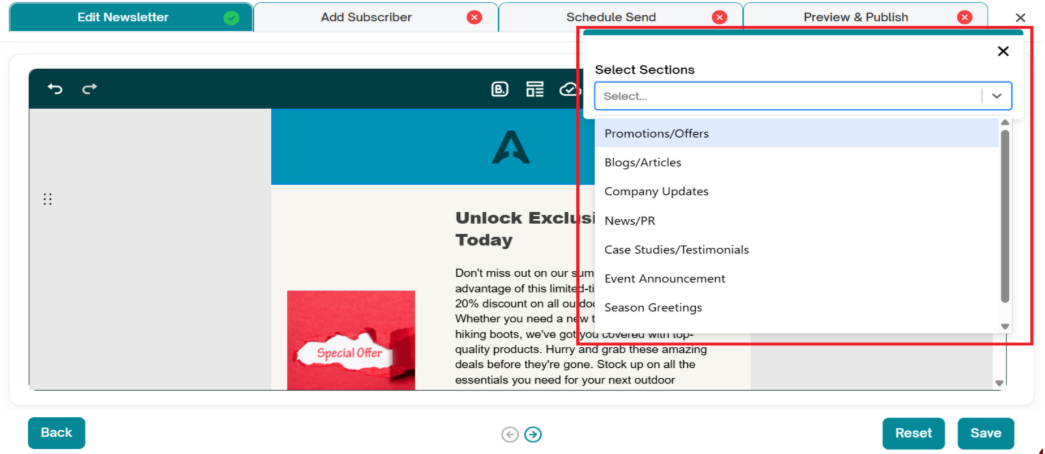
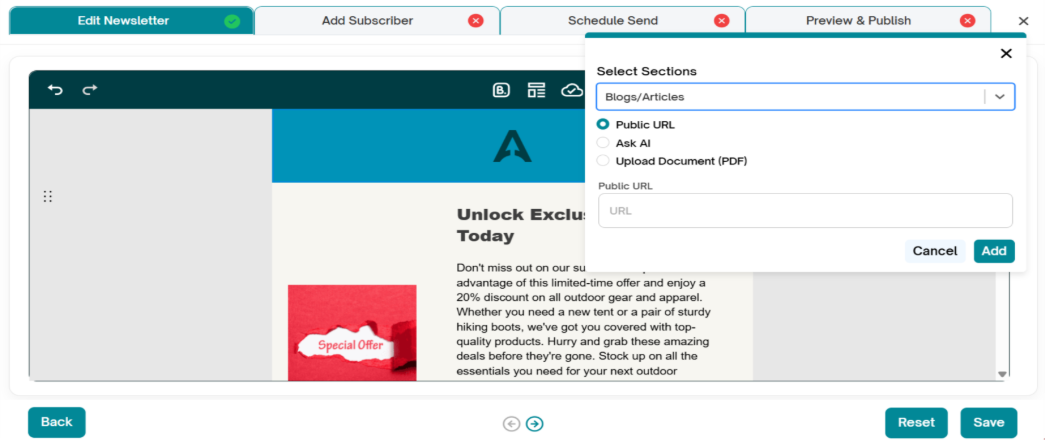
2. A dropdown with all available sections will appear.
3. Select the required section. The Content Source section will appear.
4. Choose the required content source. (In this example, we selected Ask AI.)
5. Enter the required three keywords, Public URL or Upload a PDF.
6. Click Add.
7. The section will be added to the newsletter.
3. My Designs
Use this option to apply your previously saved newsletter designs to the newsletter.
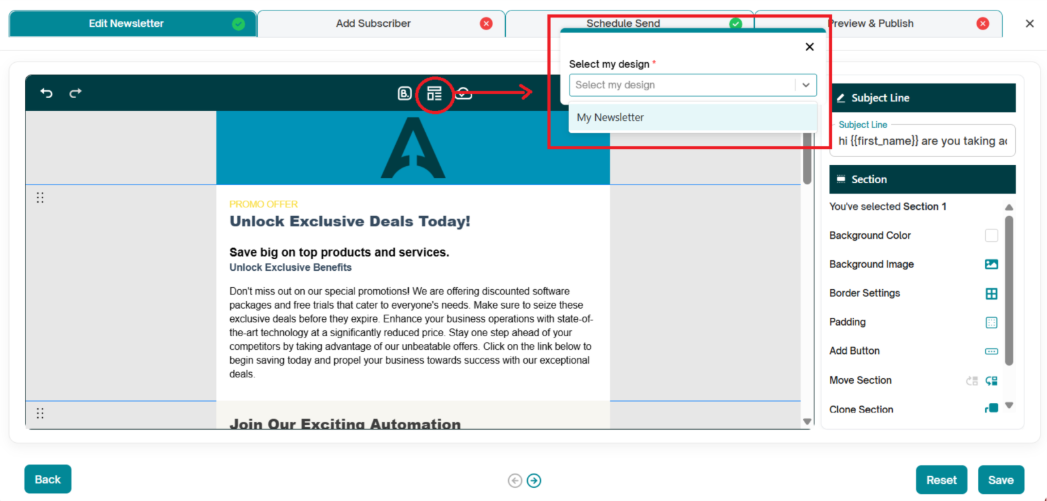
- In the editor, click on the My Design icon.
- The Select My Design dropdown will appear.
- Choose a previously saved newsletter design to apply to your current newsletter.
- An Update pop-up will appear—click Update.
- The newsletter will update to reflect the selected design’s colors, fonts, and other settings.
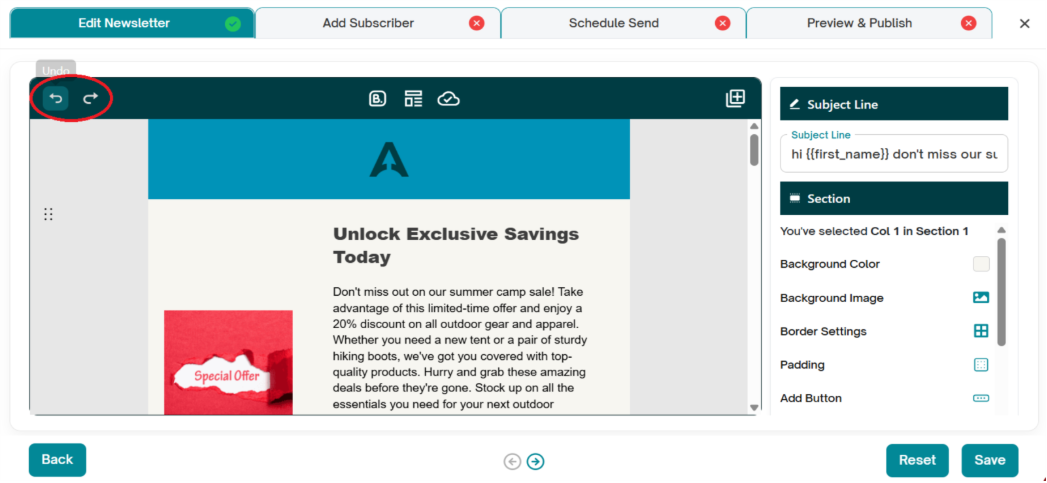
Undo/Redo – Use these buttons to easily revert or redo recent changes.
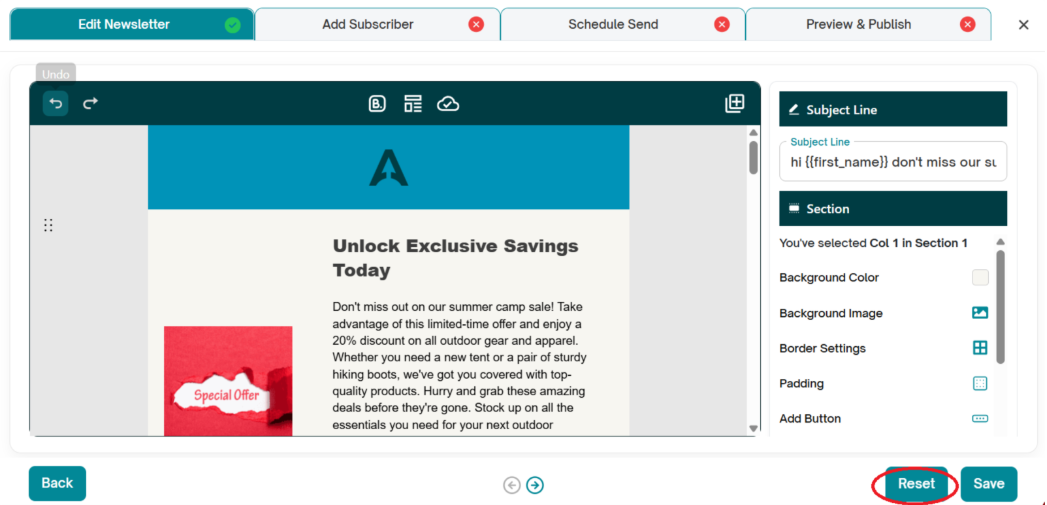
5. Reset design - Use this option to discards all unsaved changes and restores the newsletter to the last saved version.
6. Close editor
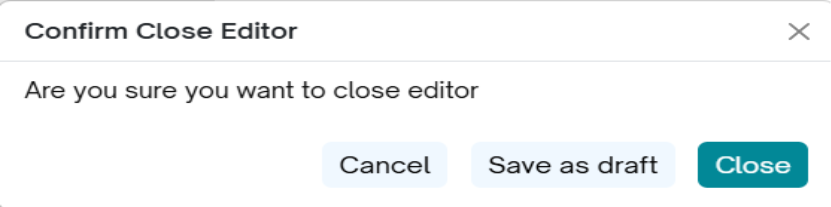
- Click the X icon in the upper-right corner of the screen to exit the editor.
- A confirmation message will appear asking you to choose an action before closing.
- Click Save as Draft to save your changes and return to the series flow screen.
- Click Close to exit without saving changes and return to the series flow screen.
7.Back Button
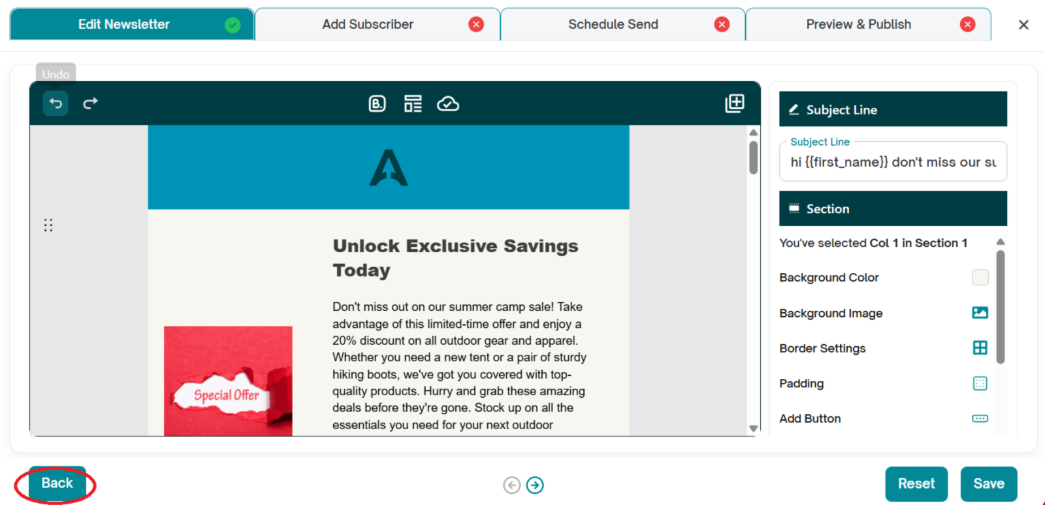
The Back button allows you to discard all the changes made in the editor return to the Topics screen.
1. Click back button
2. A confirmation message will appear.
3. Select Discard to confirm.
Once confirmed, the editor will close and you will be redirected to the Topics screen.
Important: All unsaved changes will be permanently discarded. Make sure to save your work before using the Back button if you want to keep your edits.
Top Pane of the Editor
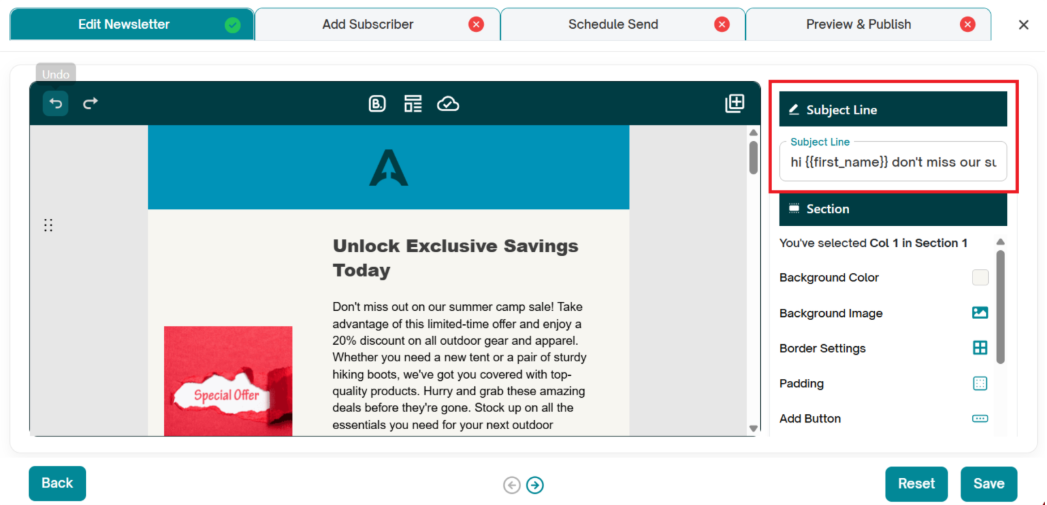
The top pane of the editor is divided into four key sections:
- Edit Newsletter - Edit and customize your AI-generated newsletter before publishing.
Add Subscribers - Add subscribers using multiple available methods.
Schedule Send – Schedule the newsletter time and date ,select the sender email, PDF download and share links.
Preview & Publish – Preview the newsletter, send a test email, view the web version, download the PDF and publish the newsletter.
Edit Newsletter
AI Subject Line:
- The Subject Line is one of the most important elements of your newsletter. AidaJet AI automatically generates a subject line designed to maximize engagement.
- Review the AI-generated subject line.
- Check the Subject Line Score to see how effective it is.
- If required, make changes to improve clarity, tone, or relevance.
Tips for Writing Effective Subject Lines
- Keep it short and clear – Aim for 6–10 words for better readability across devices.
- Use action-oriented language – Words like Discover, Learn, or Don’t miss grab attention.
- Personalize when possible – Adding a name or context increases engagement.
- Avoid spam triggers – Steer clear of excessive punctuation, ALL CAPS, or spammy terms like Free or Guaranteed.
- Create curiosity – Use intriguing phrasing to encourage opens without misleading readers.
Understanding Your Subject Line Score:
- Click on the Score button.
- The Subject Line Score Card will appear.
- Review the following metrics:
- Overall Score : Aidajet evaluation of how effective your subject line is.
- Reading Grade Level – Indicates how easy your subject line is to understand.
- Scanability – Measures how quickly your subject line can be read and recognized in an inbox.
Use these insights to refine your subject line and improve your newsletter’s open rates.
Sections:
The newsletter is structured into three main sections: Header, Topic Sections, and Footer. Each section comes with the following options:
- Edit – Modify the content and design of the section.
- Delete – Remove the section if it’s not needed.
- Left/Right Arrows – Scroll through different section designs that Aida Jet has generated for you.
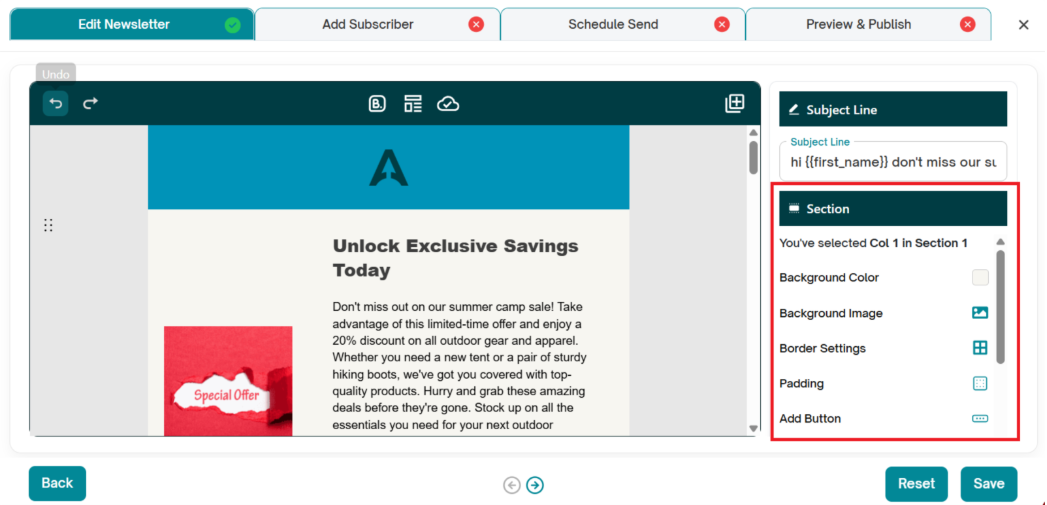
Section Selection:
Review each newsletter section carefully.
Use the scroll arrows to navigate and select the appropriate section.
Approve the design you prefer for each section.
Repeat this process for all sections until your newsletter is finalized.
Edit a section’s content:
Select the section you want to modify.
The left panel will update to show edit options.
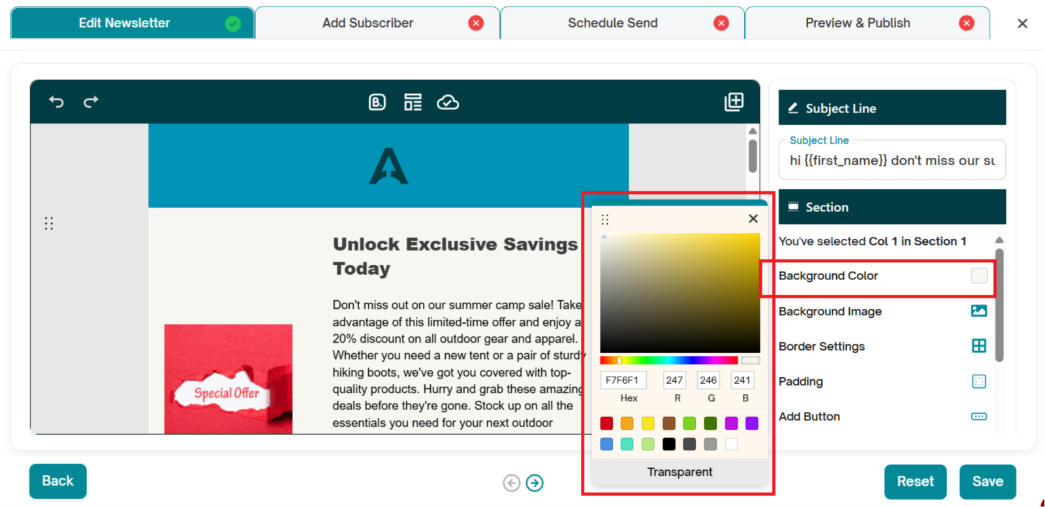
1. Background Color
Click the Color Icon to open the color picker.
Choose a color from the palette or enter a specific hex code to match your brand colors.
The background color will update instantly, allowing you to see how it looks with your newsletter content.
Consider contrast and readability when selecting a background color to ensure text and images remain clear.
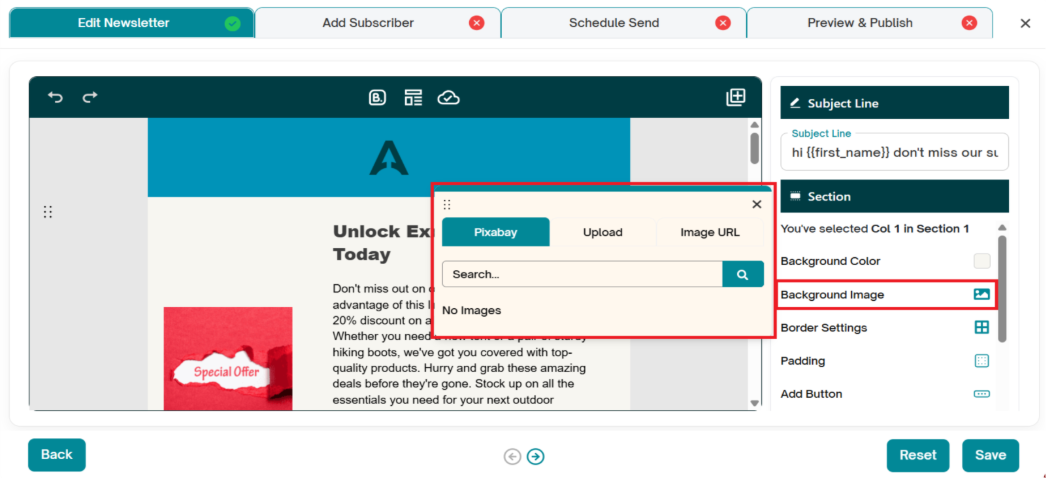
2. Background Image - Within a section, you can also change the Background Image or Content Background Image by toggling between these options. Image upload has three option:
1. Pixabay
2. Upload
3. Image URL
1. Pixabay Integration– Search for images directly from Pixabay:
- Enter a keyword to find relevant images.
- Click on an image to preview it.
- Scroll down to view the selected image.
- Click Import to add the image to Aida Jet.
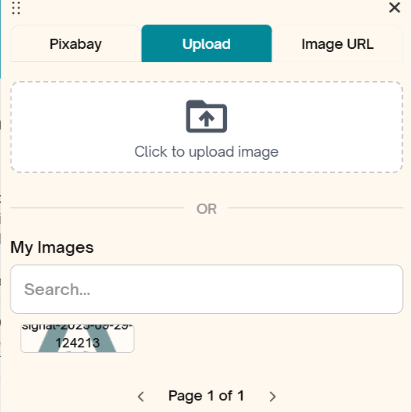
2. Upload from Device–
- Click on the Upload tab.
- Select an image from your device.
- The uploaded image will be applied to the background or content background as chosen.
3. Use an Image URL–
- Click on the URL tab.
- Enter the image URL.
- Click Get to import the image into Aida Jet.
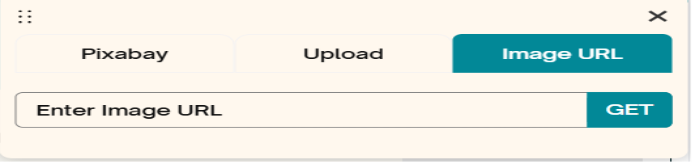
Once imported, the image will be displayed based on your selected setting (background or content background).
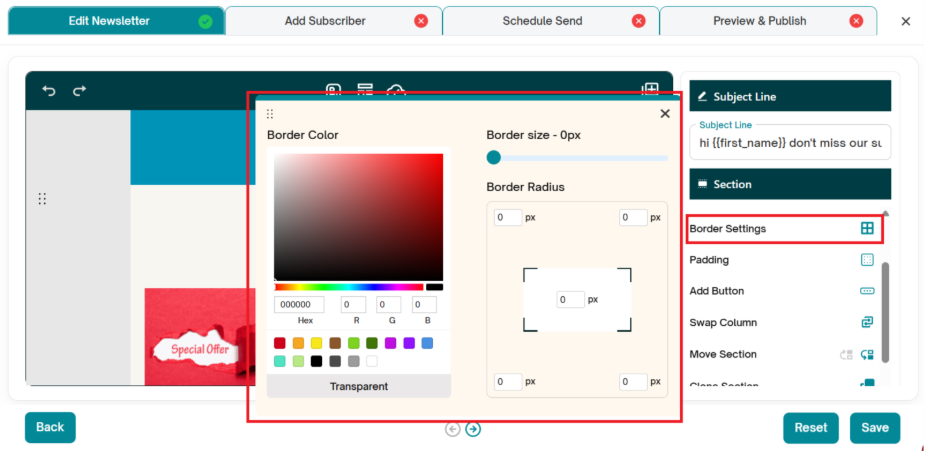
3. Border Settings - Customize the border of the section
Border Color -Choose your border color using the color picker, HEX code, or RGB sliders. You can also select from preset swatches for quick styling.
Border Size-Use the slider to adjust the border thickness from 0px upwards. A higher value makes the border more visible.
Border Radius - Set rounded corners using the border radius fields for each corner (top-left, top-right, bottom-right, bottom left)
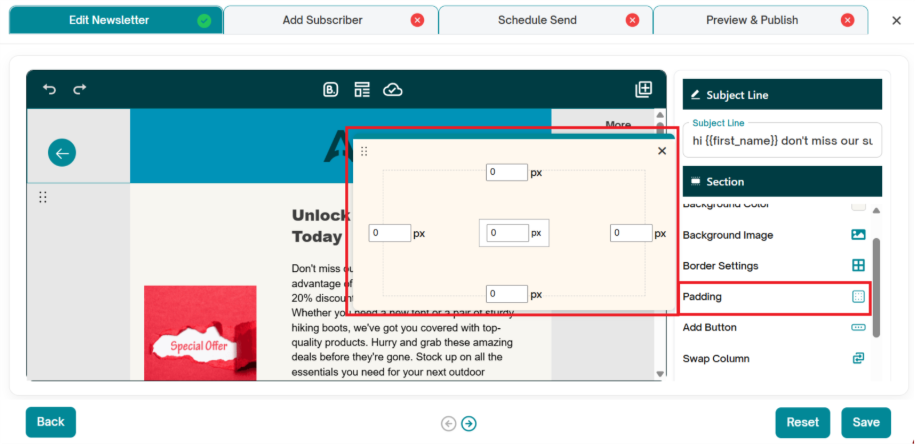
4. Padding
For all sides – Use the up arrow and down arrow buttons to increase or decrease padding uniformly.
For individual sides – Adjust the top, bottom, left, and right padding separately.
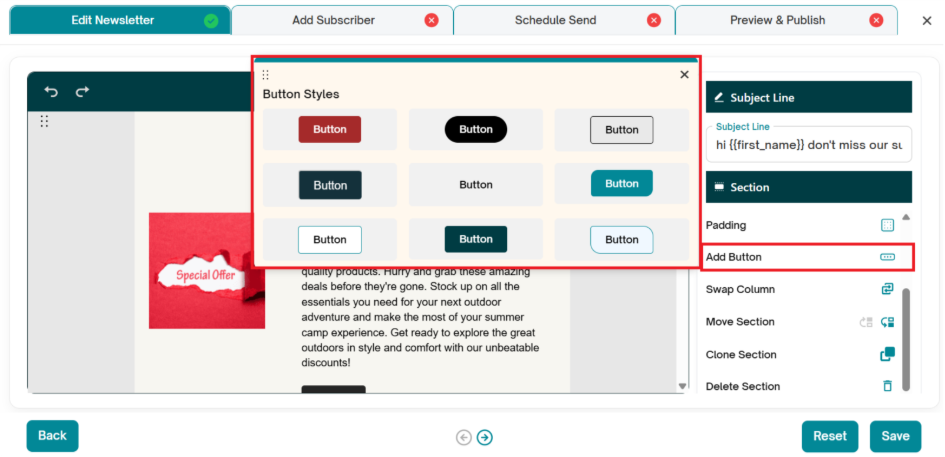
5. Add Button
Click Add Button to insert a clickable button into your section or content block.
A variety of pre-designed button styles will appear for selection. Once you choose a style, the button is added to your section.
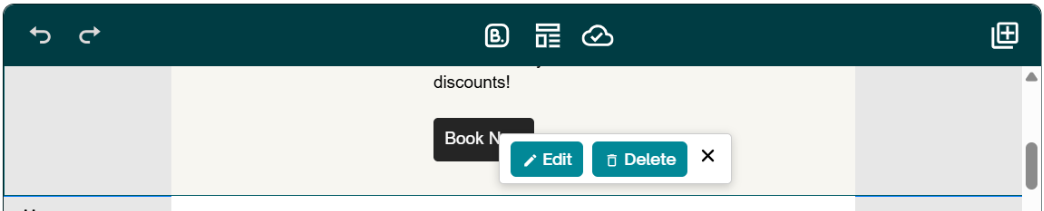
1. Edit the button:
- Click on the button to get the Edit or Delete option.
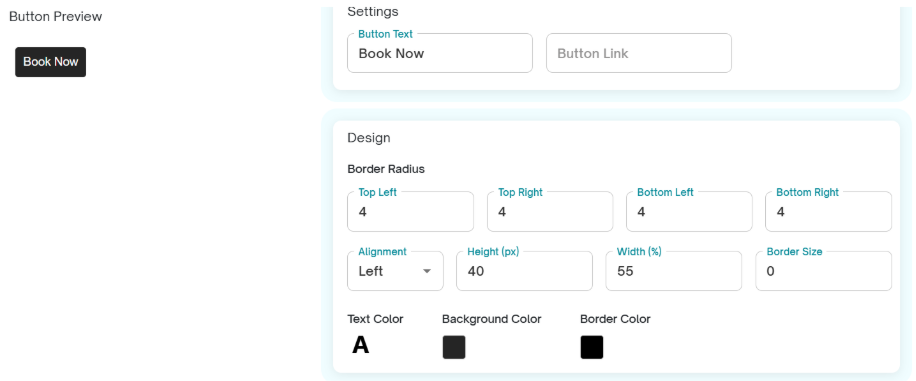
- Click on Edit to open the customization panel.
- Change the button text, add a link, and style the button fully.
- Customization options include border style, color, size, radius, and alignment.
2. Delete the button:
- Click on the button to get the Edit or Delete option.
- Click on Delete option.
- Confirm to delete the button.
Note: Preview your newsletter to ensure the button looks visually appealing and functions as intended across devices.
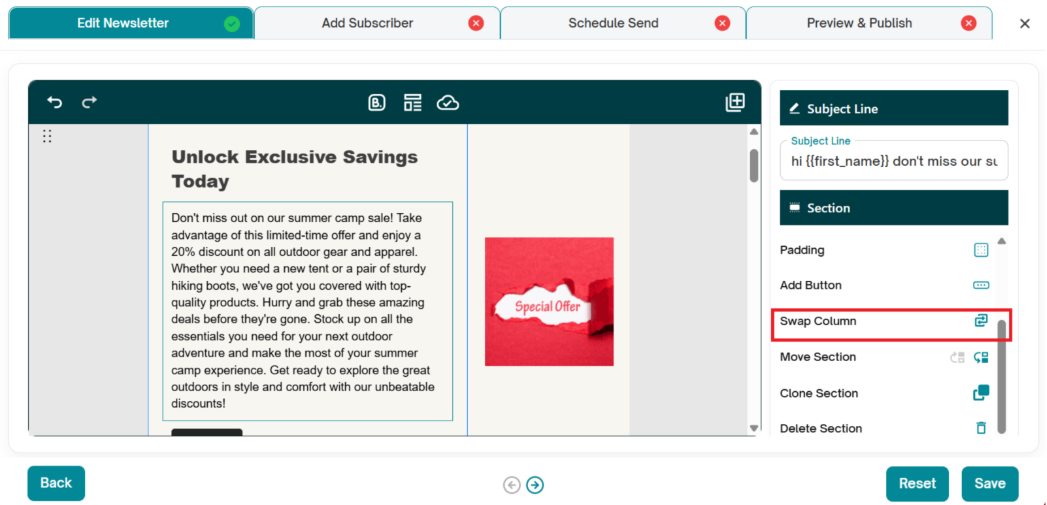
6. Swap Column:
The Swap Column feature allows you to switch the position of columns within a section.
This is particularly useful for sections that have two columns or more, enabling you to quickly rearrange content without manually dragging individual elements.
To use:
- Click the Swap Column icon on the left hand side.
- The columns will immediately switch places, updating the layout.
Use this feature to adjust visual flow, emphasize important content, or improve the design balance of your newsletter.
Preview your newsletter to ensure the new column arrangement looks good on both desktop and mobile views.
7. Delete Section
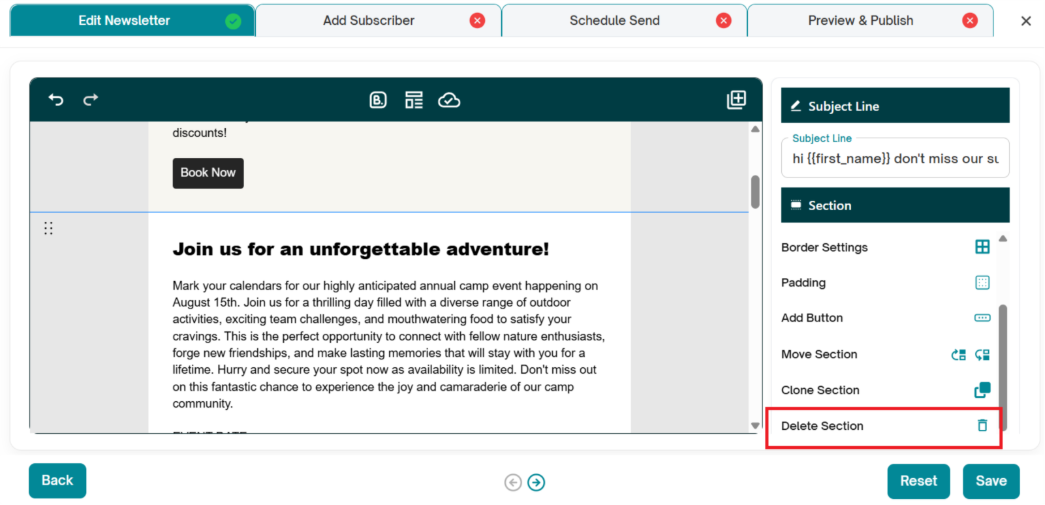
The Delete Section feature allows you to remove the selected section from your newsletter.
To delete a section , click the section you want to delete and click on Delete Section icon.
Important: Header and footer sections are permanent elements of the newsletter layout and cannot be deleted.
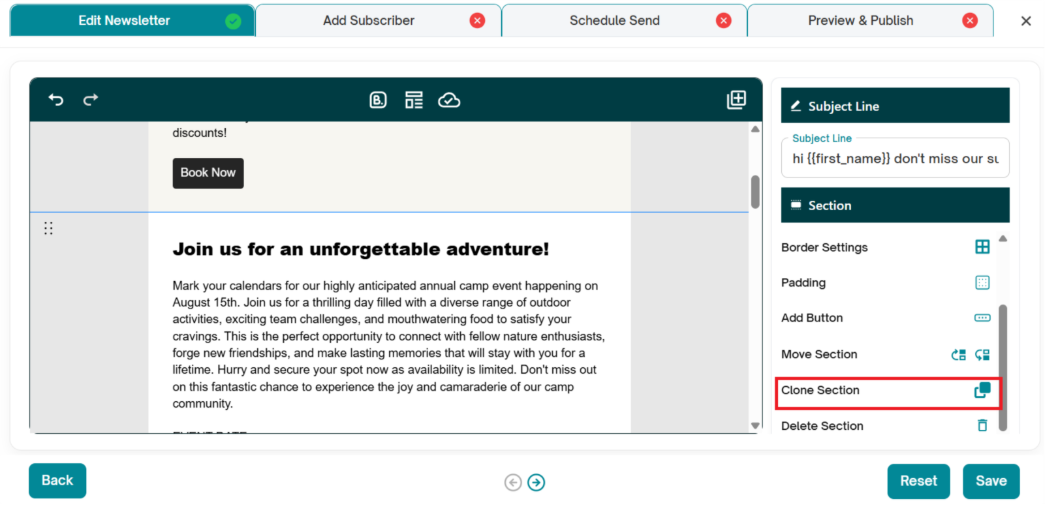
8. Clone Section
The Clone Section feature allows you to create an exact copy of an existing section in your newsletter.
To use:
- Select the section you want to duplicate.
- Click the Clone icon.
- A new section identical to the original will be created directly below it.
- You can then edit the cloned section independently—adjust text, images, or design elements without affecting the original.
- This feature is especially useful when you want to maintain a consistent layout or reuse a design pattern across multiple sections.
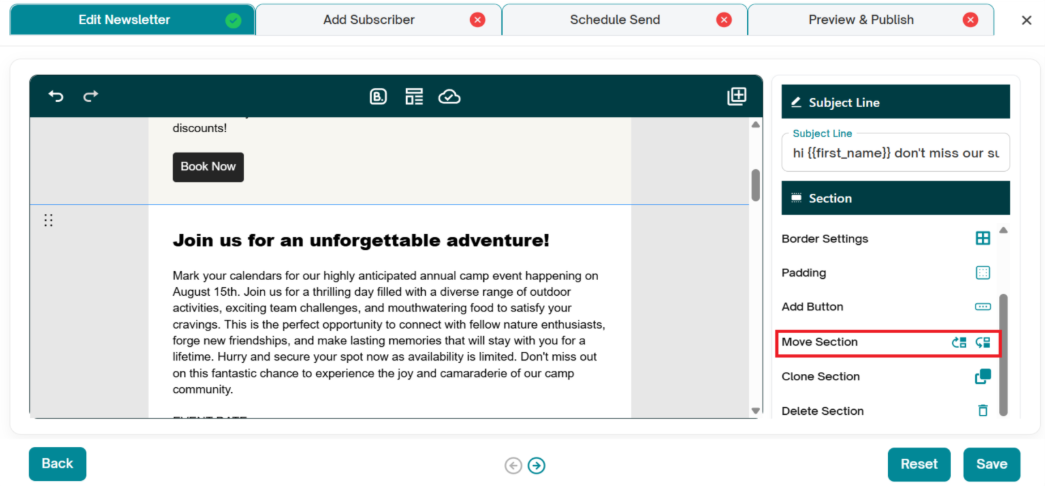
9. Move Section
The Move Section feature allows you to reposition an entire section within your newsletter layout.
To use:
- Select the section you want to move.
- Click the Move Up or Move Down icon to shift the section accordingly.
The section will be repositioned in the newsletter flow without altering its content or design.
Note: Header and footer sections are permanent elements and cannot be moved.
Use this feature to organize content in a logical order, highlight important information, or refine the overall layout of your newsletter.
Text editing options:
To edit text in a section, simply click on the text to display the text editing options. You can:
- Format Text – Bold, italicize, or underline text.
- Change Colors – Modify text color and background color.
- Add or Remove Links – Insert hyperlinks or remove existing ones.
- Use Merge Tags– Personalize content by inserting:
- First Name
- Last Name
- Email ID
- Change Fonts – Select from available font options.
- Padding– Adjust the spacing around the content.
- Generate AI Content–
- Click Ask AI to open a text box.
- Enter a prompt to guide AI in generating content.
- Click Generate, and the AI-generated text will appear in the section where the cursor is placed.
This allows you to quickly customize and enhance your newsletter content. Make your changes as needed, and the section will update in real-time.

2. Add Subscribers
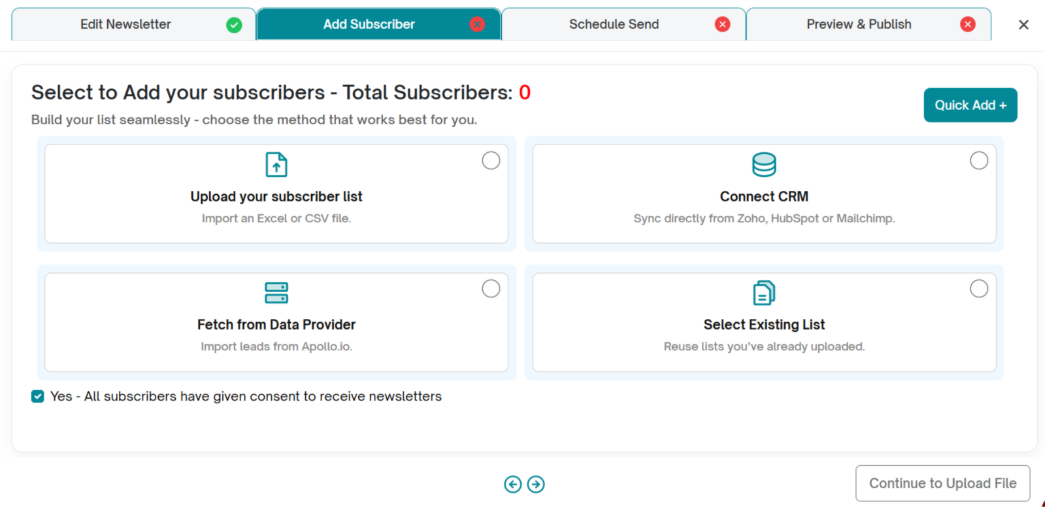
To upload your subscribers, click the "Add" button. The different ways to upload your list will be displayed in a pop-up:
- Quick Add allows you to add individual subscribers quickly and easily by clicking on the quick add button.
- Upload a CSV file with your own subscriber data (Upload Your Subscriber List)
- Import from Zoho CRM, HubSpot or Mailchimp (Connect CRM)
- Purchase a list from Apollo.io (Fetch from Data Provider)
- Select subscribers from a previously uploaded list (Select Existing List)
3. Schedule Send
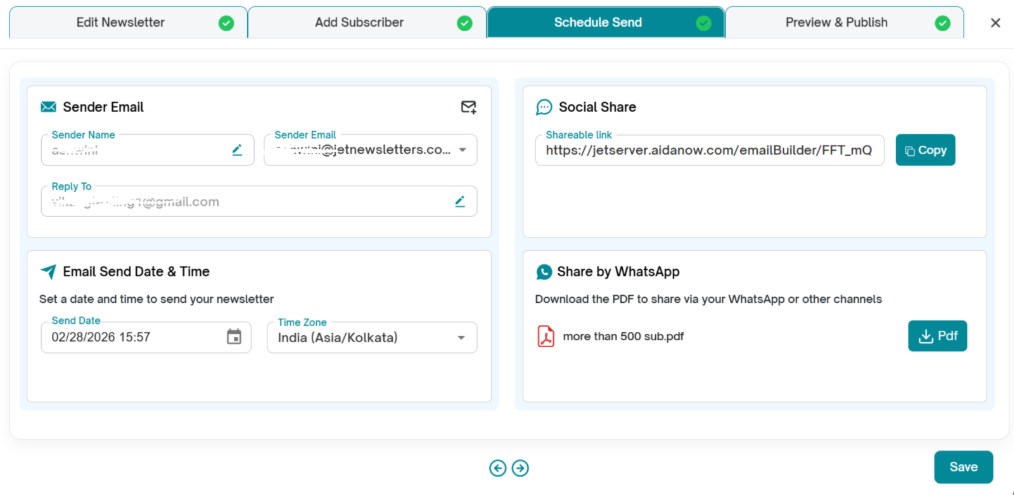
1. Sender Details
When you create your AidaJet account, the system automatically generates a sender email address using your information. By default, this address is set to the jetnewsletters.com domain.
Managing Sender Email Addresses:
- Click the dropdown under Sender Email.
- Select the second email address (if available) .The sender details will update accordingly.
- If you don’t have a second sender email address, click the plus (+) sign to add one.
- The Settings screen will open, allowing you to add and configure the new sender email address.
2. Email Send Date & Time
AidaJet allows you to schedule your newsletter by selecting the send date, time, and time zone. This ensures your newsletter is delivered to subscribers at the intended time, regardless of their location.
3. Social Share
AidaJet allows users to share newsletters on social media by copying a shareable link. This link can be posted on platforms such as LinkedIn, Facebook, or X, enabling viewers to access the newsletter online.
4. Share via WhatsApp
Users can download the newsletter as a PDF and share it directly through WhatsApp or other messaging channels, making it easy to distribute content outside of email.
4. Preview & Publish
The Preview & Publish section allows users to review and validate the newsletter before publishing.
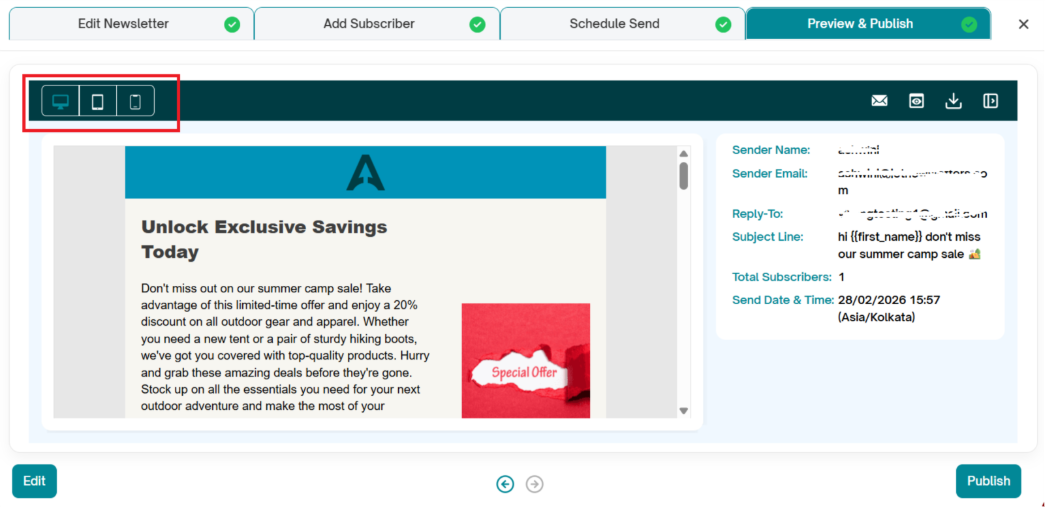
Top-Left Pane – View Modes
Users can preview the newsletter in Desktop (Chrome), Tablet, and Mobile views. This helps ensure the newsletter displays correctly across different devices.
Top-Right Pane – Actions
- Send Test Mail: Sends a test email to verify content, layout, and delivery before publishing.
- Open in New Tab: Opens the web view of the newsletter in a new browser tab.
- Download PDF: Downloads the newsletter as a PDF, which can be shared through external messaging platforms.
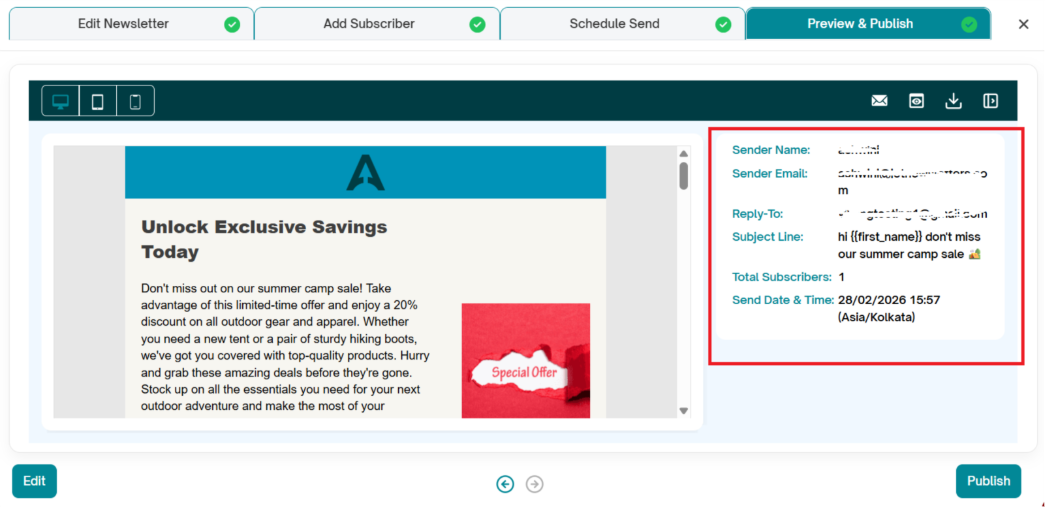
Right Pane – Newsletter Details
The right pane displays key details such as Sender Name, Sender Email, Reply-To address, Subject Line, Total Subscribers, and Send Date & Time.
This section helps editors quickly identify any missing or incomplete information required to publish the newsletter.
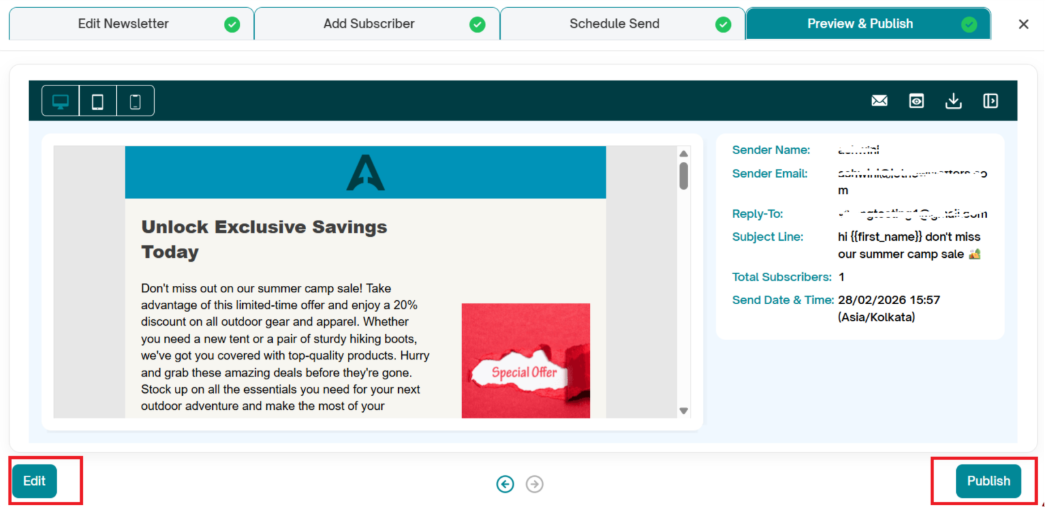
Bottom Pane – Actions
- Edit: Redirects you to the Edit Newsletter page, allowing you to make changes to the newsletter content.
- Publish: Publishes the newsletter. The Publish button becomes active only after all the required information needed for publishing has been provided.
Was this article helpful?
That’s Great!
Thank you for your feedback
Sorry! We couldn't be helpful
Thank you for your feedback
Feedback sent
We appreciate your effort and will try to fix the article