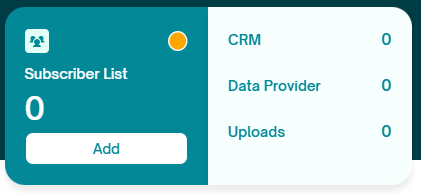
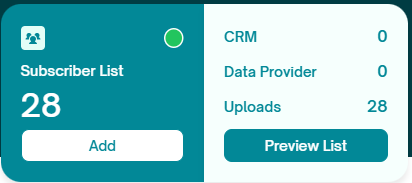
The Subscriber List block provides an overview of your audience across different categories:
- The total number of subscribers is displayed along with Add button and the subscriber counts from CRM (Zoho/HubSpot/Mailchimp), Data Providers(Apollo.io), and Uploads is displayed.
- Preview list button is available to view the uploaded list.
- When you start a new newsletter, the subscriber list will be shown with a red icon indicating that the subscriber list has not yet been selected. Once the selection is made, the icon will turn to green indicating that the subscriber list is now ready.
 |  |
Upload Subscribers:
To upload your subscribers, click the "Add" button. The different ways to upload your list will be displayed in a pop-up:
- Upload a CSV file with your own subscriber data (Upload Your Subscriber List)
- Import from Zoho CRM, HubSpot or Mailchimp (Connect CRM)
- Purchase a list from Apollo.io (Fetch from Data Provider)
- Select subscribers from a previously uploaded list (Select Existing List)
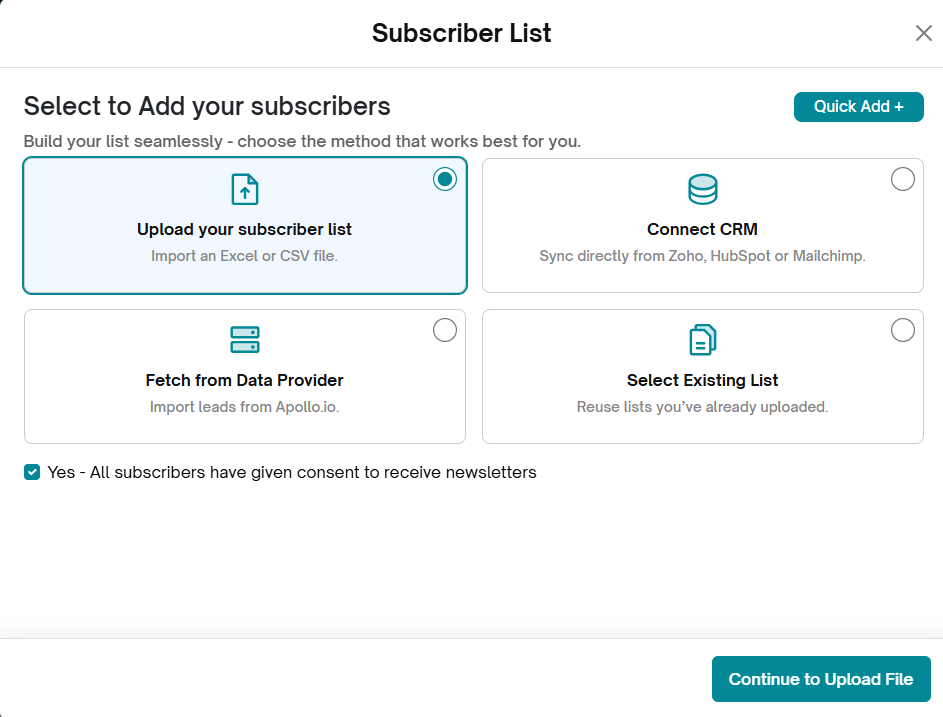
Select the first option "Upload Your Subscriber List " to upload subscribers using a .csv or excel file:
- Click on continue to Upload file.
- Make sure "Yes - All subscribers have given consent to receive newsletters " checkbox is selected.
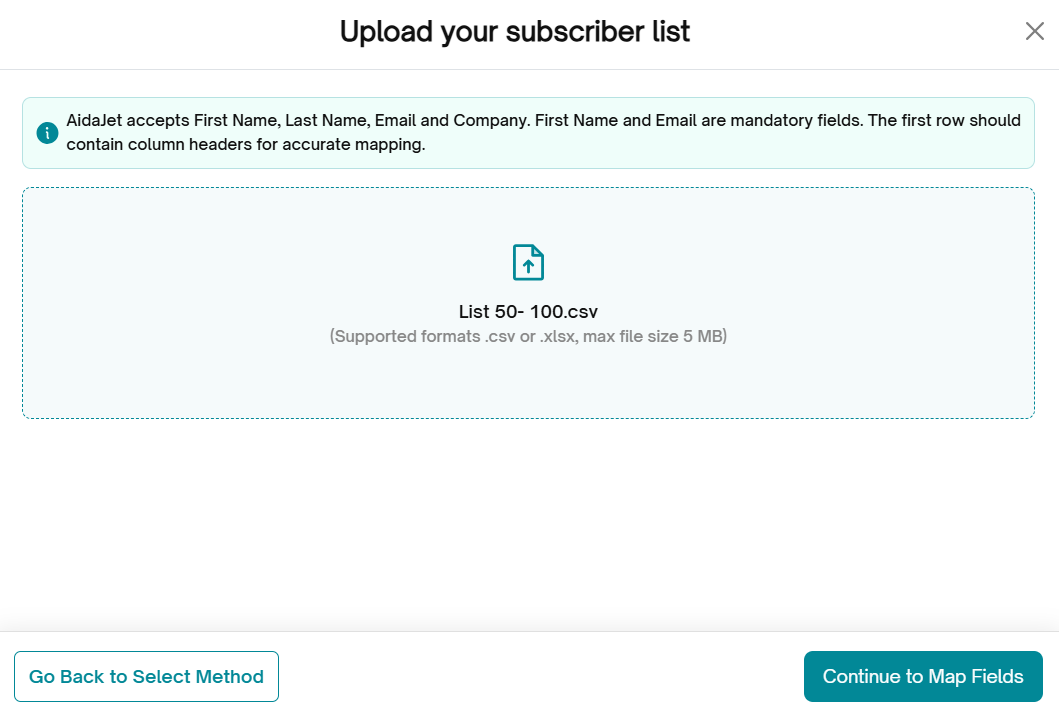
- A pop-up will appear with instructions for uploading.
- Ensure your file includes column headers in the first row for accurate mapping. The supported file formats are .csv, .xlsx and the max file size is 5 MB.
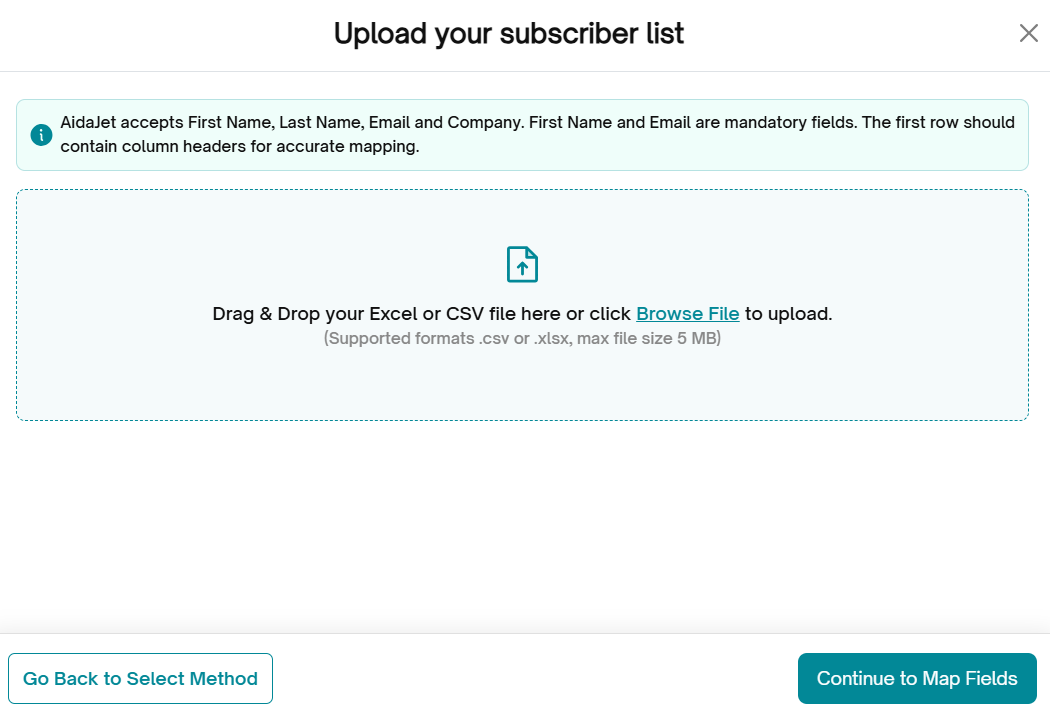
5. Click "Browse File" and select the file you want to upload. Click on continue to Map Fields.
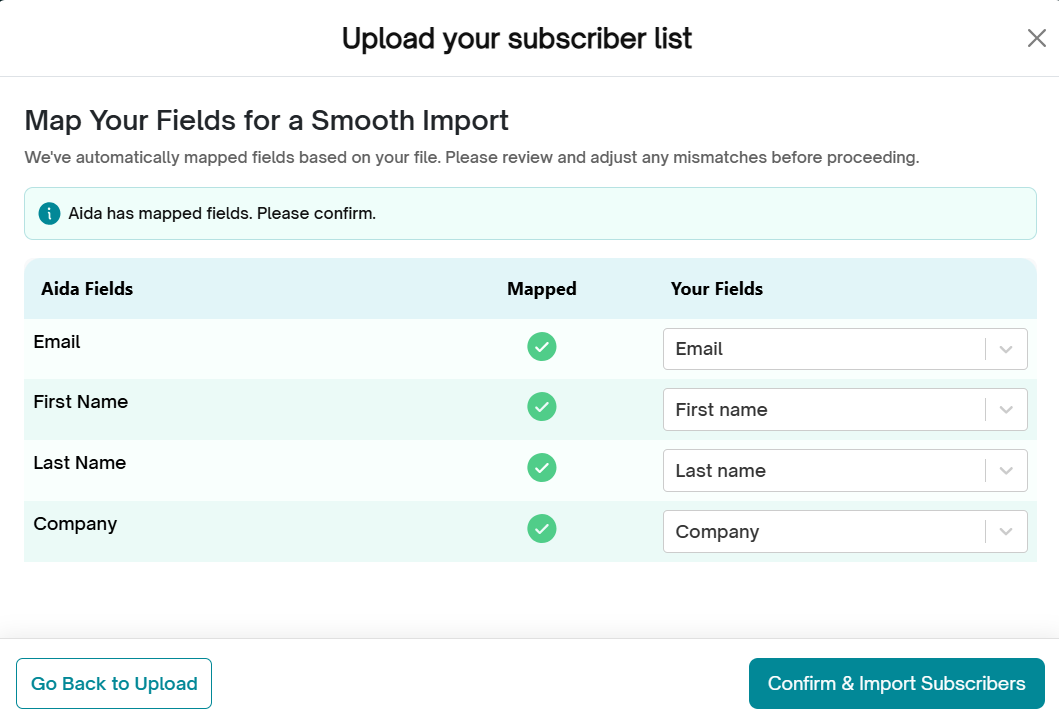
6. The "Map Your Fields" screen will appear. Aida Jet fields are shown on the left, and your file’s column headers are shown on the right. Aida Jet will automatically map them, and you’ll be asked to confirm the mapping. If the mapping doesn’t match your requirements, you can manually adjust it. Once the mapping is complete, click "Confirm & Import Subscribers." If you need to make changes, click "Go Back to Upload."
7. The "Upload in Progress" screen will appear while the email IDs are verified for deliverability. Once the upload is complete and the emails are added to your subscriber list, you’ll receive a notification.
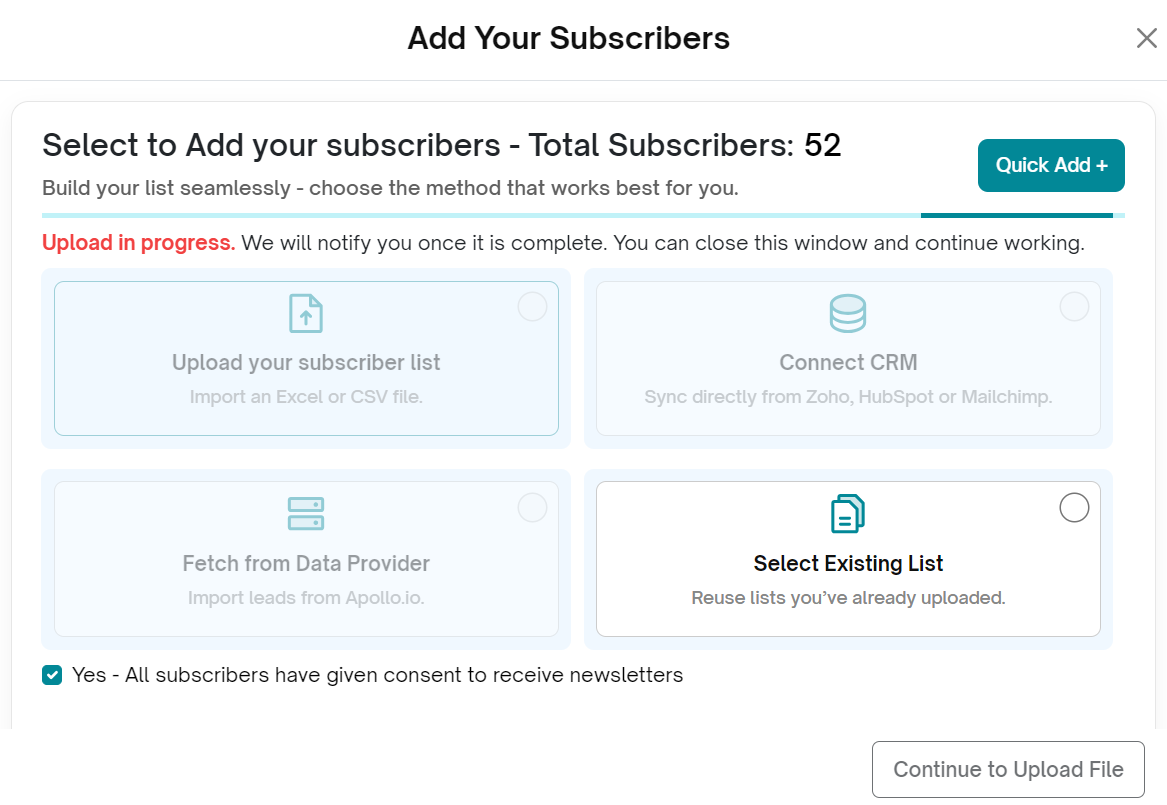
Note: You cannot upload additional subscribers while another list is still in progress.
View your subscriber list:
Once the notification appears under Notifications (Bell icon), click the eye icon in the dropdown next to the list upload to view the import summary. The summary will show:
Imports Succeeded – successful imports
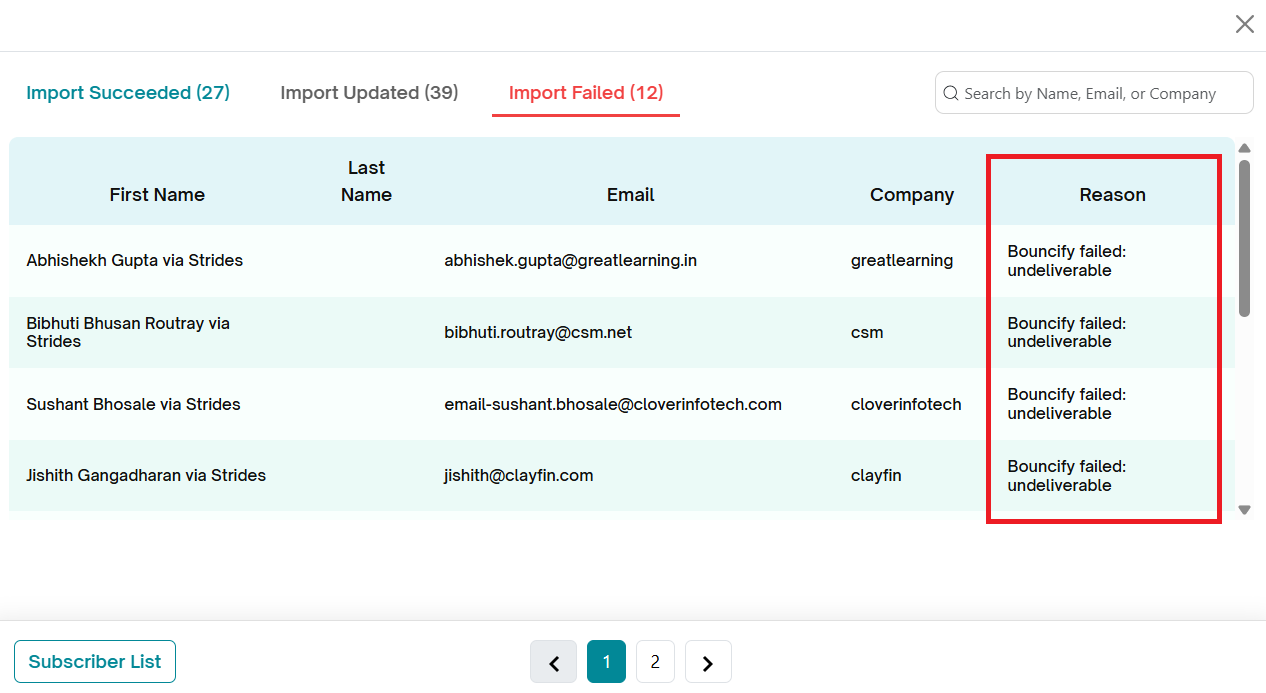
Import Failed – failed imports (due to special characters, data type mismatches, or email verification failure)
Duplicates Skipped – records already existing in your list
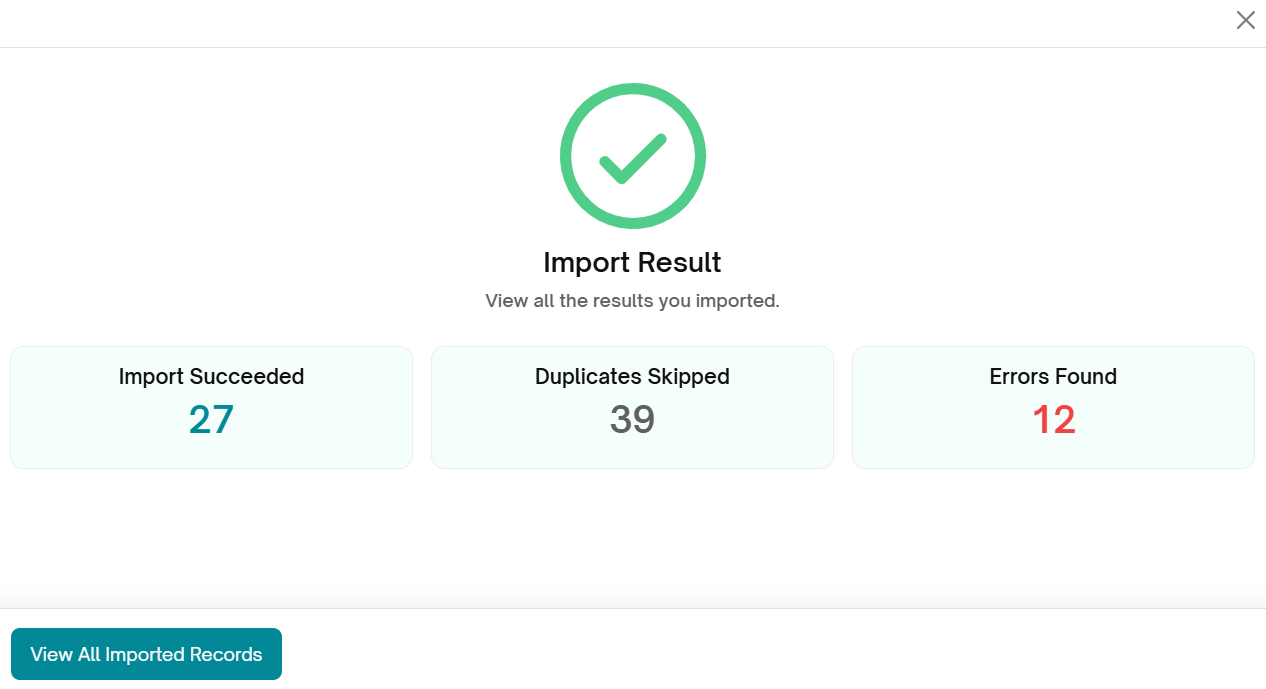
Click "View All Imported Subscribers" to open the uploaded list.
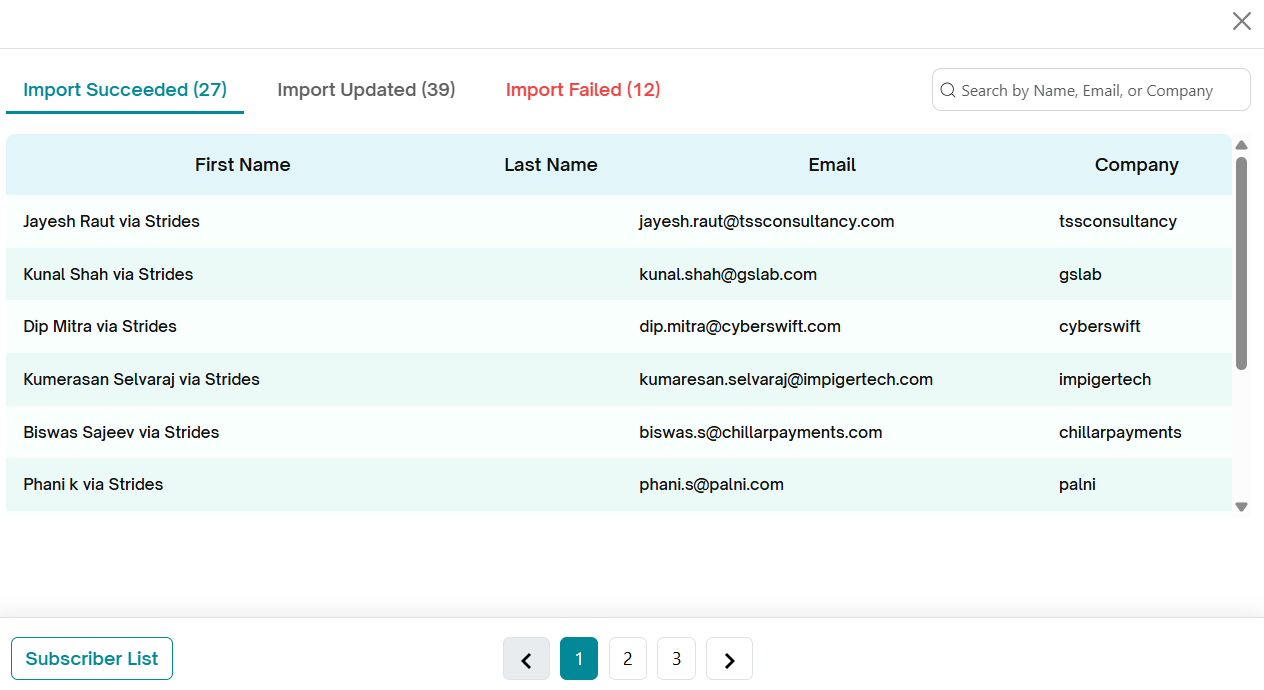
Review the list, which is categorized into three sections:
Succeeded – records successfully imported
Updated – records that were modified during the import
Failed – records that could not be imported
Use the tabs to navigate between these sections.
To locate specific records, enter a Name, Email, or Company Name in the search box and click the search icon to display the results.
For troubleshooting on failed imports, refer to reasons column under Import Failed. For more information, ask Aida Care or refer to the Troubleshooting Section in knowledgebase.
Preview Subscriber List
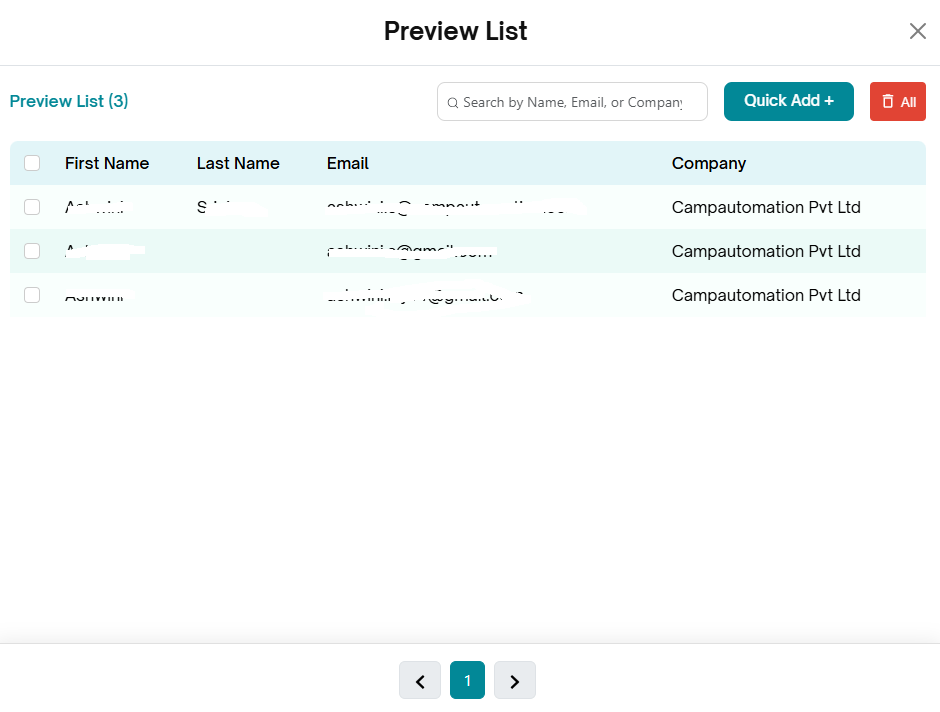
Once the subscribers are uploaded, the Preview List button will appear under the Subscribers section.
Click the Preview List button.
The preview of the uploaded subscriber list will appear.
Delete Subscribers
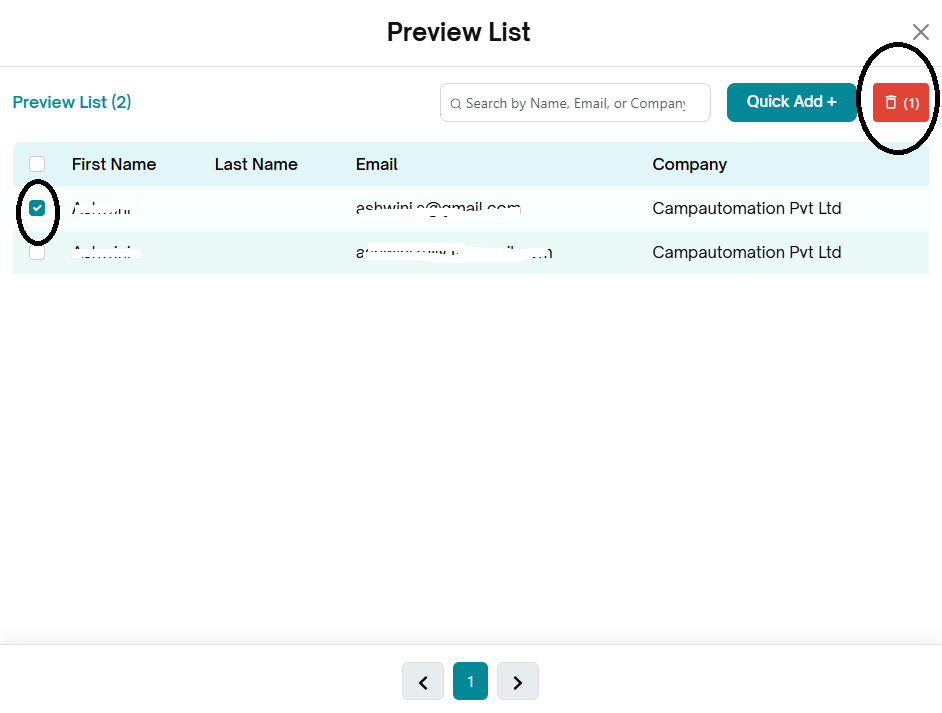
In the Preview List pop-up, select the subscriber(s) you want to delete by clicking the checkbox next to their name.
Click the Delete button in the upper-right corner.
A confirmation message will appear.
Select Yes to confirm the deletion.
A message confirming the successful deletion of the record(s) will be displayed.
Quick Add a Subscriber:
In some cases, you may want to add a subscriber you initially missed or include a team member to receive the newsletter. The Quick Add option allows you to add a subscriber instantly.
You can access Quick Add in two ways:
Option 1 – From the Preview List
Click the Preview List button.
The Preview List pop-up will appear.
Click the Quick Add icon in the upper-right corner of the screen.
Option 2 – From the Subscribers Section
In the Subscribers section, click the Add button.
In the Upload Subscriber List pop-up, click the Quick Add button in the upper-right corner.
Next Steps
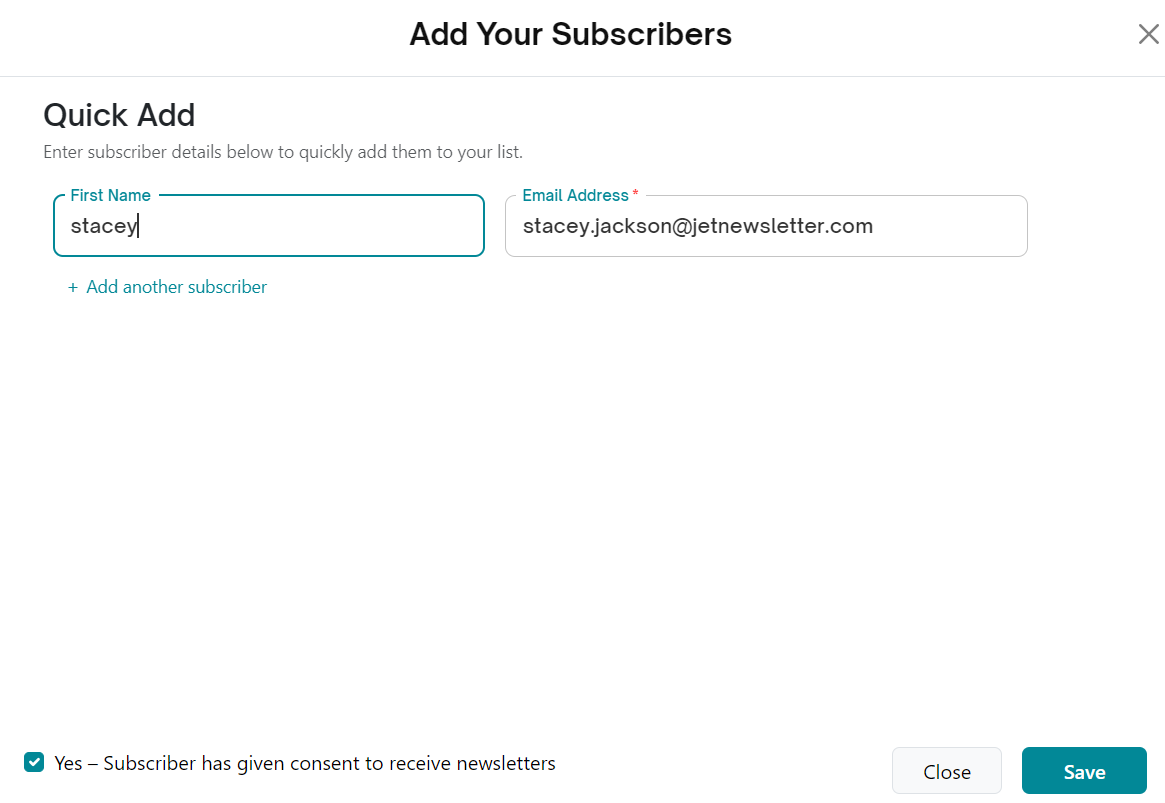
The Quick Add pop-up will open.
Enter the subscriber’s First Name and Email Address.[You can add upto 5 subscribers]
Ensure the checkbox “Yes – The subscriber has given consent to receive newsletters” is selected.
Click Add to save the subscriber.
The subscribers will be added to the list and Preview will be shown.
Fetch from CRM:
Prerequisite:
Ensure your account is connected to HubSpot, Zoho, or Mailchimp under Settings → Third-Party Integration.
The Third-Party Integration and Fetch from CRM features are available only for Pro and Growth plan customers. To access this feature, please upgrade to the Pro or Growth plan.
Add Subscribers through CRM:
Click the Add button under the Subscriber block in the Newsletter Flow screen.
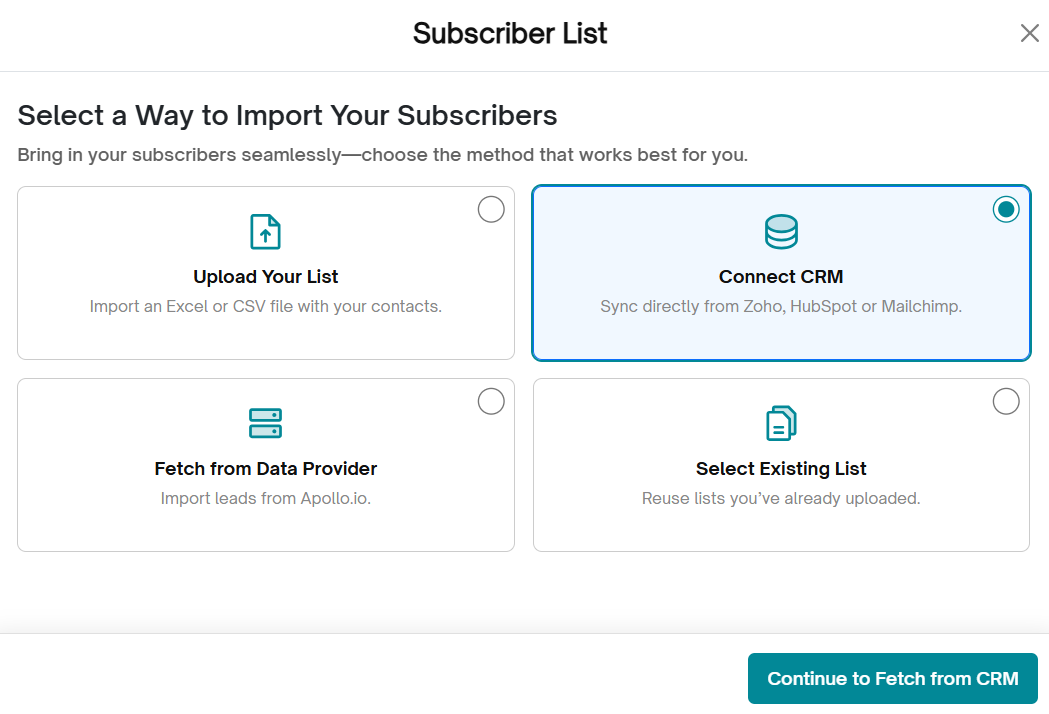
In the Subscriber List screen, choose Connect CRM.
Click Continue to Fetch from CRM.
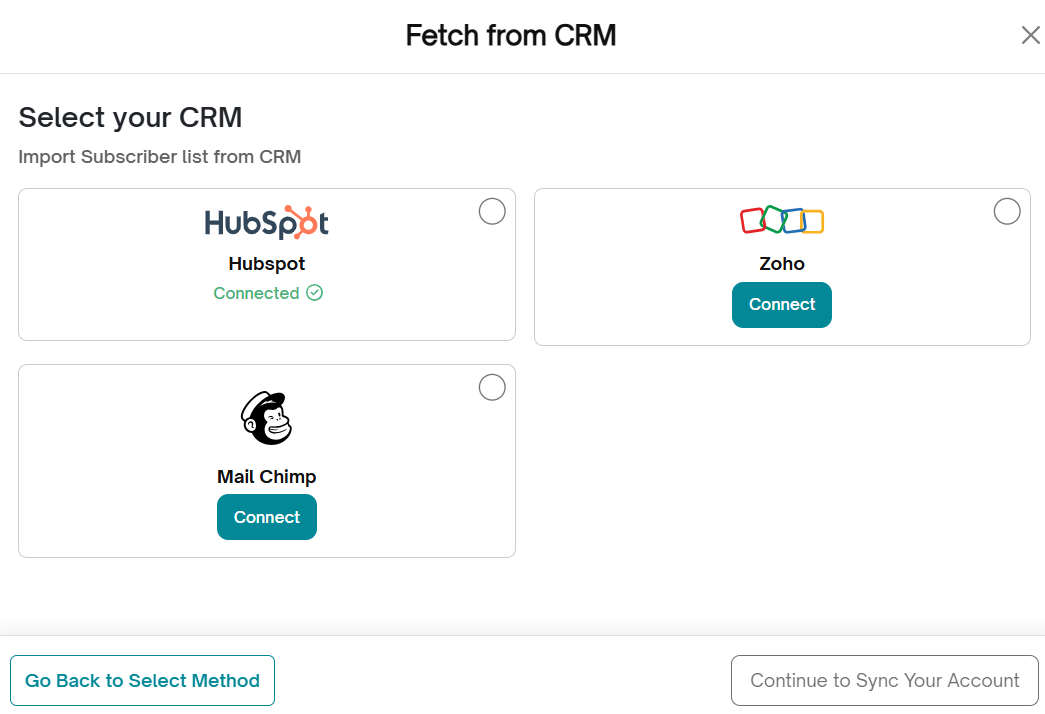
4. The Fetch from CRM screen will be displayed.
Common steps to follow to fetch the list from any of listed CRM applications:
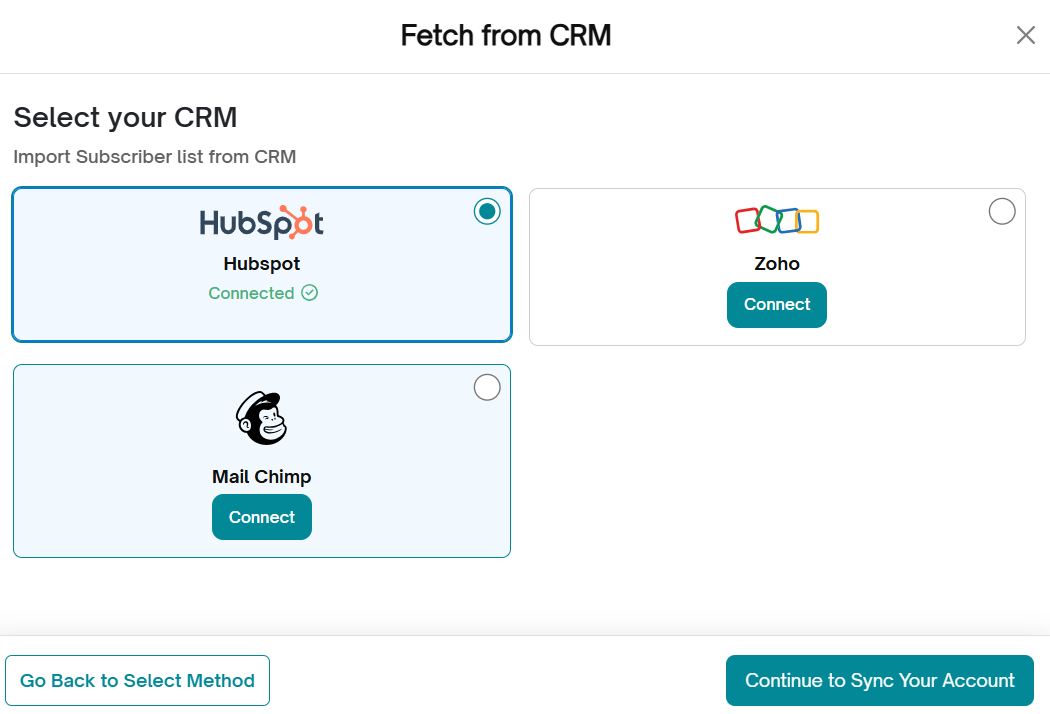
- Sync account – The CRM applications Zoho, Hubspot and Mailchimp will be displayed with the status connected or not connected. If it is not connected, then a connect button will be displayed. Clicking this button will take you to the settings to complete the connection. If the connection is already made, then select the CRM application and click on Continue to Sync your account.
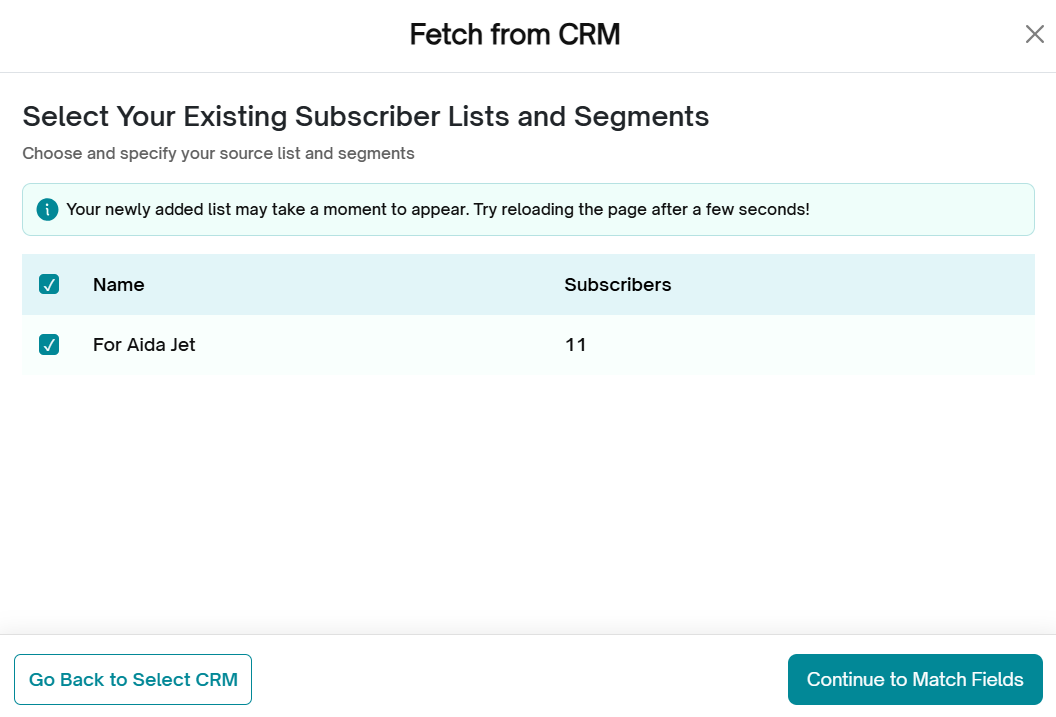
2. Select List – Existing Subscriber list/segment is displayed. The list name and number of subscribers under each list is displayed. Click on the select option next to the list that you want to import to Aida Jet. You can select one or more of the lists. Click on Continue to map fields button.
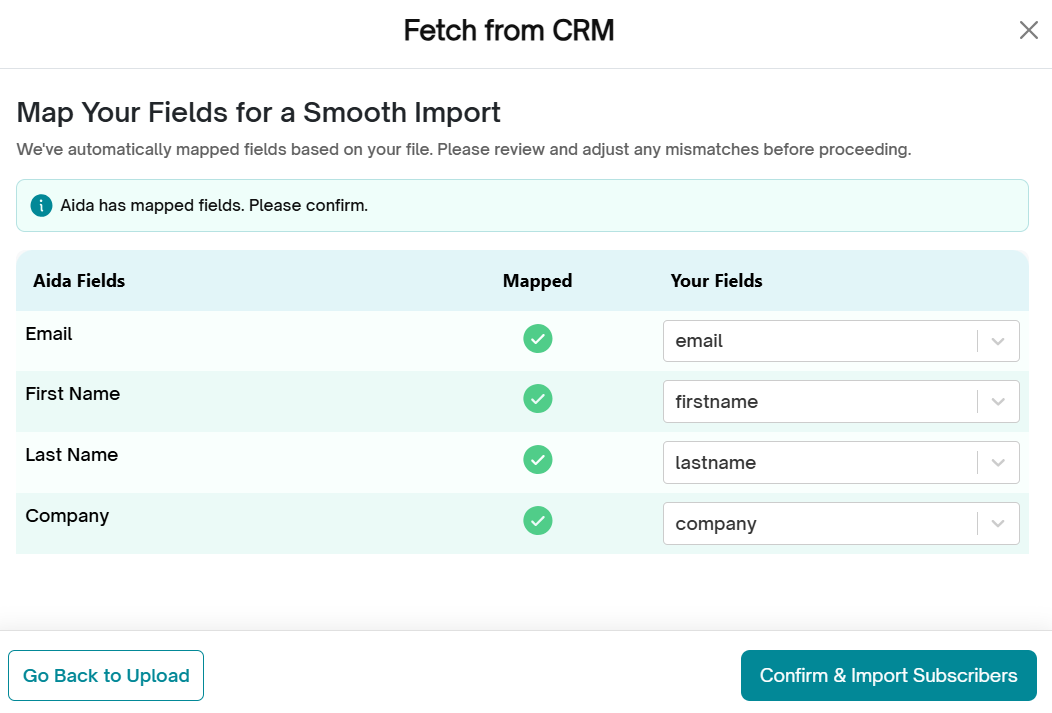
3. Map fields – Aida Jet automatically maps the fields. The mapped field screen is displayed. Check the fields and make adjustments if required and confirm the mapping by clicking on the Confirm button.
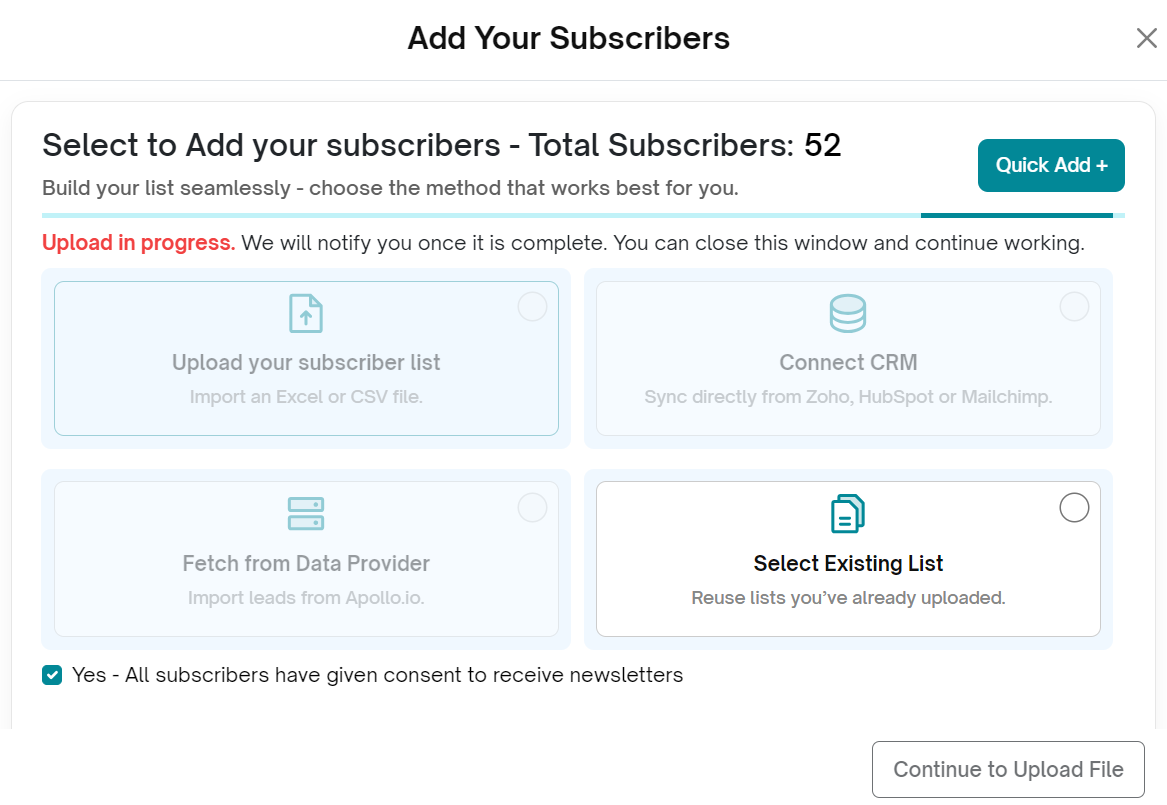
4. The Upload in Progress screen will appear while the email IDs are being verified for deliverability. You’ll receive a notification once the upload is complete and the emails have been added to your subscriber list.
Note: Once subscribers are fetched into AidaJet, you can manage them from your newsletter list as usual. Use the Preview List button to view subscribers, the Quick Add option to add new ones, and the Delete button to remove any subscriber.
Import from Data provider:
1. To manage your subscribers, click the "Add" button under the Subscriber block in the newsletter flow screen.
2. In the subscribers list pop-up screen, click on the fetch from data provider option and click on continue to upload file.
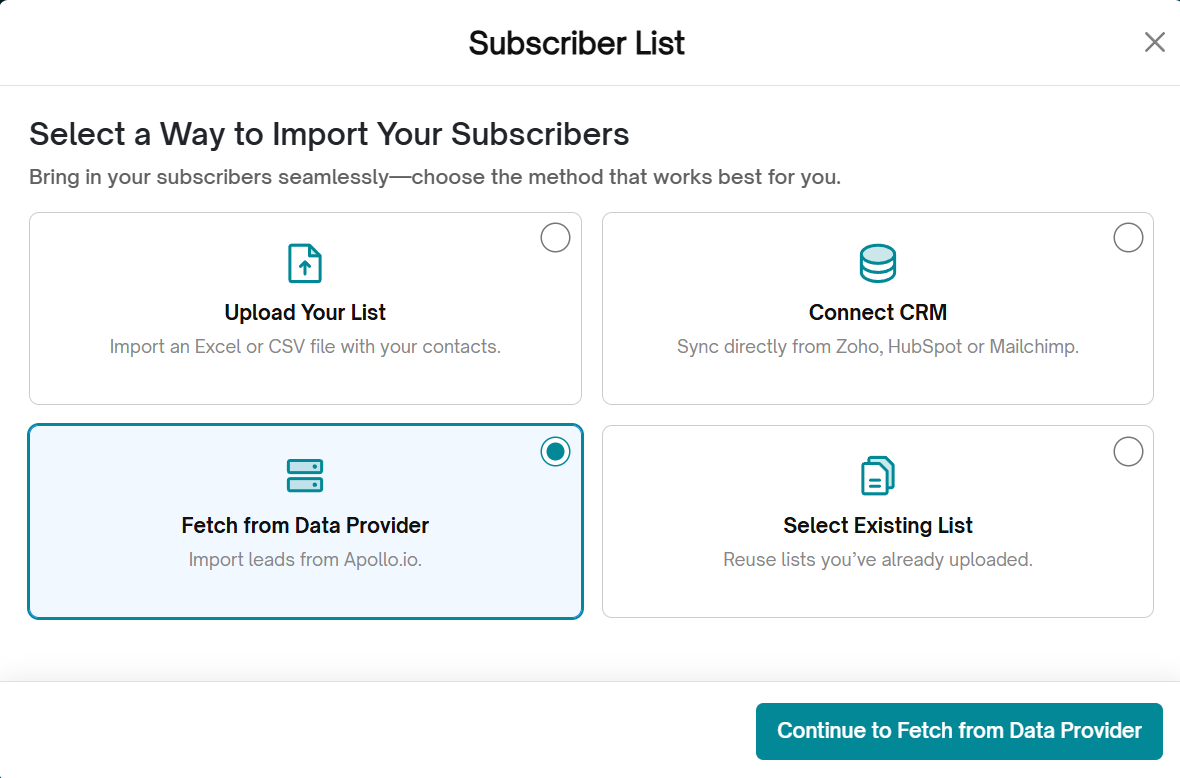
3. The import from data providers list is displayed with Apollo.io as the only option. Apollo.io will show connected or not connected status. If it is not connected, then a connect button will be displayed. Clicking this button will take you to the settings to complete the connection. If the connection is already made, select Apolo.io and click on Continue to Map fields.
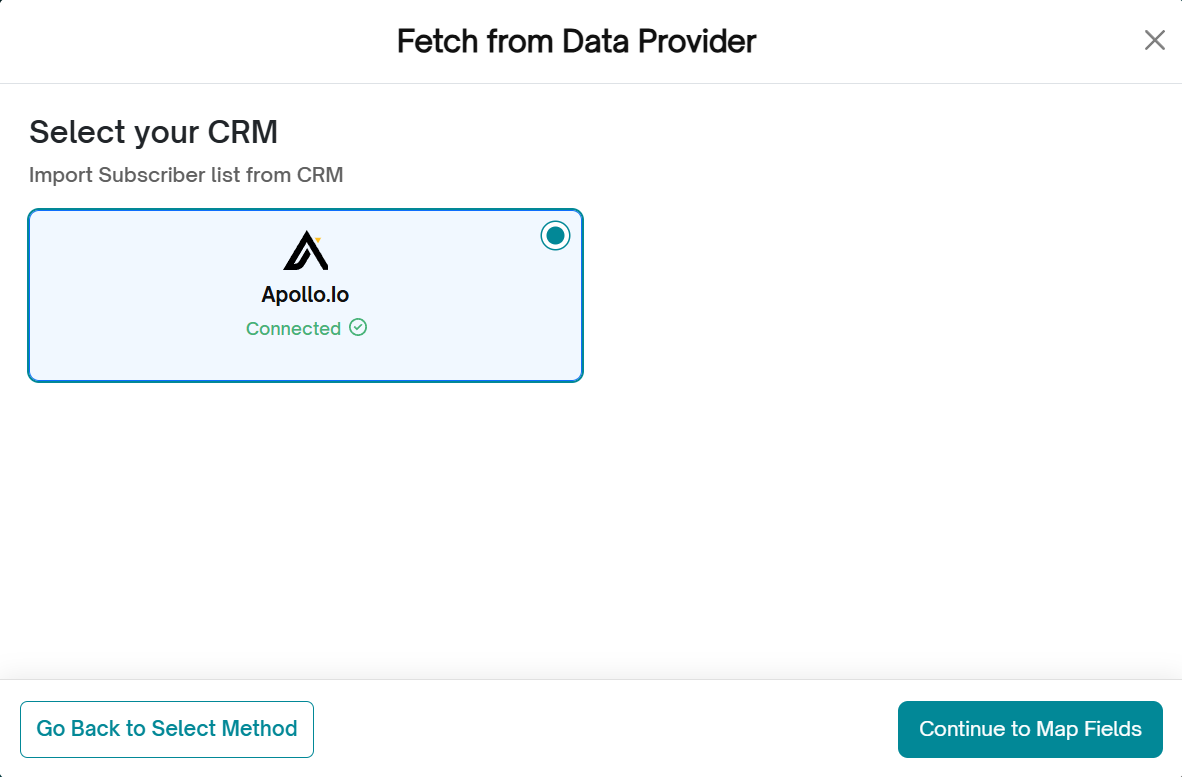
4. If it is connected, then the Existing purchased list under your account is displayed. The list name and number of subscribers under each list is displayed. Click on the select option next to the list that you want to import to Aida Jet. You can select one or more of the lists. Click on Continue to map fields button.
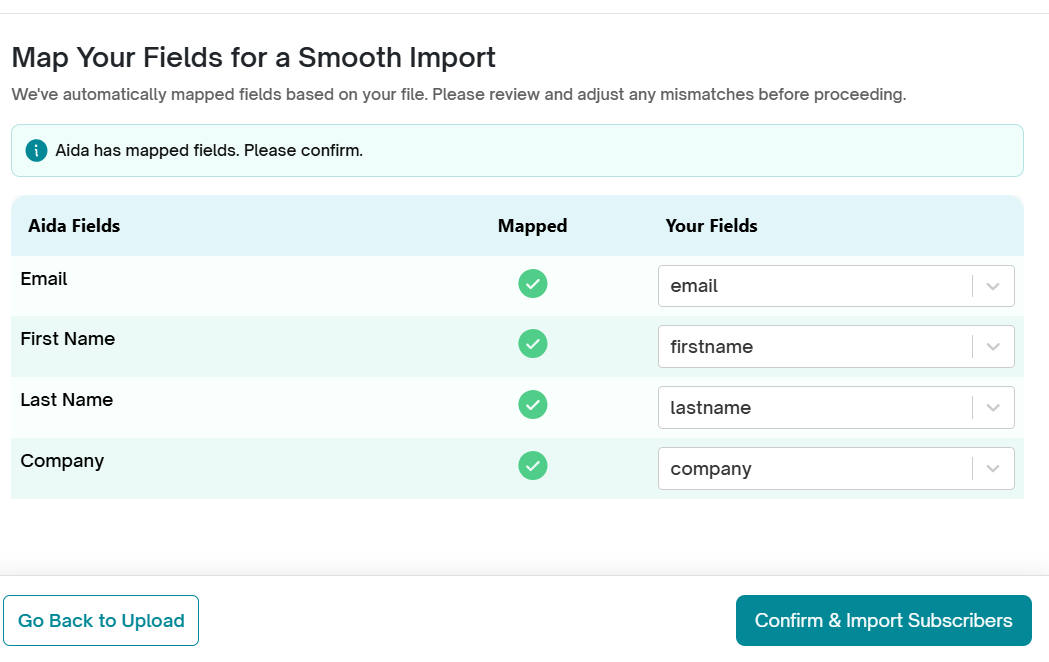
5. Map fields – Aida Jet automatically maps the fields. The mapped field screen is displayed. Check the fields and make adjustments if required and confirm the mapping by clicking on the Confirm button.
The Upload in Progress screen will appear while the email IDs are being verified for deliverability. You’ll receive a notification once the upload is complete and the emails have been added to your subscriber list.
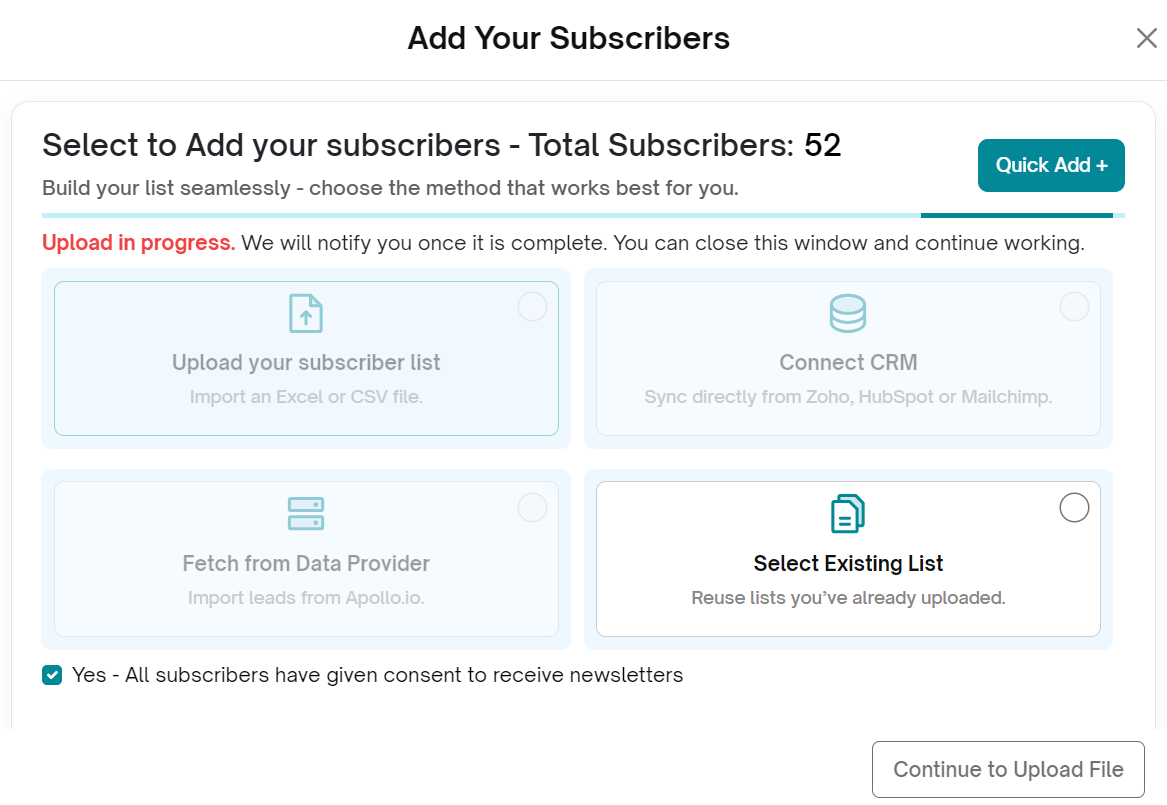
Note: Once subscribers are fetched into AidaJet, you can manage them from your newsletter list as usual. Use the Preview List button to view subscribers, the Quick Add option to add new ones, and the Delete button to remove any subscriber.
Select existing list:
- Click the "Add" button under the Subscriber block in the newsletter flow screen.
- In the subscribers list pop-up screen, click on the select existing lists. (Note: Each list in AidaJet represents the subscribers associated with a specific newsletter. You can manage the subscribers for each newsletter individually—use the Preview List button to view them, Quick Add to include new subscribers, and Delete to remove any subscriber from that particular newsletter’s list. These lists can also be viewed under reports.)
- Click on continue to select existing list.
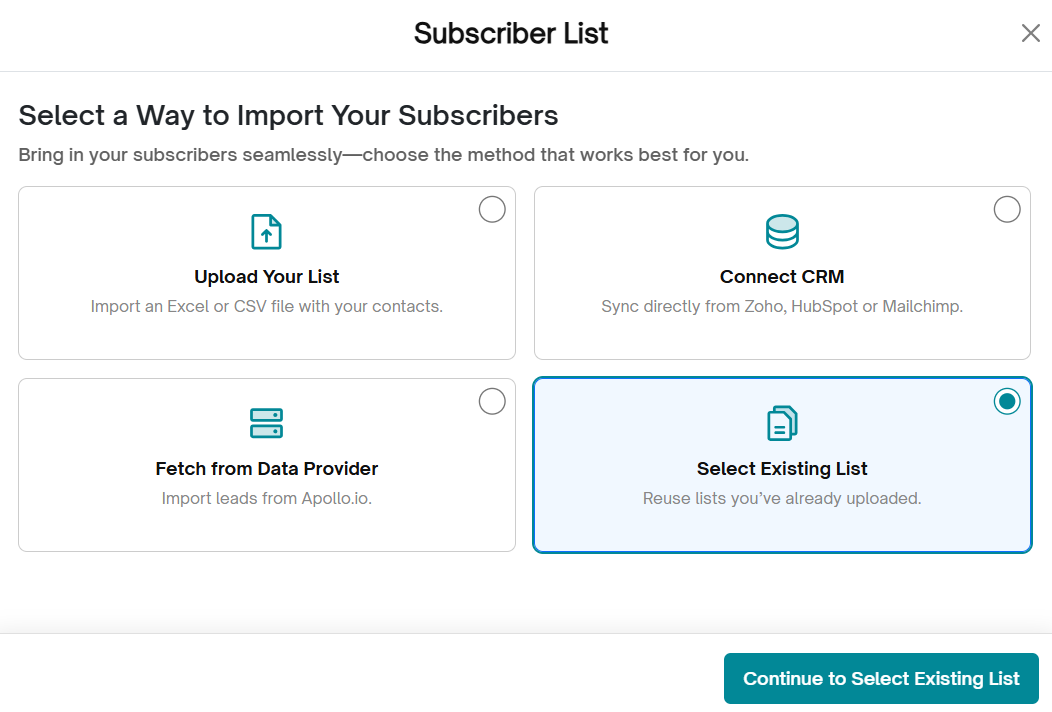
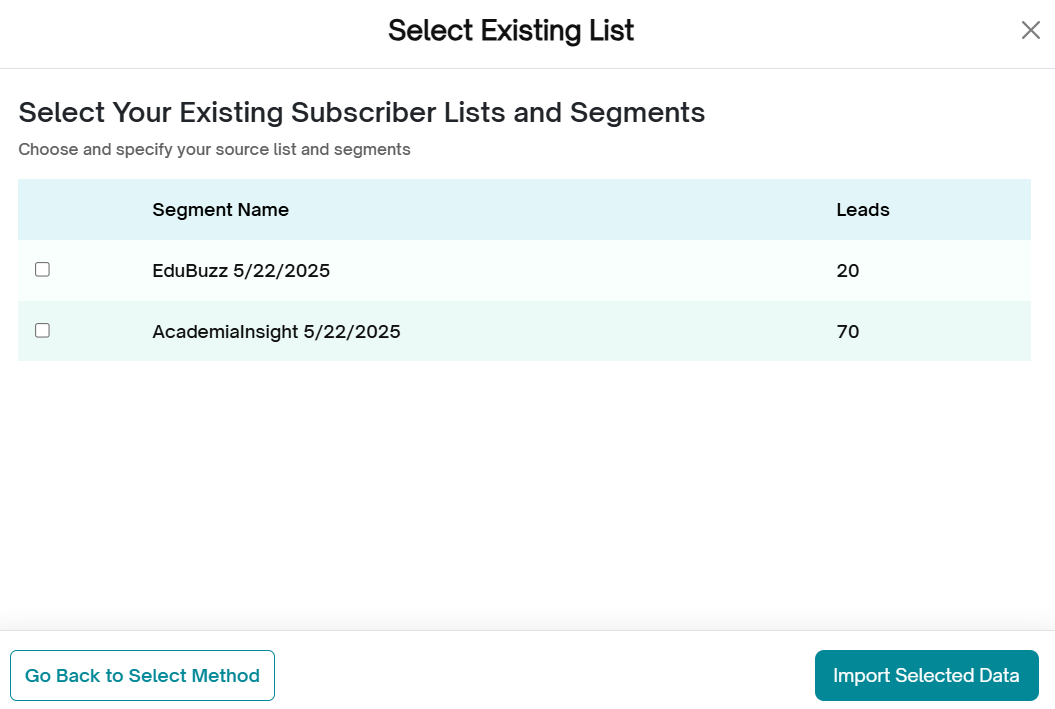
3. The newsletter subscriber lists will be displayed. The list name and number of subscribers under each list is displayed.
4. Click on the select option next to the list that you want to add to your newsletter.
5. Select one or more of the lists. Click on import selected data.
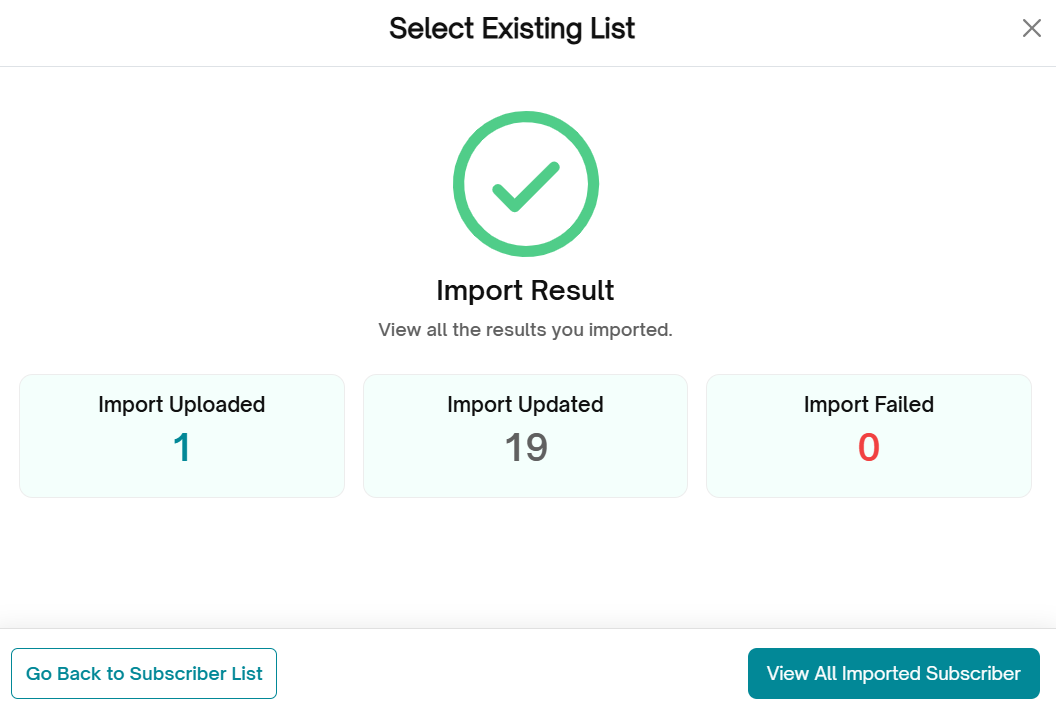
4. The lists are imported to Aida Jet and the import result screen is displayed displaying the successful import subscriber number. If a subscribers already existed in Aida Jet, then that will be listed as updated import result. In this case the Import failed is usually zero as these subscribers have already been verified.
Next ---> Scheduler
Was this article helpful?
That’s Great!
Thank you for your feedback
Sorry! We couldn't be helpful
Thank you for your feedback
Feedback sent
We appreciate your effort and will try to fix the article