ACCESSING THE REPORTS PAGE IN AIDAJET
The Reports feature in AidaJet provides a comprehensive view of subscriber-related data. Follow the steps below to access the Reports page and understand its key components.
- Login to AidaJet:
- Click the Profile Icon:
In the top-right corner of the dashboard, click on the user profile icon. - Select “Reports”:
A dropdown menu will appear. Click on “Reports” to navigate to the Reports section.
You have Six easy-to-access, preconfigured reports available in AidaJet for your convenience. These reports are:
Subscriber
Subscriber List
Newsletter Series
Newsletter
Company
Bounced Subscriber Report
All reports can be exported and scheduled to be sent on email:
Exporting Reports to Excel:
Easily export your current report view for offline access and further analysis:
- In the Reports section, adjust filters or date ranges to display the desired data.
- Click the Export to Excel button located above the report table.
- Your browser will download an Excel file (.xlsx) containing the exact data shown on the screen.
- Open the downloaded file in Microsoft Excel or a compatible spreadsheet application to review, sort, and analyze your data as needed.
Schedule Report Button:
Clicking this button opens the Schedule Report Page where you can automate email delivery of the subscriber report.
Once you click Schedule Report, a new interface appears with the following elements:
Component | Description |
To Mail (Text Field) | Enter email address where the report should be sent. |
Frequency Dropdowns | You can select how often the report should be sent using these values: |
Schedule Button | Click to confirm and save the scheduled report delivery. |
Close Button | Cancels and closes the schedule popup without saving changes. |
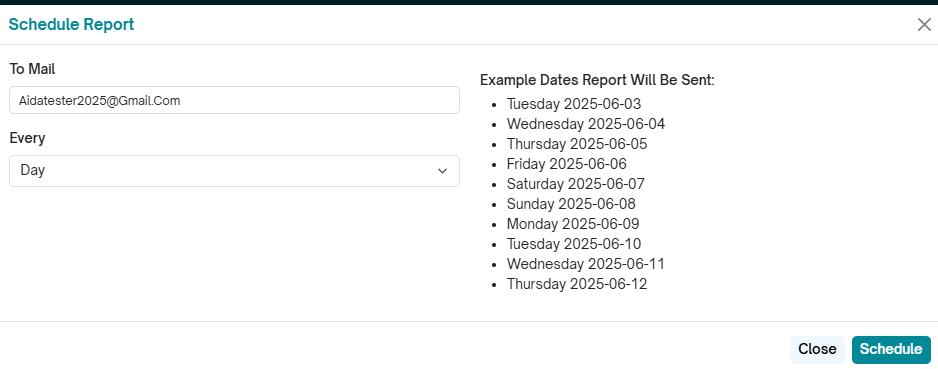
The default frequency is set to Day (Daily report). On the right side of the pop-up, you'll see the upcoming schedule based on your current selection.
1. To schedule daily email reports:
Select Day from the Frequency dropdown.
The right panel will display example dates showing when the report will be sent.
Click Schedule.
Your report will now be emailed daily.
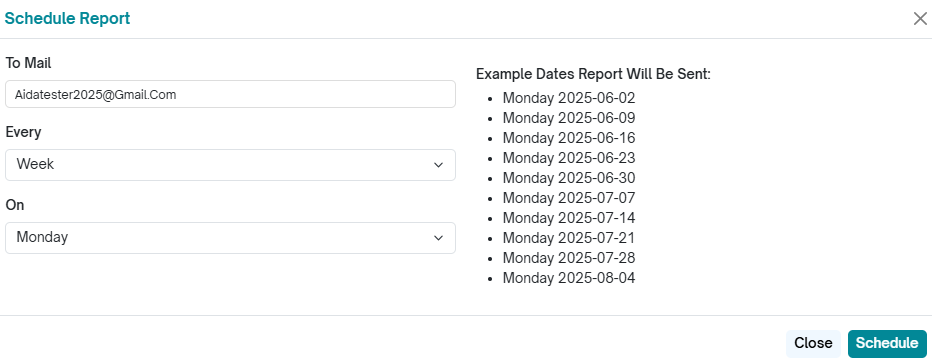
2. To schedule weekly email reports:
Select Week from the Frequency dropdown.
A new dropdown labeled "On" will appear. Choose the day of the week you’d like the report to be delivered.
The right panel will display example dates showing when the report will be sent.
Click Schedule.
Your report will now be emailed once a week on the selected day.
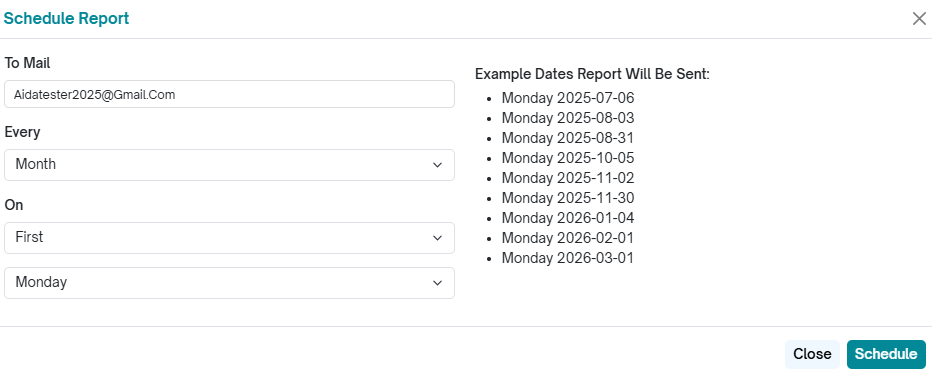
3. To schedule monthly email reports:
Select Month from the Frequency dropdown.
Two new dropdowns labeled "Position" and "On" will appear:
Position: Choose which week of the month (e.g., First, Second, Last).
On: Select the day of the week (e.g., Monday, Friday).
For example, to send the report on the first Monday of every month, select Position: First and Day: Monday.
The right panel will display example dates showing when the report will be sent.
Click Schedule.
Your report will now be emailed once a month on the selected day and week
Reports in detail:
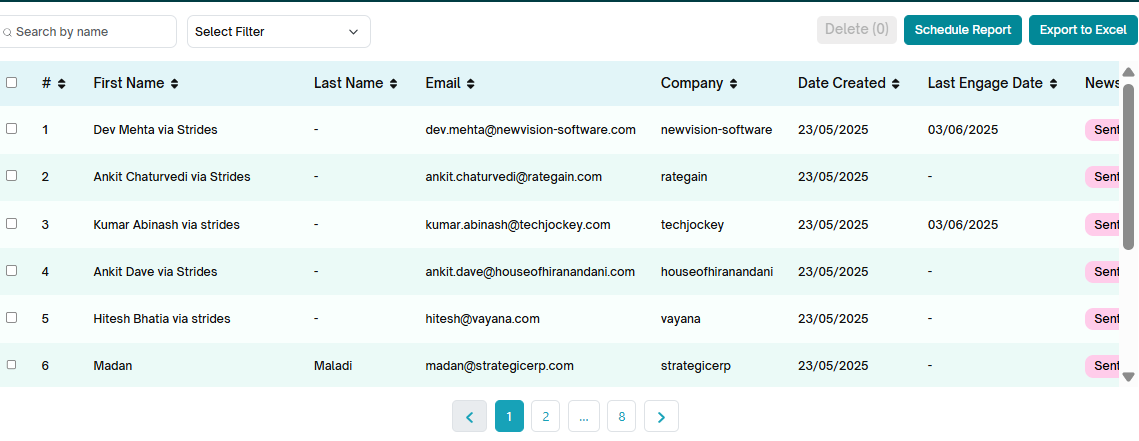
1. Subscriber Report:
This report provides a comprehensive list of all subscribers in your account. You’ll be able to view key details such as:
First name and last name
Email ID
Company
Date they were added to AidaJet
Last date they engaged with any newsletter
Number of newsletters sent, opened, and clicked
Whether they are classified as a top engaged subscriber
The number of lists they are part of (you can hover over the number to view the specific list details)
Their source of import into AidaJet
Deleting Subscriber Records
You can delete subscriber records from the Aida Jet subscriber database through the Reports section. Follow these steps:
- Locate and select the subscriber(s) you wish to delete by clicking the checkbox next to their name.
- Once a subscriber is selected, the Delete button will become active.
- Click the Delete button to permanently remove the selected subscriber record(s) from the database.
Note: Deleted records cannot be recovered. Please ensure you want to remove the subscriber before proceeding.
2. Subscriber List
The Subscriber List page in AidaJet's Reports section gives you a clear view of how your subscriber lists are performing. It shows how each list is linked to newsletters and how well they are engaging.
How to Access the Subscriber List Page
Click your Profile Icon in the top-right corner.
Select Reports from the dropdown menu.
In the left sidebar, click Subscriber List.
Page Layout and Features
1. Search Bar
Search by name: Quickly find a list by typing part or all of the list name.
2. Filter Dropdown (Top-Right)
Select Newsletters: Filter lists based on the newsletter they’re connected to.
3. Data Table
This table shows your list details in columns:
| Column | What It Shows |
|---|---|
| # | List’s serial number. |
| List Name | Name of the list (usually includes newsletter name and date). |
| Subscriber Count | Total subscribers in the list. |
| Linked Newsletter | The newsletter this list is connected to. |
| Top Engaged | Number of highly engaged subscribers. |
| Unsubscribers | Number and % of people who unsubscribed. |
| Bounced | Number and % of emails that bounced. |
| Total for Selected List | Totals for lists you select. |
| Total Subscribers | Total number of subscribers across all lists. |
| Your Account Limit | Max number of subscribers allowed (e.g., 5000). |
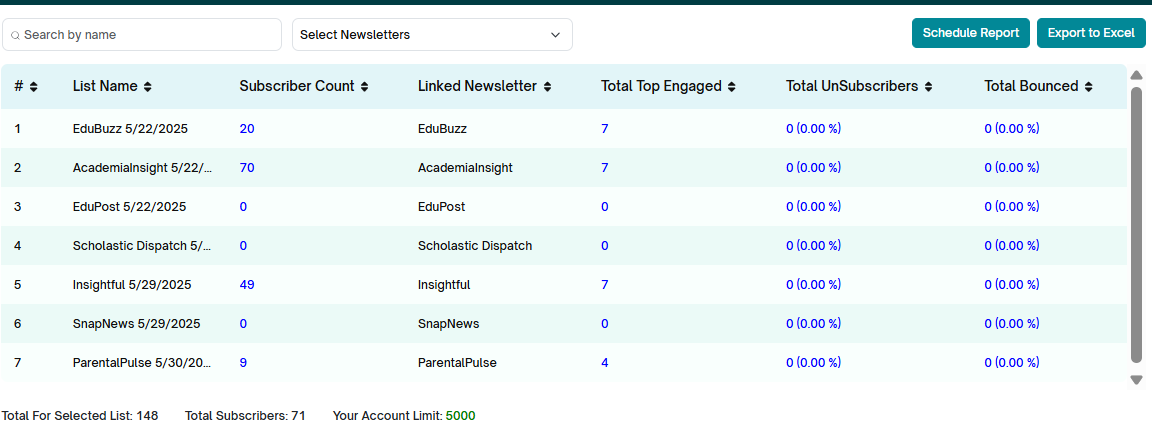
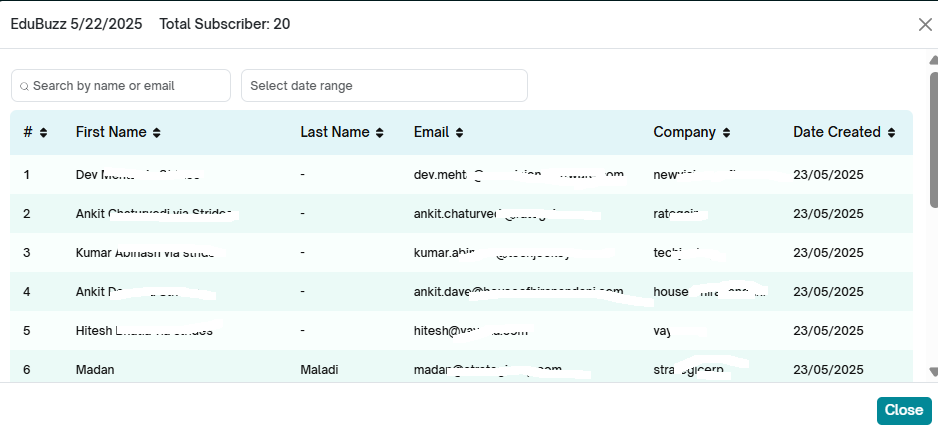
Top Engaged: Click on the number displayed in the report under this column to open the list of Top engagers for this newsletter. A new pop-up opens displaying the subscriber details.
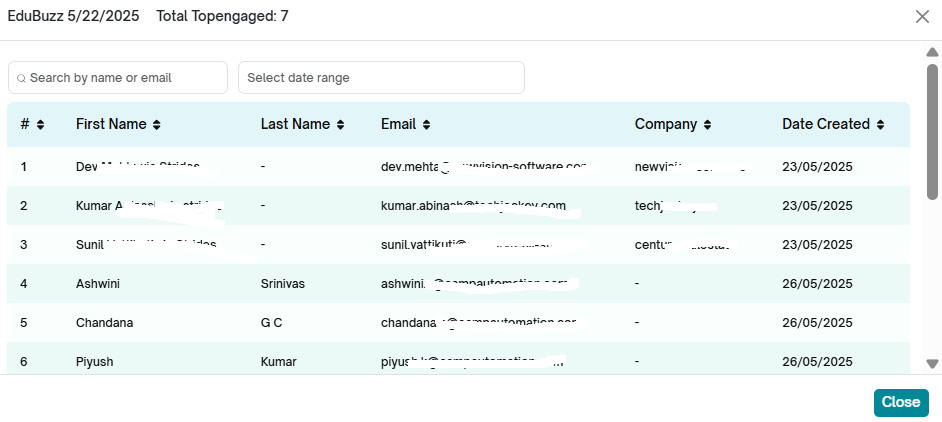
Total unsubscribers and Total Bounce: Click on the number displayed under these columns to see the list of unsubscribers and the list of subscribers for whom the email has bounced.
3.Newsletter Series
The Newsletter Series section displays a complete list of all created newsletter series, allowing users to monitor and evaluate campaign performance at a consolidated level.
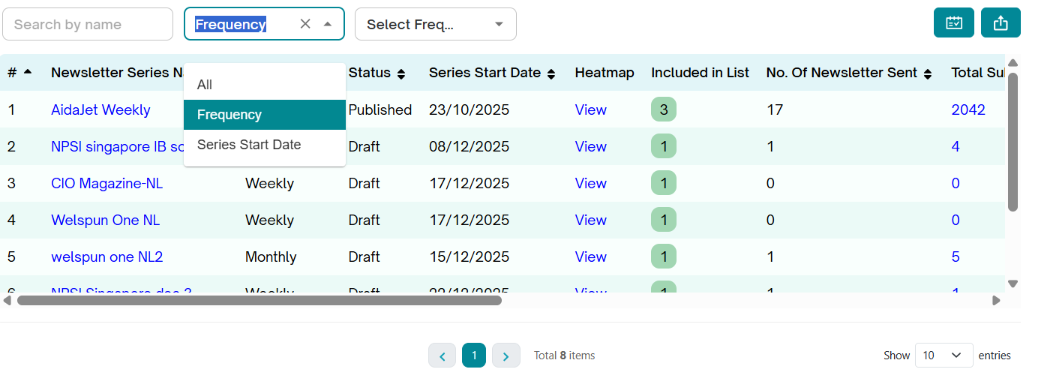
Search Bar- Lets you search newsletter series by Frequency and Series Start date.
Select Filter Dropdown- Allows users to refine the visible newsletters using two options:
Frequency
Upon selection, a secondary dropdown appears.
Options include:
- One Time
- Weekly
- Monthly
- Quarterly
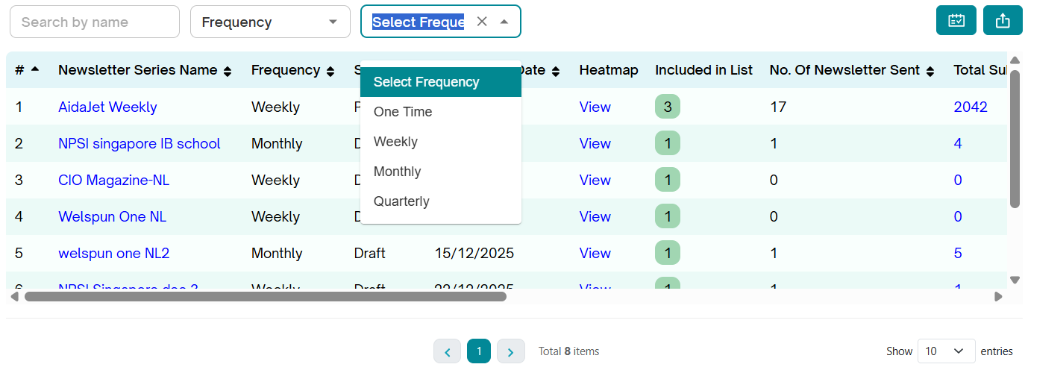
b. Series Start Date
calendar widget pops up when selected.
Allows users to define a date when the newsletter series was initiated.
Ideal for time-based analysis, e.g., tracking newsletters created within a specific quarter or marketing period.
For each series, AidaJet provides detailed performance metrics, including:
- Heatmap Data: Visual insights into subscriber engagement patterns.
- Total Emails Sent: The total number of emails delivered as part of the series.
- Bounce Count: The number of emails that failed to reach subscribers.
- Open Rate: The percentage of recipients who opened the emails.
- Click Rate: The percentage of recipients who clicked on links within the emails.
Each metric is interactive. Clicking on a specific metric opens a filtered view that displays only the relevant leads, such as subscribers who opened, clicked, or bounced, enabling deeper analysis and targeted follow-up actions.
4.Newsletter
The Newsletter report page in AidaJet provides a structured overview of all your newsletter campaigns—summarizing their frequency, performance, and reach. Whether you're managing drafts or tracking delivery outcomes, this dashboard ensures clarity and ease in newsletter management.
- Search Bar- Lets you search newsletter series by name.
- Select Filter Dropdown- Allows users to refine the visible newsletters using two options:
Select Newsletter Series
Upon selection, a secondary dropdown appears.
Series Start Date
A calendar widget pops up when selected.
Allows users to define a date when the newsletter series was initiated.
Ideal for time-based analysis, e.g., tracking newsletters created within a specific quarter or marketing period.
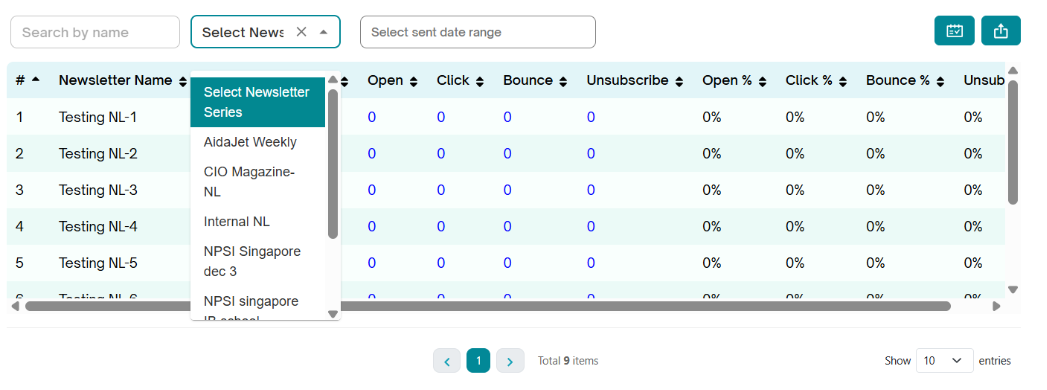
This filter enables users to analyze newsletter performance by their dispatch frequency, helping compare regular vs. occasional communications.
This table displays detailed metrics for each newsletter series:
Column | Description |
# | Serial number of the row. |
Newsletter Series Name | The name or title of the newsletter campaign. |
Frequency | Frequency of delivery (e.g., Monthly). |
Status | Indicates if the series is in Draft, Scheduled, or Sent status. |
Series Start Date | The launch/start date of the series. |
Included in List | Number of subscriber lists linked to this newsletter. |
No. of Newsletters Sent | Count of newsletters sent in this series. |
Total Subscribers | Number of users the newsletter was targeted to. |
Total Top Engaged | Count of highly engaged subscribers. |
Total Unsubscribers | Number of users who unsubscribed from this newsletter. |
Unsubscribers % | Percentage of total subscribers who unsubscribed. |
Total Bounced | Emails that failed to deliver (bounced). |
Bounced % | Percentage of emails that bounced relative to total sent. |
Total Sent | Number of emails actually sent (excluding bounces). |
Total Open | Number of recipients who opened the email. |
Open % | Open rate (percentage of opened emails vs. sent). |
Total Click | Count of recipients who clicked at least one link. |
Click % | Click-through rate (percentage of clicks vs. total opens or total sent). |
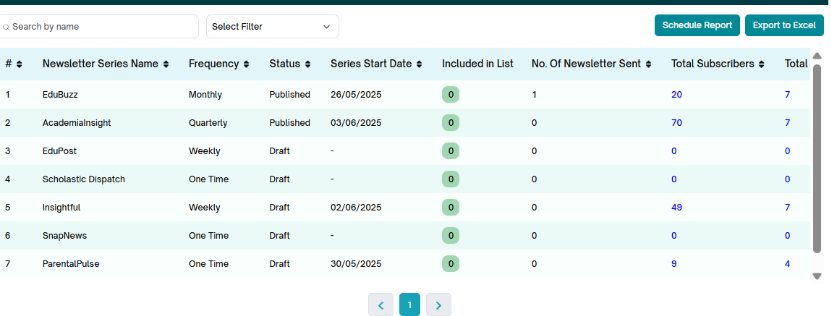
Subscriber count: Click on the number displayed in the report under this column to open the list of subscribers under this list. A new pop-up opens displaying the subscriber details
Top Engaged: Click on the number displayed in the report under this column to open the list of Top engagers for this newsletter. A new pop-up opens displaying the subscriber details.
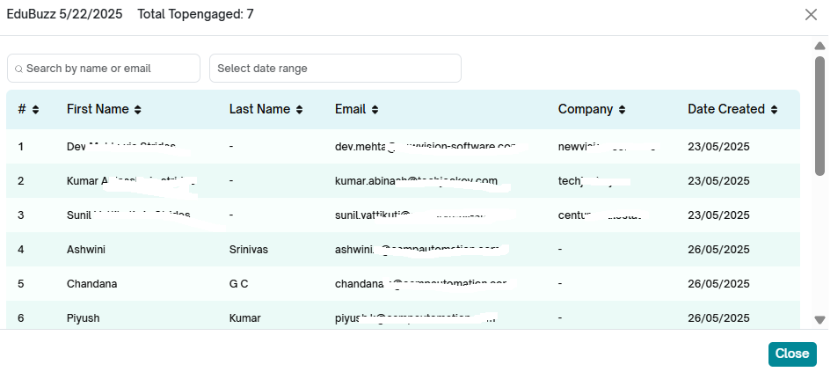
Total unsubscribers and Total Bounce: Click on the number displayed under these columns to see the list of unsubscribers and the list of subscribers for whom the email has bounced.
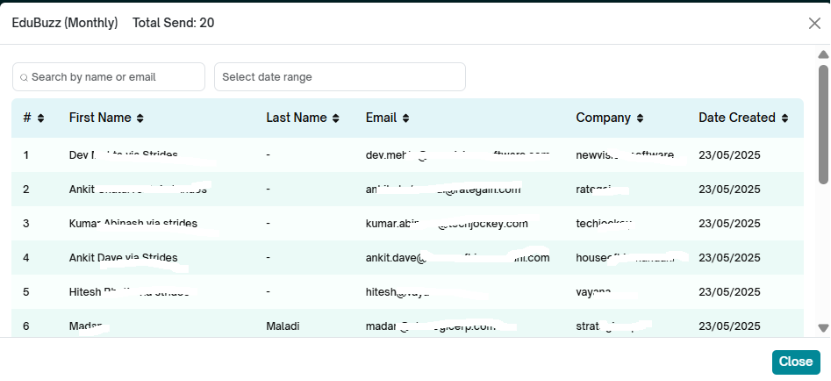
Total Send: Click on the number displayed under this column to see the list of subscribers to whom the newsletter was sent.
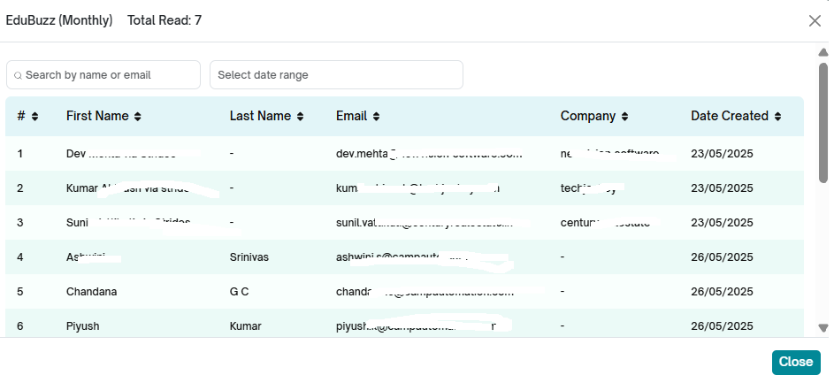
Total Open: Click on the number displayed under this column to see the list of subscribers who read the newsletter.
Total Clicks: Click on the number displayed under this column to see the list of subscribers who clicked the CTA button or link in the newsletter.
5.Company
The Company page in the AidaJet Reports module gives a consolidated view of how companies (clients, partners, or organizations) are performing in terms of newsletter engagement. It serves as a high-level analytics dashboard that showcases key metrics such as subscriber volume, linked campaigns, engagement levels, and delivery results.
Search by Name
- A search input field allows users to quickly locate companies by their name.
- As you type, the table dynamically filters results to match the input.
Select Newsletter Dropdown
- This dropdown filters companies based on the newsletter series linked to them.
- Selecting a specific newsletter shows only the companies associated with that campaign.
Main Table
Each row in the table represents a unique company record, offering valuable insights into their newsletter engagement. Here's a breakdown of each column:
Column | Description |
# | Row number (for ordering). |
Company Name | The name of the company. |
Subscriber Count | Total number of subscribers associated with this company. |
Linked Newsletter Series | Shows the name of the newsletter campaigns connected to this company. |
Total Top Engaged | Number of subscribers from the company who have shown high engagement (e.g., frequent opens or clicks). |
Total UnSubscribers | Total users who unsubscribed from newsletters sent to this company. |
Total Bounced | Number of emails that were not successfully delivered to this company’s subscribers. |
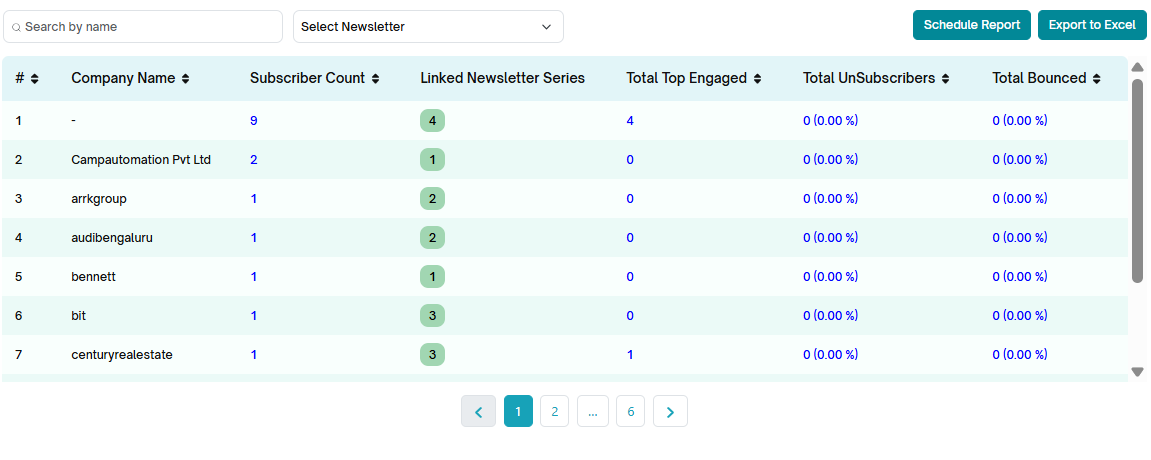
Top Engaged: Click on the number displayed in the report under this column to open the list of Top engagers for this newsletter. A new pop-up opens displaying the subscriber details.
Total unsubscribers and Total Bounce: Click on the number displayed under these columns to see the list of unsubscribers and the list of subscribers for whom the email has bounced.
6.Bounced Subscriber Report
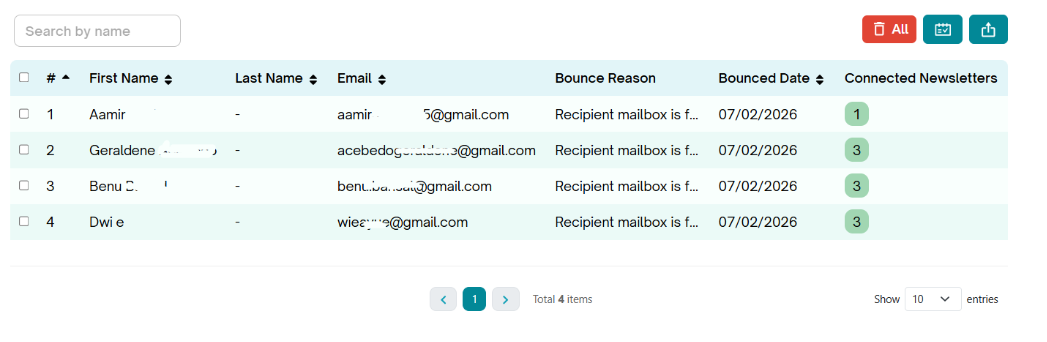
AidaJet provides a consolidated list of bounced subscribers across all newsletters in your account. You’ll be able to view key details such as:
- First name and last name
- Email(Bounced Mail id)
- Bounce reason
- Bounced date
- Connected newsletters
Search Bar -- Use the search bar to find subscribers by first name, last name, or bounced email ID.
Deleting Bounced Subscriber Records
You can delete bounced subscriber records from the Aida Jet subscriber database through the Reports section. Follow these steps:
Locate and select the bounced subscriber(s) you wish to delete by clicking the checkbox next to their name.
Once a bounced subscriber is selected, the Delete button will become active.
Click the Delete button to permanently remove the selected bounced subscriber record(s) from the database.
Was this article helpful?
That’s Great!
Thank you for your feedback
Sorry! We couldn't be helpful
Thank you for your feedback
Feedback sent
We appreciate your effort and will try to fix the article