Located next to the Newsletter section, the Enabled Letters panel displays newsletters that are ready to be sent. Once a newsletter is created and finalized, it will automatically appear here, ready for dispatch.
The dashboard presents important statistics to help you track your newsletter performance:
- Active Newsletter – The count of newsletters that have been successfully sent.
- Read Rate – The percentage of subscribers who have opened your newsletters.
- Click Through Rate (CTR) – The percentage of subscribers who clicked on links inside your newsletters.
- Subscribers – The total number of people subscribed to your newsletters.
- Unsubscribers – The number of users who have opted out of receiving newsletters.
- Top Engaged – Users who have:
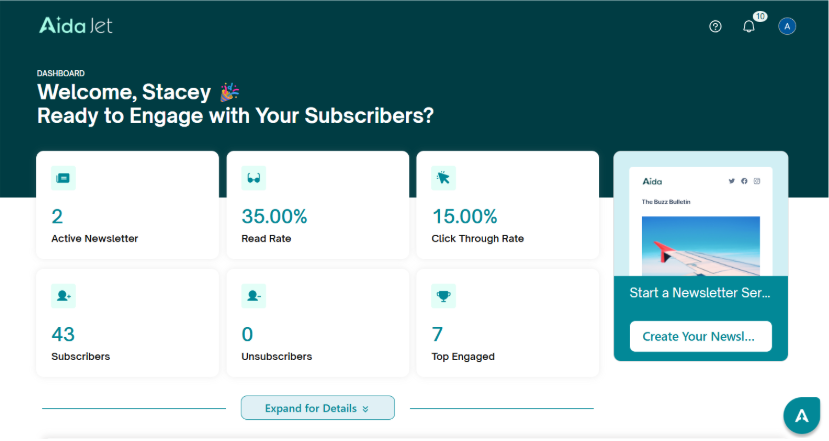
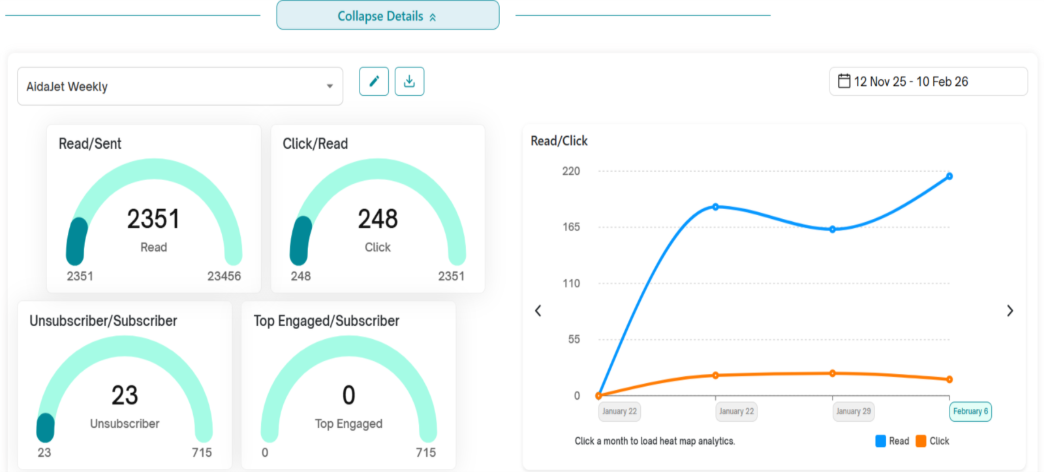
You’ll also see an “Expand for Details” button, which opens deeper analytics for Read/Sent, Click/Read, as well as subscriber trends—including Subscribed, Unsubscribed, and Top Engaged users.
Detailed view: Graphical Representation – A visual display of subscriber activity, including:
- Number of Read/Sent
- Number of Click/Read
- Number of Unsubscribers/Subscriber
- Number of Top engaged/Subscriber
A month wise line graph representing Open/Click
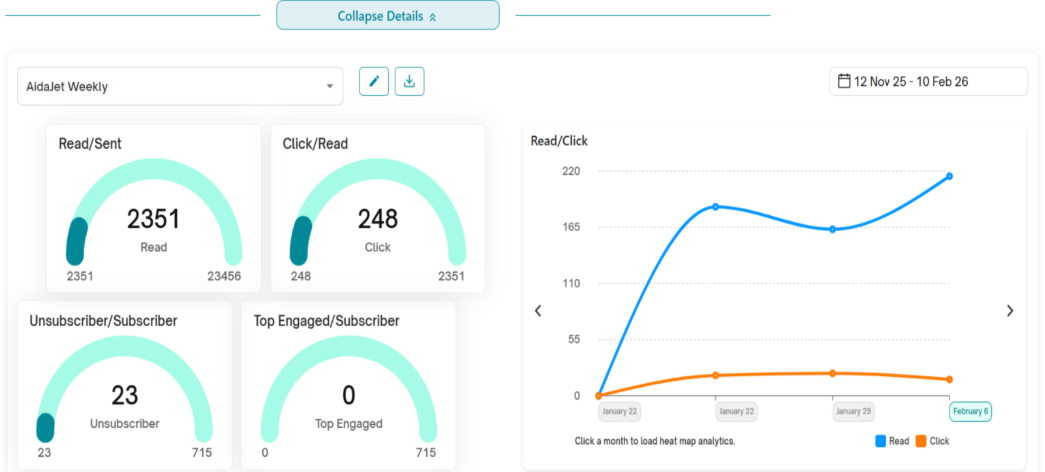
Hover over the read/sent graphs to see the Sent/Read/Click graph:
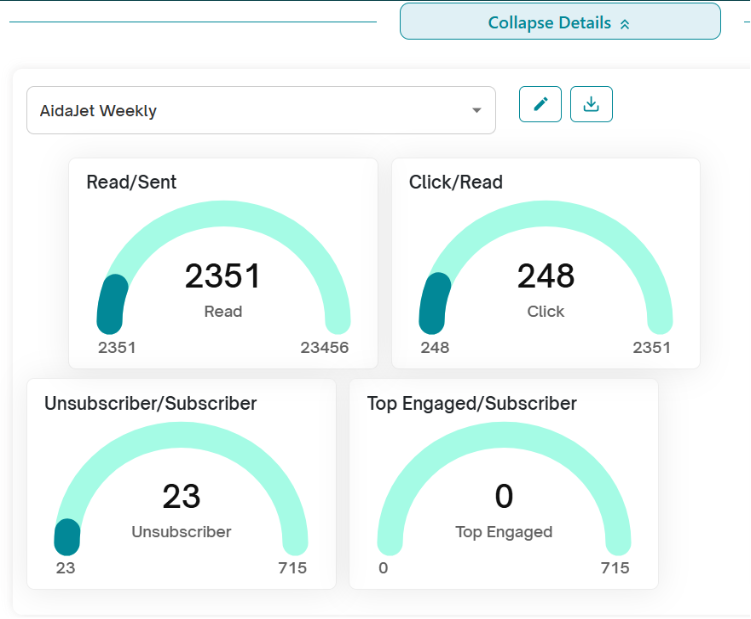
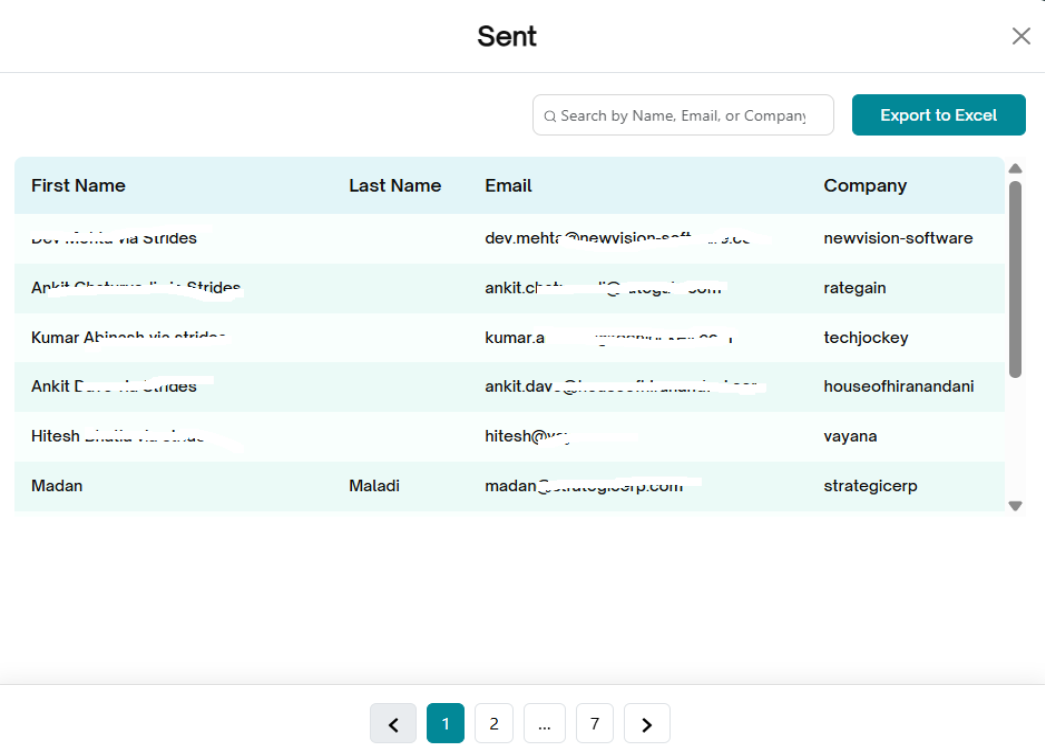
Click on the numbers displayed in the Sent/Read/Click graph to see the list of subscribers under each category.
Hover over the unsubscribe/subscriber graph to see the Subscriber/Un-Subscriber/Top-engaged graph.
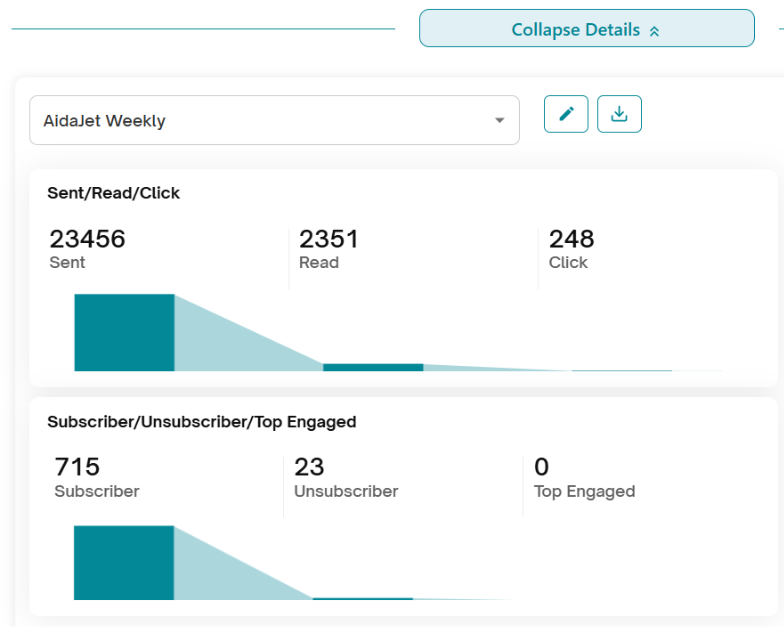
Click on the numbers displayed in the Subscriber/un-Subscriber/Top Engaged to see the list of subscribers under each category.
Filtering and Customization Options
Filter by Newsletter Program – Use the dropdown list to view statistics for a specific newsletter program.
Adjust Date Range – Select a specific date range to customize the report view.
Graph Navigation
The graph initially displays data for the current duration.
Navigating Through the Graph
- Use the left and right arrow buttons to navigate through past data in the graph timeline.
- Click on any data point along the x-axis to preview the newsletter for that specific period.
Newsletter Preview and Heatmap
- When a date is selected, a newsletter preview appears on the right side of the screen.
- A heatmap is overlaid to show where users clicked.
On the left side of the preview, you’ll see key metrics, including:
- Valid Clicks
- Header Clicks
- Section Clicks
- Footer Clicks
Understanding Valid Clicks
Valid Clicks represent actual user engagement by filtering out:
- Bot activity
- Accidental clicks
- Duplicate interactions
- This helps you gain accurate insights into how real users are interacting with your newsletter, enabling smarter decisions for future campaigns.
To Enable Valid Clicks View:
- Click the "Valid Clicks" toggle button. (Our internal bot-filtering logic will remove invalid clicks from the count.)
- Hover over any highlighted area on the heatmap.
- You’ll see the count of valid clicks for that section.
To Disable Valid Clicks View:
- Click the toggle again to turn off the valid clicks filter.
- Hover over the highlighted area on the heatmap.
- This will display the total click count, including both valid and general clicks.
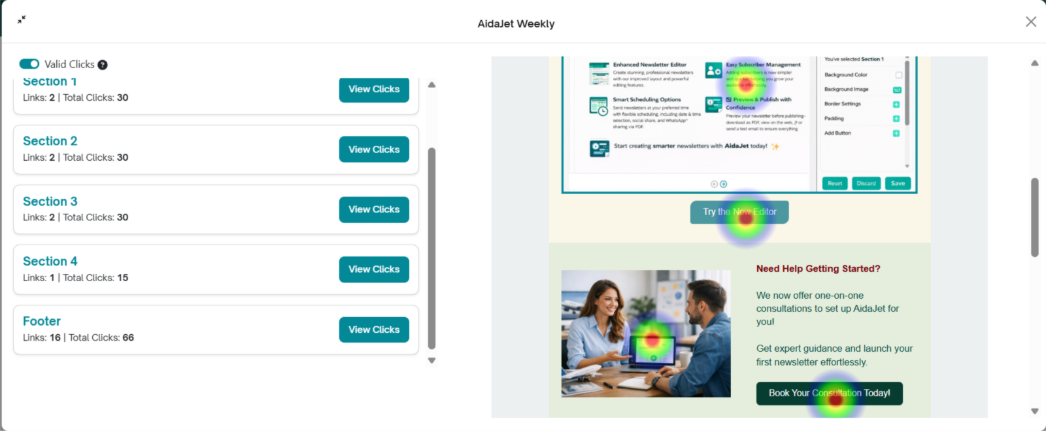
The 'View Clicks' button will appear only if the user has clicked on at least one link in the Header, Section, or Footer of the newsletter.
If no links are clicked, the 'View Clicks' button will not be displayed.
This ensures the button is shown only when there is click data available to view.
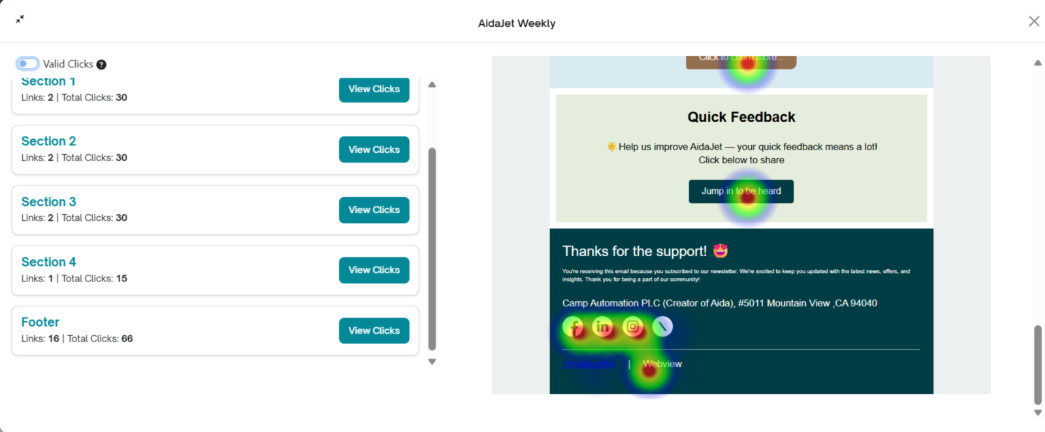
View Clicks
To see detailed click activity:
- Click on any link in the Header, Section, or Footer of the newsletter preview.
- The 'View Clicks' button will appear once a link has been clicked.
Click the 'View Clicks' button to view a list of all clicked links, along with:
- Total Clicks
- Valid Clicks
This helps you analyze which parts of your newsletter received the most engagement and from real users.
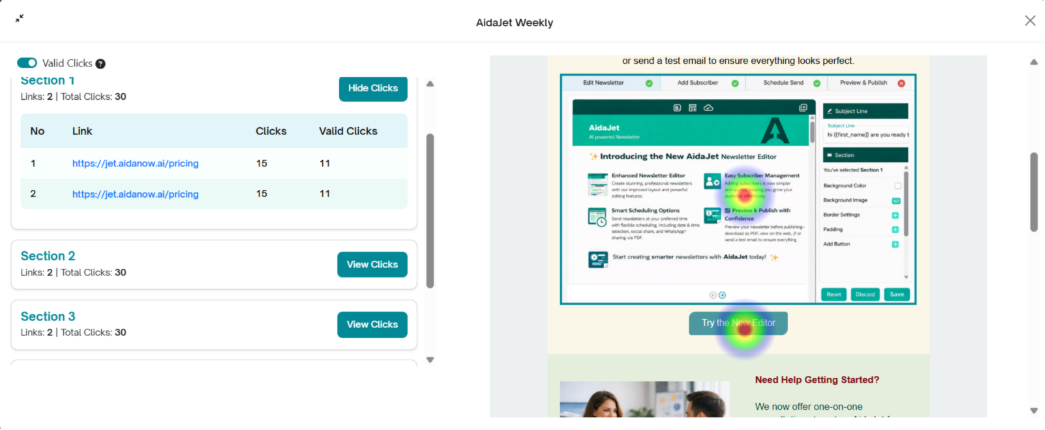
Editing a newsletter:
- Click Expand to view more details.
- The topmost newsletter in the dropdown is selected by default.
- Choose the desired newsletter from the dropdown menu.
- Click the Edit icon next to the dropdown.
- The newsletter flow for the selected newsletter will open.
Download the dashboard details:
- Click Expand to view more details.
- The topmost newsletter in the dropdown is selected by default.
- Choose the desired newsletter from the dropdown menu.
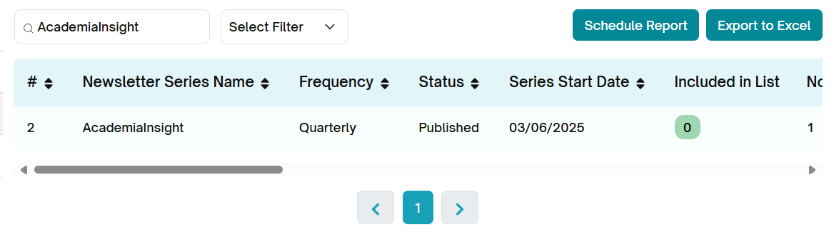
- Click on the download option to download the dashboard details for the selected newsletter.
- You will be redirected to the reports section with the selected Newsletter highlighted.
- Click on Export to Excel.
- The dashboard's details can be shared with others through this download option.
Start a Newsletter Series
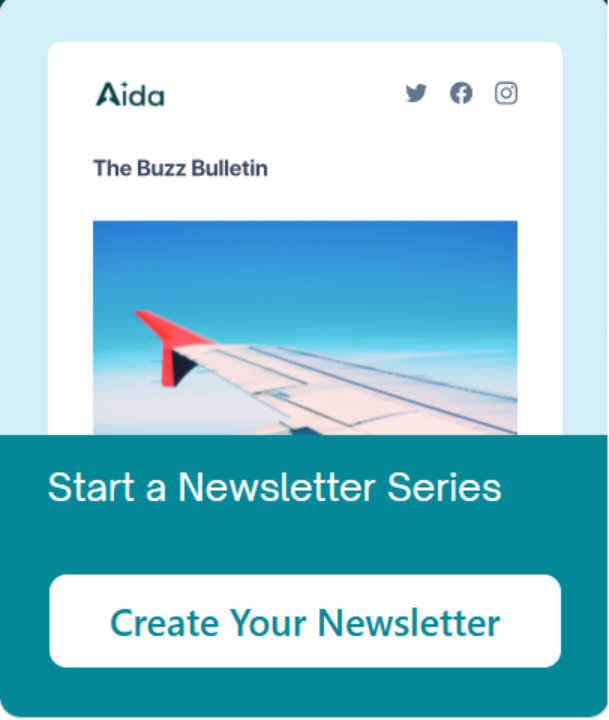
The Start a Newsletter Series located in the top-right corner of the Aida Jet dashboard, serves as a dynamic and visually appealing feature designed to grab the user's attention. Branded as “The Buzz Bulletin”, this card offers users quick access to create featured content through the newsletter series.
Create Your Newsletter
When the Create Your Newsletter button is clicked, users are redirected to the Newsletter Series creation page—the core section where they can build, customize, and schedule newsletters.
Next ---> Create your Newsletter
Was this article helpful?
That’s Great!
Thank you for your feedback
Sorry! We couldn't be helpful
Thank you for your feedback
Feedback sent
We appreciate your effort and will try to fix the article