Accessing the Profile Menu:
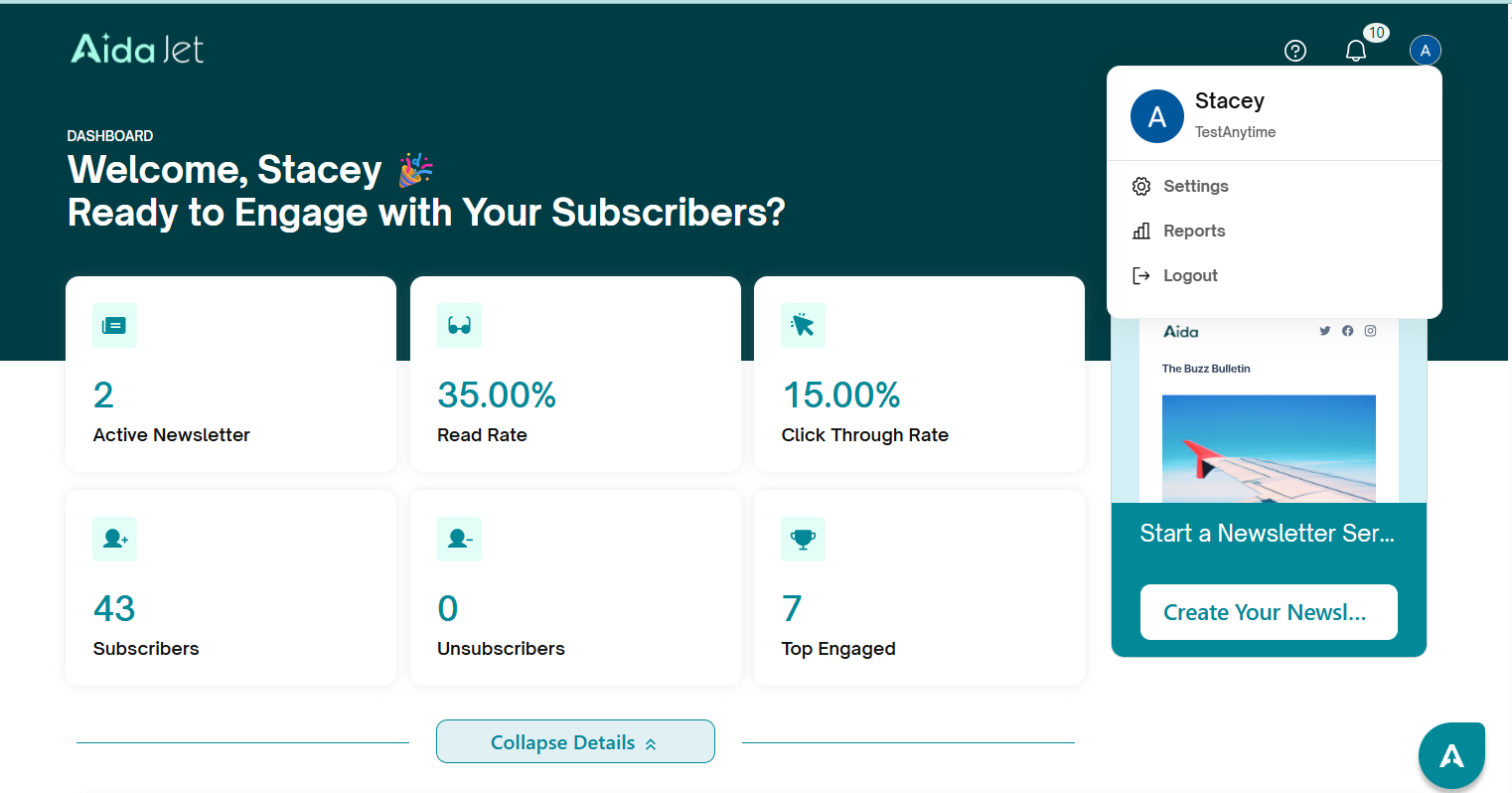
- After logging in, your name and profile icon will be displayed in the upper right corner of the screen.
- Click on the profile icon to open the profile menu.
Profile Menu Options:
When you click on the profile icon, a dropdown menu will appear with the following options:
- Settings – Customize your account preferences.
- Reports – Access analytics and insights.
- Logout – Click here to securely log out of Aida Jet.
Notifications
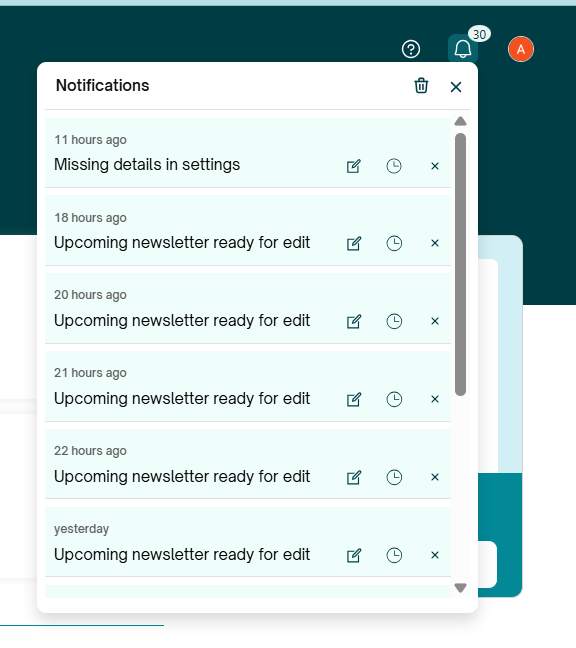
The Notifications panel displays important alerts and updates. If there are any unread notifications, a number badge will appear above the bell icon. Hover over the icon to view the list of notifications.
Available Actions:
- Update
If you have pending settings to complete update icon will appear next to the relevant notification. Clicking it will take you directly to the section where the action is required.
Edit:
If you have newsletters ready to edit, an Edit icon will appear next to the relevant notification. Clicking it will take you directly to the section where the action is required.View:
For notifications such as List Upload Completed or Newsletter Send Missed, a View icon will be displayed. Clicking this icon will take you directly to the relevant list or newsletter for viewing only.Snooze:
Each notification includes a Snooze option. Select this to be reminded the next day. The notification will temporarily disappear and reappear after 24 hours.Dismiss:
You can remove any notification by clicking the Dismiss icon next to it.
Bulk Action:
Use the Clear All option at the top of the notification dropdown to delete all notifications at once.
Daily Email Reminder:
As an additional reminder, you'll receive a daily email summarizing all your notifications.
Help : Use the Aida Care chat bot anytime you need guidance while using Aida Jet!
Was this article helpful?
That’s Great!
Thank you for your feedback
Sorry! We couldn't be helpful
Thank you for your feedback
Feedback sent
We appreciate your effort and will try to fix the article