The Master List section helps you manage newsletters be it a series or an individual newsletter.
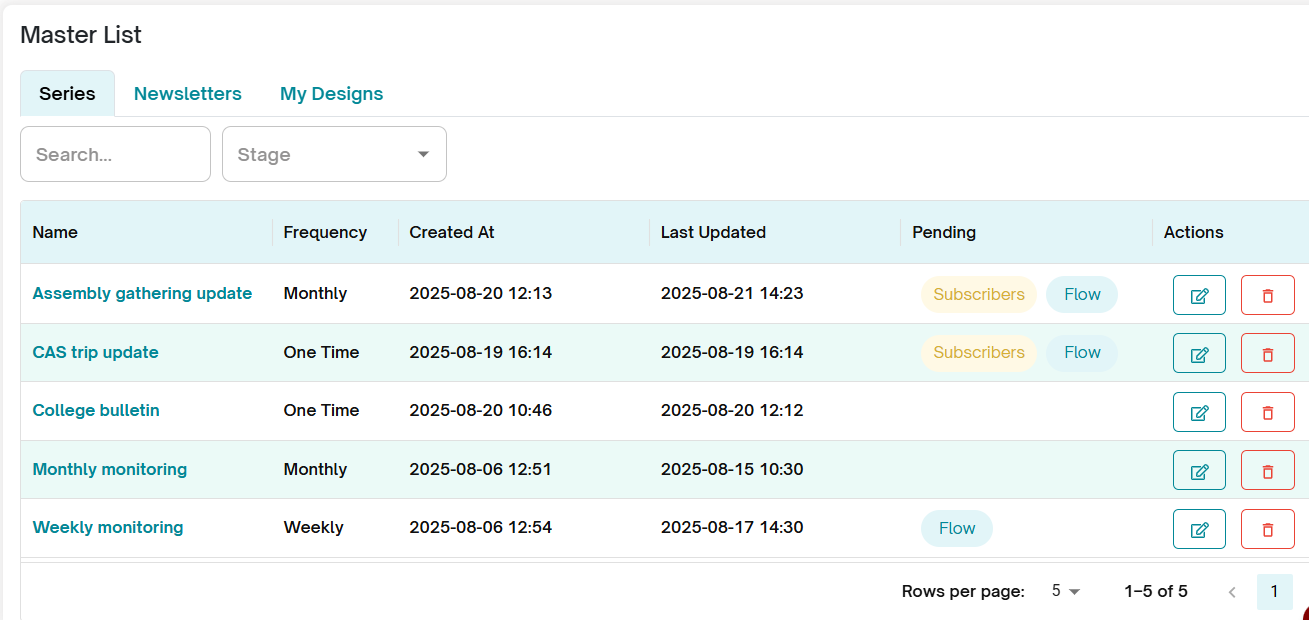
The interface is organized into three main tabs:
1. Series (Default Tab):
This section allows you to manage all your active and scheduled newsletters, grouped by their respective series.
2. Newsletters:
Here, you can view and access the individual newsletters that belong to each series.
3. My Design:
This section contains all your saved newsletter designs, making it easy to reuse or customize them for future campaigns.
1. Series:
The Series tab provides an overview of all your newsletter series, along with key details to help you manage drafts and publishing schedules effectively.
Each series entry displays the following information:
Series Name – The title of the newsletter series.
Frequency – How often the newsletters are scheduled (e.g., weekly, monthly).
Created At – The date the series was first created.
Last Updated – The most recent update made to the series.
Pending – Number of pending newsletters awaiting publishing.
Actions – Quick options for managing the series.
Available Actions:
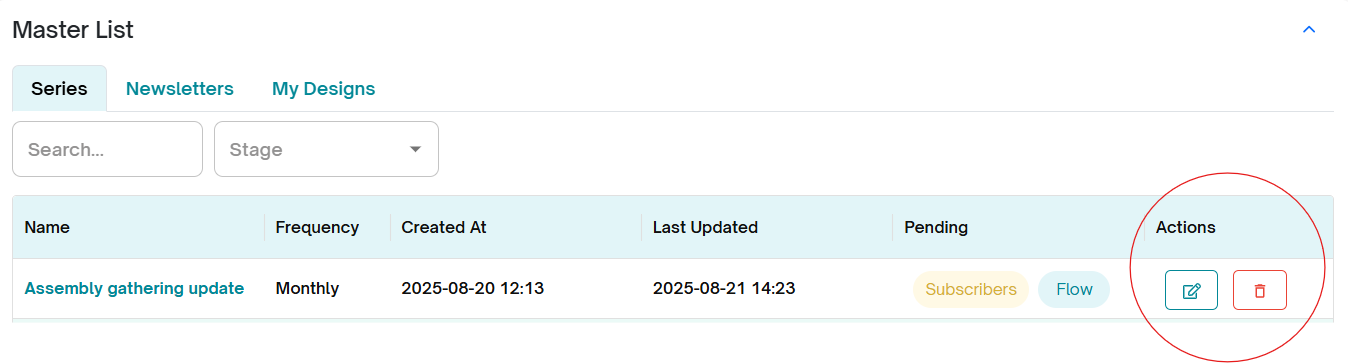
Edit – Open the series to update content, add subscribers, or adjust the schedule.
Delete – Remove the newsletter series. (Deleted series are archived in the backend and can be restored upon request. A retrieval fee may apply—please contact Aida Care through the ticket portal for assistance.)
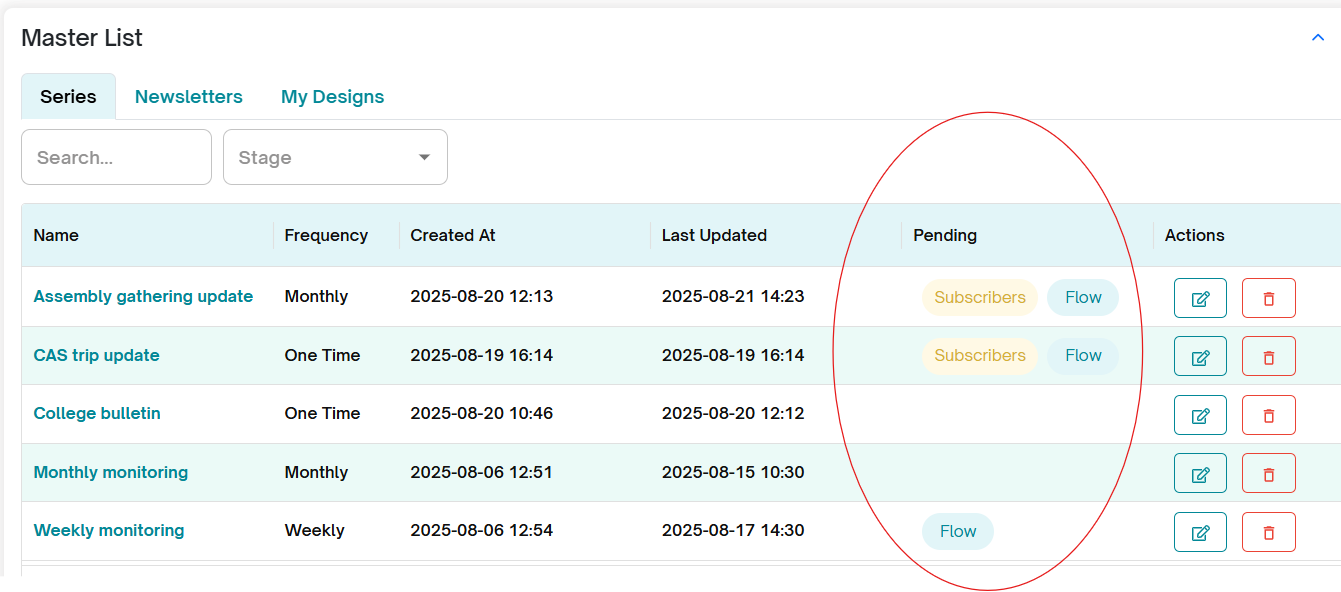
Pending Status in the Series Tab:
The Pending column shows the current status of each newsletter in a series. It indicates if any action is required before the newsletter can be sent.
Flow – The newsletter is part of the series flow, but has not been published yet.
Subscribers – A subscriber list has not been uploaded or selected for this newsletter.
No Pending Action – The newsletter is fully ready to send or has already been sent.
2. Newsletters:
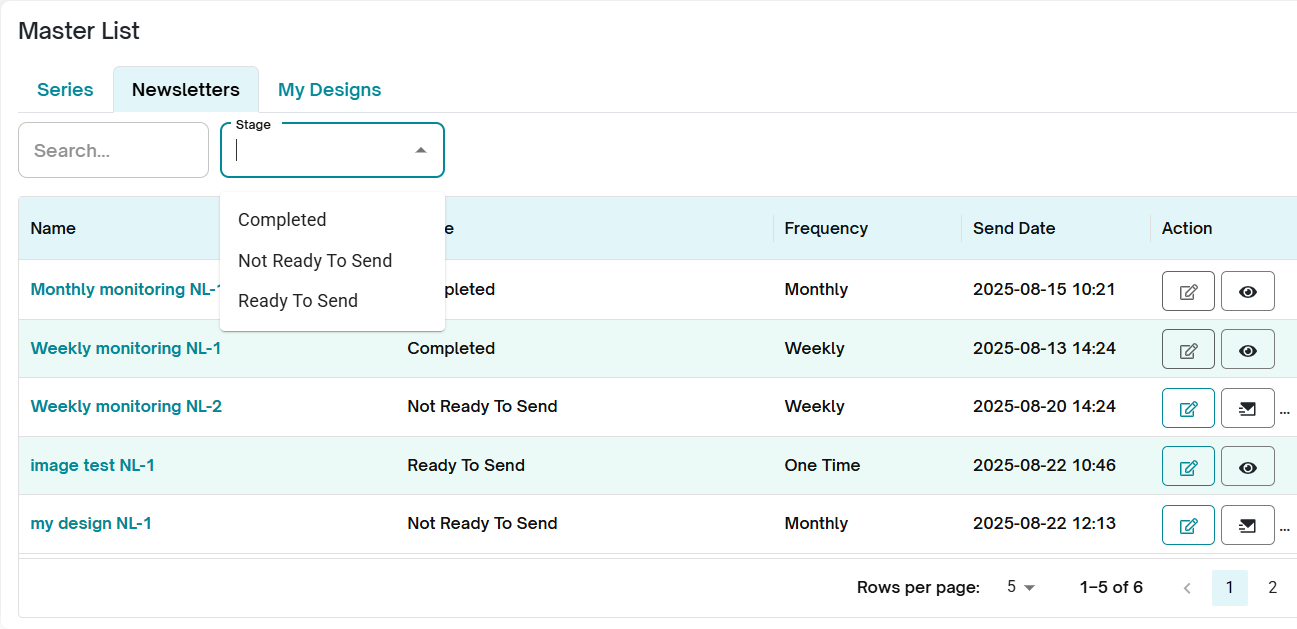
The Newsletters section in the Aida Jet dashboard is where users manage their active and scheduled newsletters across various series. This tab displays individual newsletters that have been marked as ready to send(Published), Enabled but not yet ready to send (Draft stage) or already published.
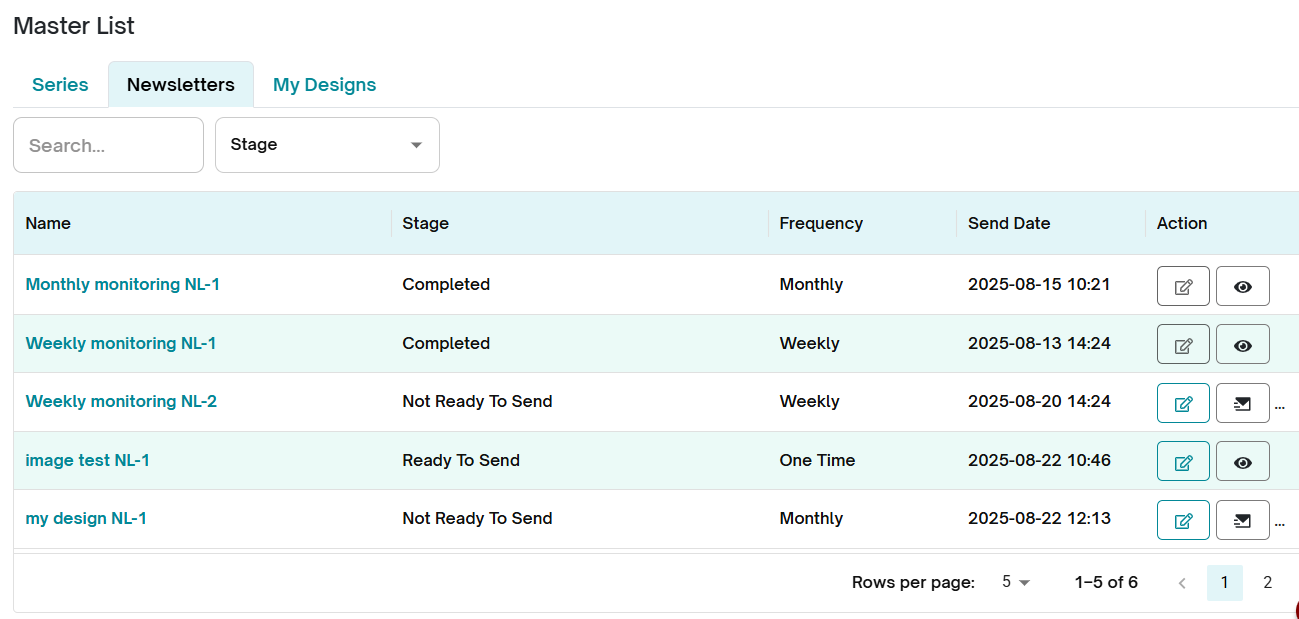
Each newsletter entry displays the following details:
Name – The name of the newsletter series, followed by the active newsletter number.
Stage – Indicates the current status of the newsletter:
Completed – The newsletter has already been sent.
Not Ready to Send – Required setup steps are pending (e.g., missing subscribers or schedule).
Ready to Send – The newsletter is fully prepared and ready for publishing.
Frequency – The frequency of the newsletter series (e.g., weekly, monthly).
Send Date – The scheduled date for the newsletter to be sent.
Available Actions:
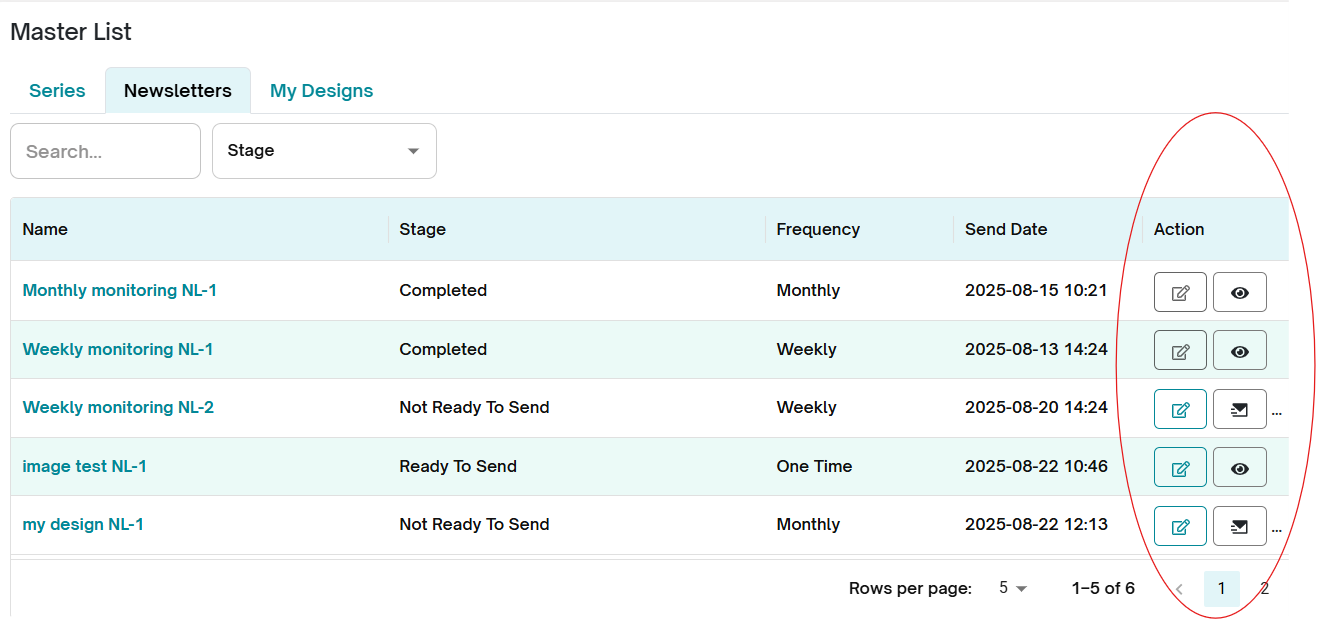
Edit –
You can edit newsletters that are not completed.
Clicking the edit icon opens the newsletter flow, where you can update content or settings.
Preview –
Available for newsletters that are Completed or Ready to Send.
Click the eye icon to open a preview pop-up.
The preview includes From Email Address, From Name, Subject, and Subject Score.
Toggle between Desktop, Tablet, and Mobile views at the top of the preview screen.
Click the close icon to exit the preview.
Publish –
Use the publish button to send a newsletter once all components (subscribers, schedule, and content) are ready.
3. My Design Tab:
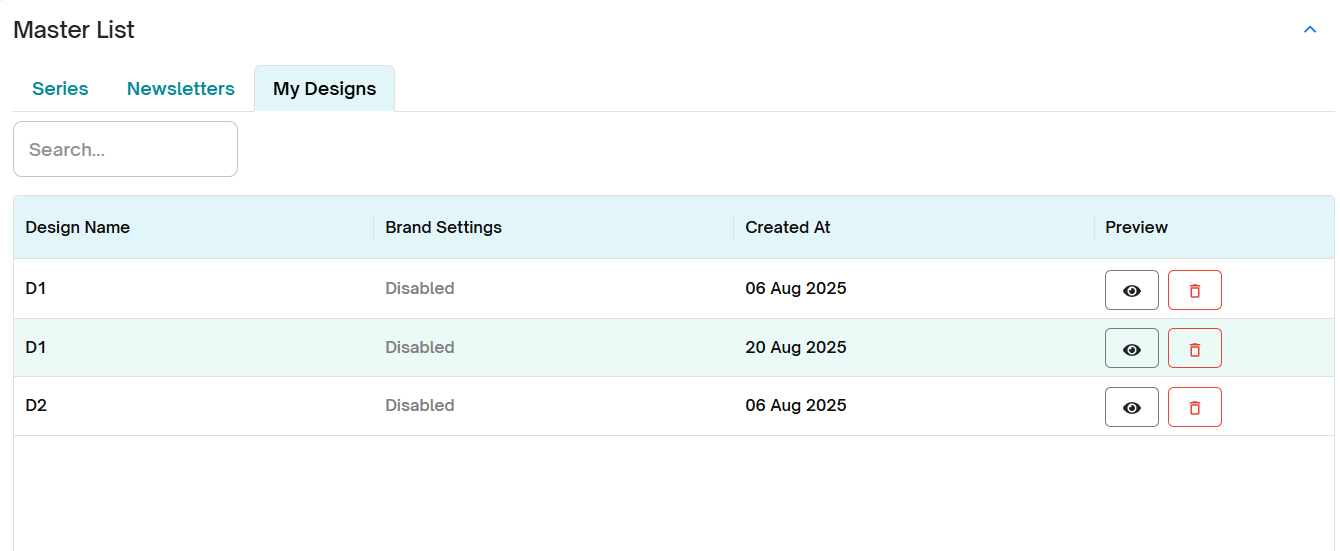
The My Design tab displays a list of newsletter designs that you have saved when marking a newsletter as Ready to Send.
Each design entry shows the following details:
Name – The design name you assigned when saving the newsletter.
Brand Settings – Indicates whether brand settings have been applied to the design.
Created At – The date the design was created.
Preview – Options to either preview the design or delete it.
Available Actions:
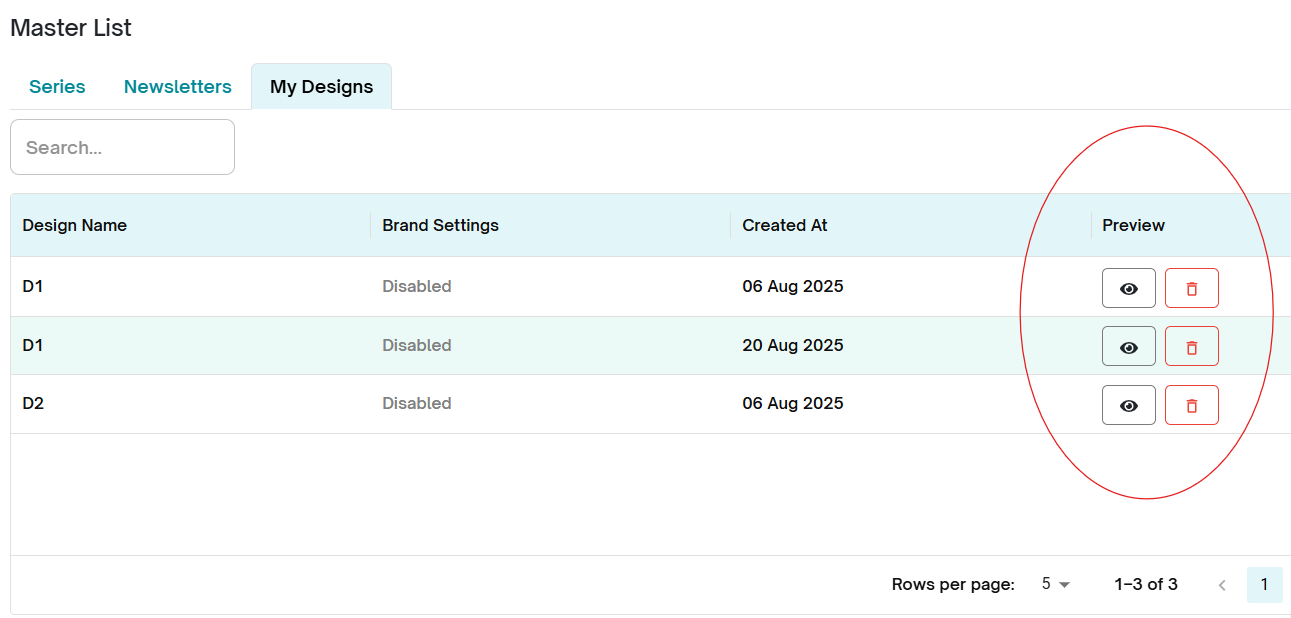
Preview –
View a saved design before using it.
The preview allows you to check the layout and content.
Delete –
Remove the saved design from your account.
Search and Stage Sorting:
1. Search by Name:
The Series, Newsletters, and My Design tabs allow you to search for items by name. This makes it easier to quickly locate a specific newsletter, series, or saved design.
How to search:
Enter the name of the newsletter, series, or design in the search field.
Press Enter.
The results matching your search keyword will be displayed.
2. Stage-Based Sorting:
The Series and Newsletters tabs allow you to sort items based on their stage or status. This helps you focus on newsletters or series that require attention.
How to sort by stage:
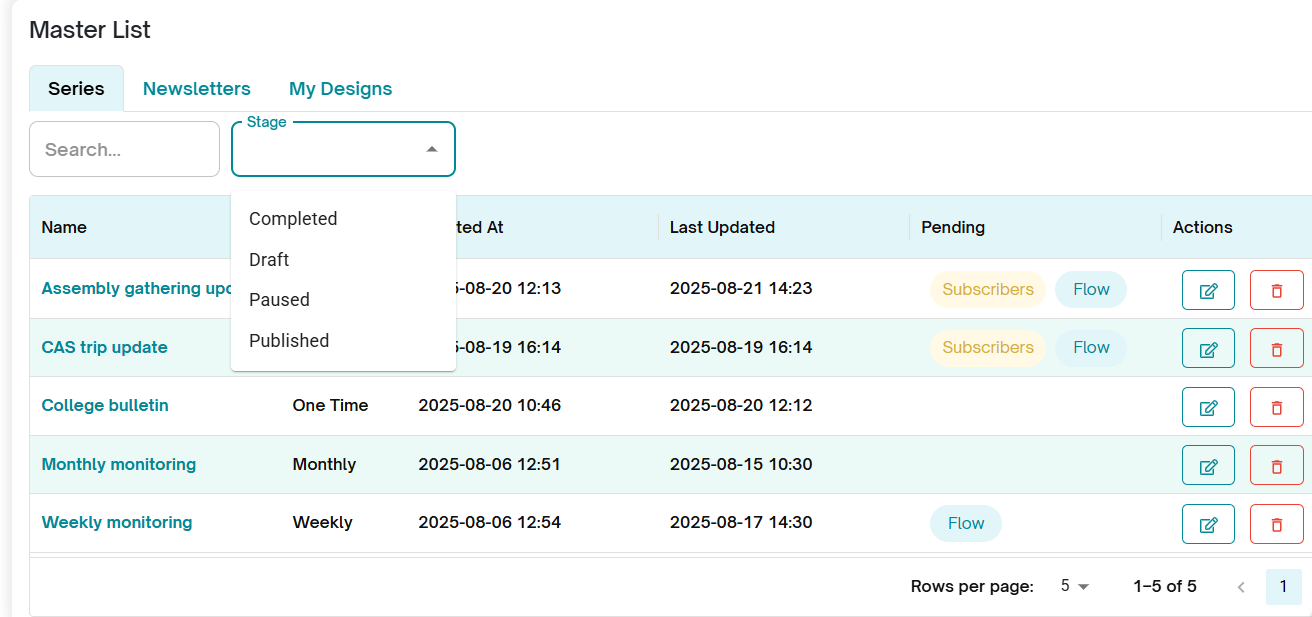
Click on the Stage dropdown field.
Select the stage you want to filter by.
The list will update to show only items matching the selected stage.
Available Stages in Series Tab:
Completed – Newsletter series that have been sent and are finalized.
Draft – Newsletter series that are still in development and not yet ready to publish.
Paused – Temporarily halted series. Sending has been paused in the series flow but can be resumed later.
Published – Active series that are currently live and being sent according to the defined schedule.
Available Stages in Newsletters Tab:
Not Ready to Send – Drafts or incomplete newsletters that are not yet ready for scheduling or sending.
Ready to Send – Newsletters that are finalized and waiting to be sent at the scheduled date and time.
Completed – Newsletters that have already been sent and are archived for recordkeeping or performance review.
Was this article helpful?
That’s Great!
Thank you for your feedback
Sorry! We couldn't be helpful
Thank you for your feedback
Feedback sent
We appreciate your effort and will try to fix the article