To create or start a new newsletter series, click the "Create Your Newsletter" button on the dashboard. Aida AI simplifies the process by handling most of the work for you.
- Enter the name you've chosen for your newsletter series, or click Ask AI to let Aida Jet suggest a name for you. If you choose Ask AI, you'll need to provide a prompt to help the AI generate suitable name options. Click on the appropriate option to select as the newsletter name.
- Select the frequency – Choose from Quarterly, Weekly, Monthly, or One-time newsletters.
As you select your options, the preview on the right will reflect your choices.
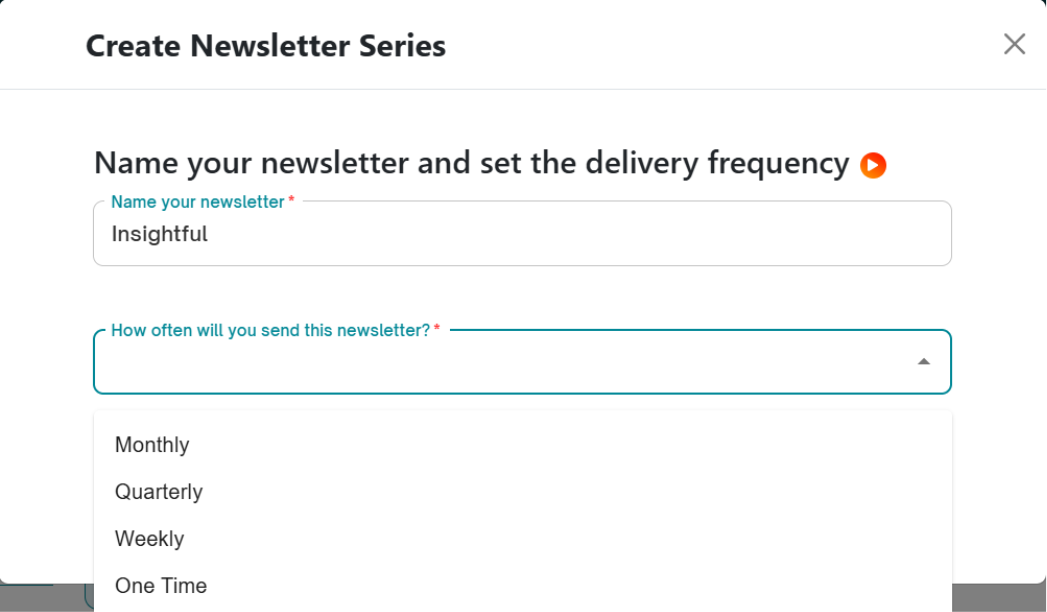
Click "Create Newsletter Series", and Aida Jet will automatically generate the entire newsletter series for you.
The Newsletter Series section will display the Subscriber list and Schedule Series in the top right corner and the newsletter series below that.
- Newsletters ready to send will be marked with a green icon and labelled "Ready to Send."
- Upcoming newsletters in the draft stage will have a yellow icon.
- Future newsletters not yet available for editing will be marked with a red icon.
Each newsletter will display the date when it becomes editable, and editable newsletters will include a preview above the date.
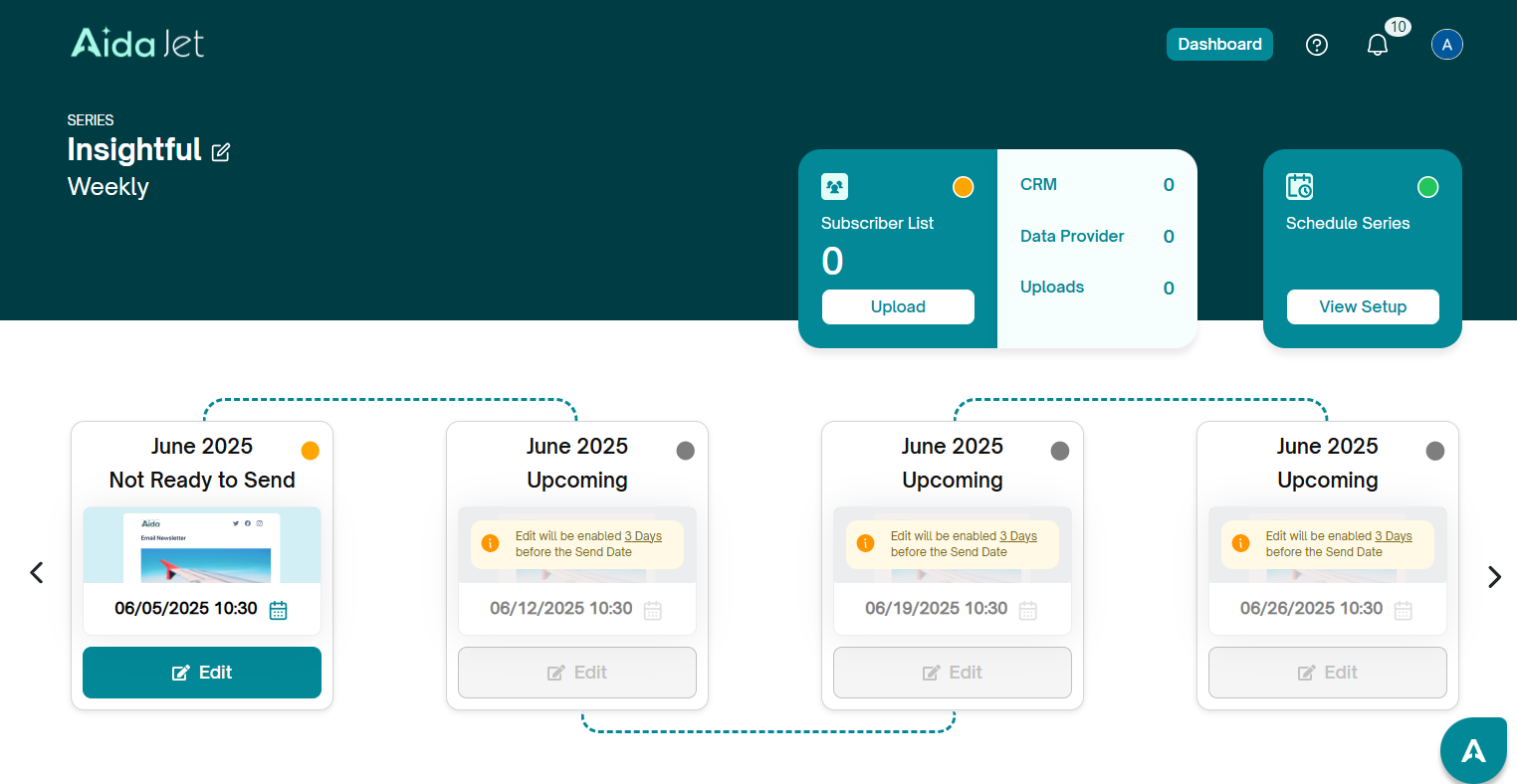
Date when newsletter becomes editable:
1. Weekly newsletter - 3 days before the send date
2. Montly newsletter - 10 days before the send date
3. Quarterly newsletter - 15 days before the send date
Note: The series flow will be displayed only for weekly, monthly and quarterly. The one-time newsletter will be a standalone newsletter.
Each newsletter entry will include:
Scheduled Send Date
Date When It Becomes Editable
This streamlined view helps you manage your campaigns at a glance while keeping everything organized and actionable.
Understanding Newsletter Series Stages in AidaJet:
To help you manage your campaigns more efficiently, AidaJet tracks progress through defined stages for both newsletter series and individual newsletters (letters). This guide explains what each stage means and how your actions affect their status.
Newsletter Series Stages:
A newsletter series is the overall campaign containing multiple newsletters. It progresses through the following stages:
1. Draft
This is the default stage when a series is first created.
Both the subscriber list and the first letter are also in Draft (marked in orange).
No emails are sent while the series remains in this stage.
2. Published
The series transitions to Published when:
A subscriber list is uploaded (status turns green), and
The first letter is marked Ready to Send.
The active newsletter (the one ready to send) will also turn green.
Once published, two new options appear:
Pause Series: Halts all activity. No newsletters or alerts are sent.
Close Series: Marks the series as Completed, though previously published content is still considered sent.
3. Paused
When you click Pause Series, the series is temporarily stopped.
You can resume sending later without losing progress.
4. Completed
Clicking Close Series finalizes the campaign.
No further edits or sends can be made, and the series is moved to an archived, completed state.
Newsletter (Letter) Stages:
Each individual newsletter in a series goes through its own lifecycle, with statuses represented by color codes:
1. Draft / Enabled (Orange)
Default state when a letter is created or edited and saved.
If you click Save or Close without marking it Ready to Send, it stays in Draft.
2. Ready to Send / Completed (Green)
When you click Ready to Send (RTS):
The letter’s status turns green.
If the subscriber list has at least one recipient, the entire series is automatically published.
Once sent, the letter remains green and is marked as Completed.
3. Disabled (Gray)
Letters can be disabled manually if you don’t want them sent but also don’t want to delete them.
4. Missed (Red)
If a letter is not marked RTS before its scheduled send date, it automatically moves to the Missed stage.
Important Behavior Notes:
If you edit a letter after clicking RTS, and then click Close, it reverts to Draft.
If it’s the first letter in the series, the entire series also reverts to Draft.
Other letters edited post-RTS only affect their own stage, not the series as a whole.
By understanding how each stage works, you’ll have better control over your campaigns, avoid missed sends, and keep your messaging on track.
Next ---> Subscriber List
Was this article helpful?
That’s Great!
Thank you for your feedback
Sorry! We couldn't be helpful
Thank you for your feedback
Feedback sent
We appreciate your effort and will try to fix the article