Schedule Series:
AidaJet offers a user-friendly scheduling interface for setting up recurring email . Here’s how you can automate your email schedule with just a few clicks.
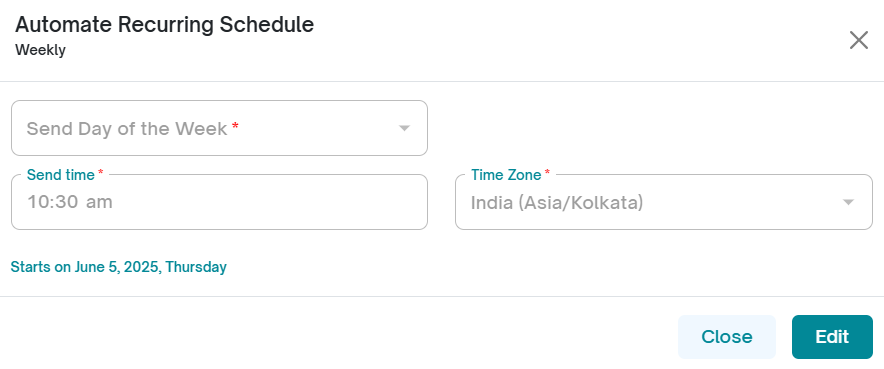
1.In the Newsletter flow, Click the “View Setup” button under Schedule series section on the right-hand panel.
2. A pop-up titled “Automate Recurring Schedule” will appear for Weekly, Monthly and Quarterly newsletter series only.
One-time Newsletter series:
In case of one-time newsletter the schedule series is more simple to address the one time setup need:
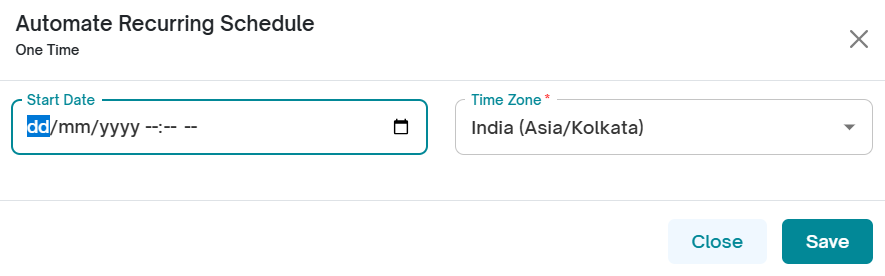
Under Start Date, set the date and time when you want the newsletter to be sent.
If your subscribers are in a different timezone than the one set in Settings, select the appropriate timezone from the dropdown list under Timezone.
Click Save to confirm the newsletter’s scheduled date and time.
Note: The newsletter will be sent according to the timezone selected. Make sure to choose the correct timezone to ensure subscribers receive it at the intended local time.
Weekly Newsletter series:
1. Send Day of the Week: Choose the day of the week you want the email to be sent.
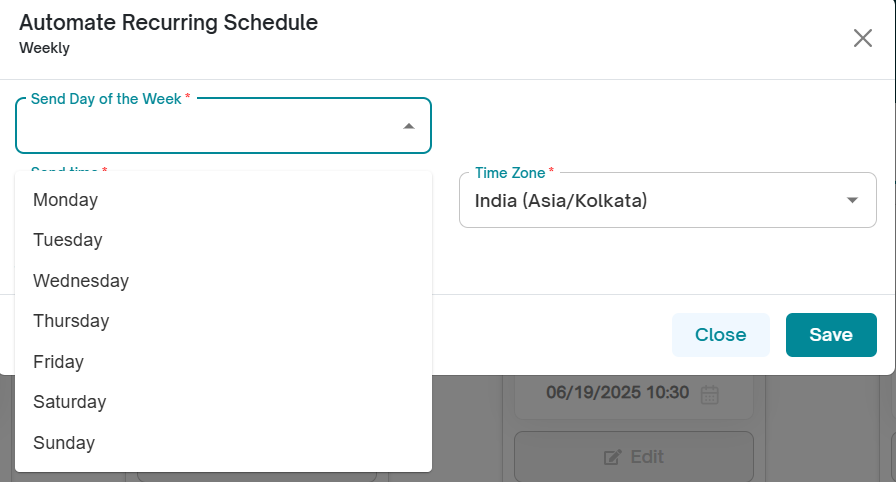
2. Send Time: Enter the time of day the email should be sent.
3. Time Zone: If the timezone of your target subscribers is different from the timezone set in the settings, select the appropriate time zone.
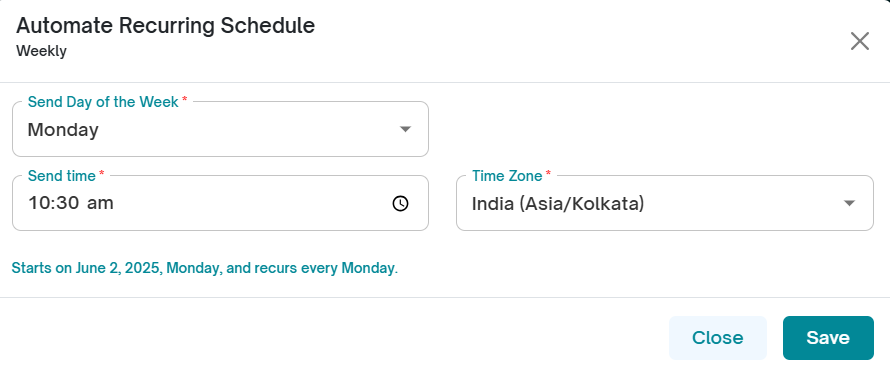
For example: For the above selection, the newsletter will be sceduled to be sent every Monday at 10:30 AM.
4. Click on Save. A confirmation message is displayed.
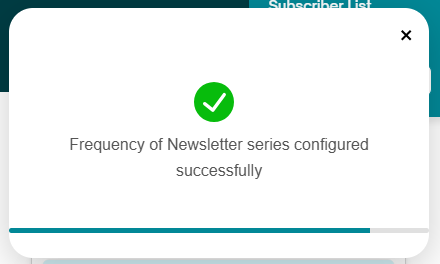
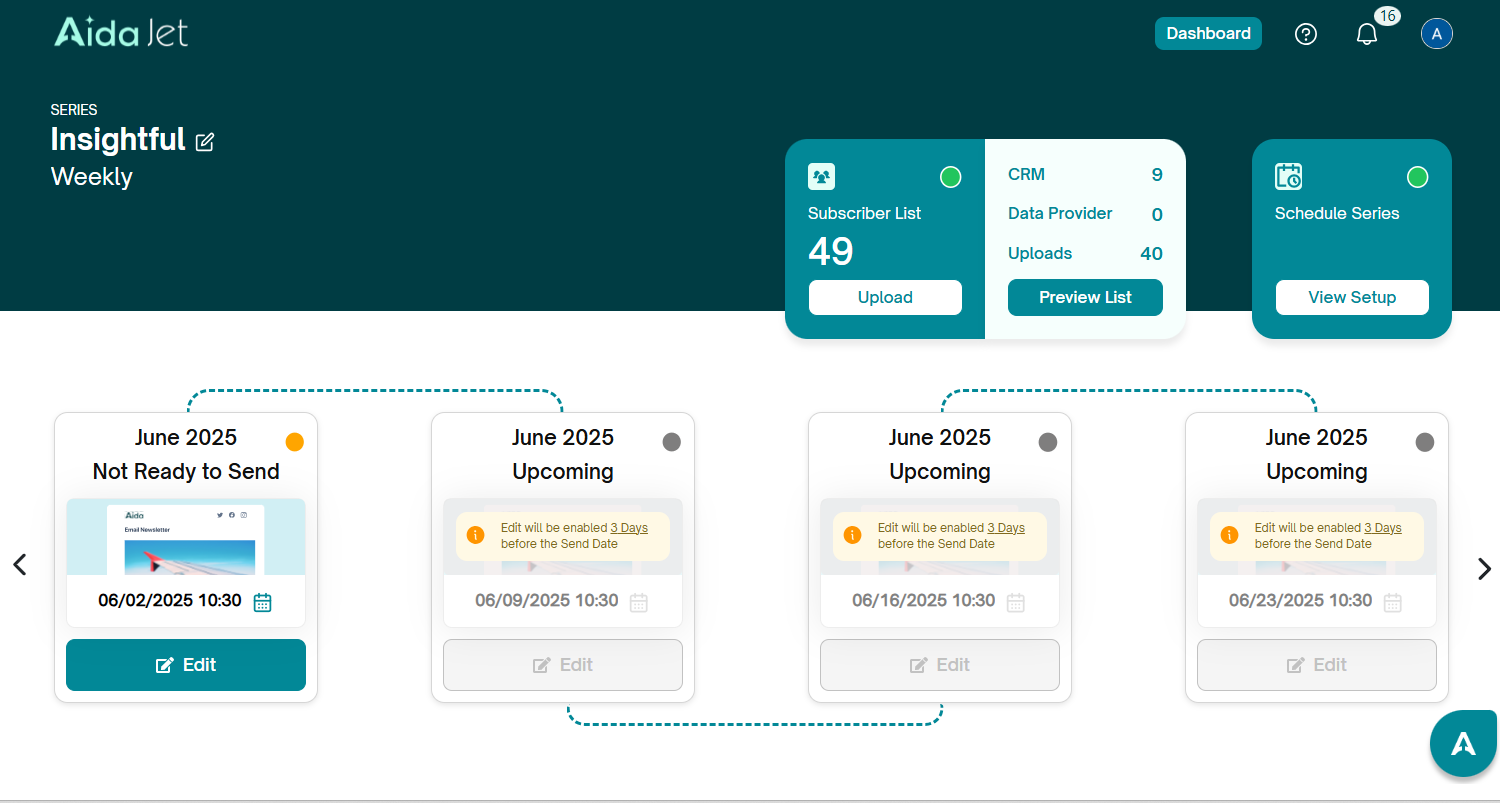
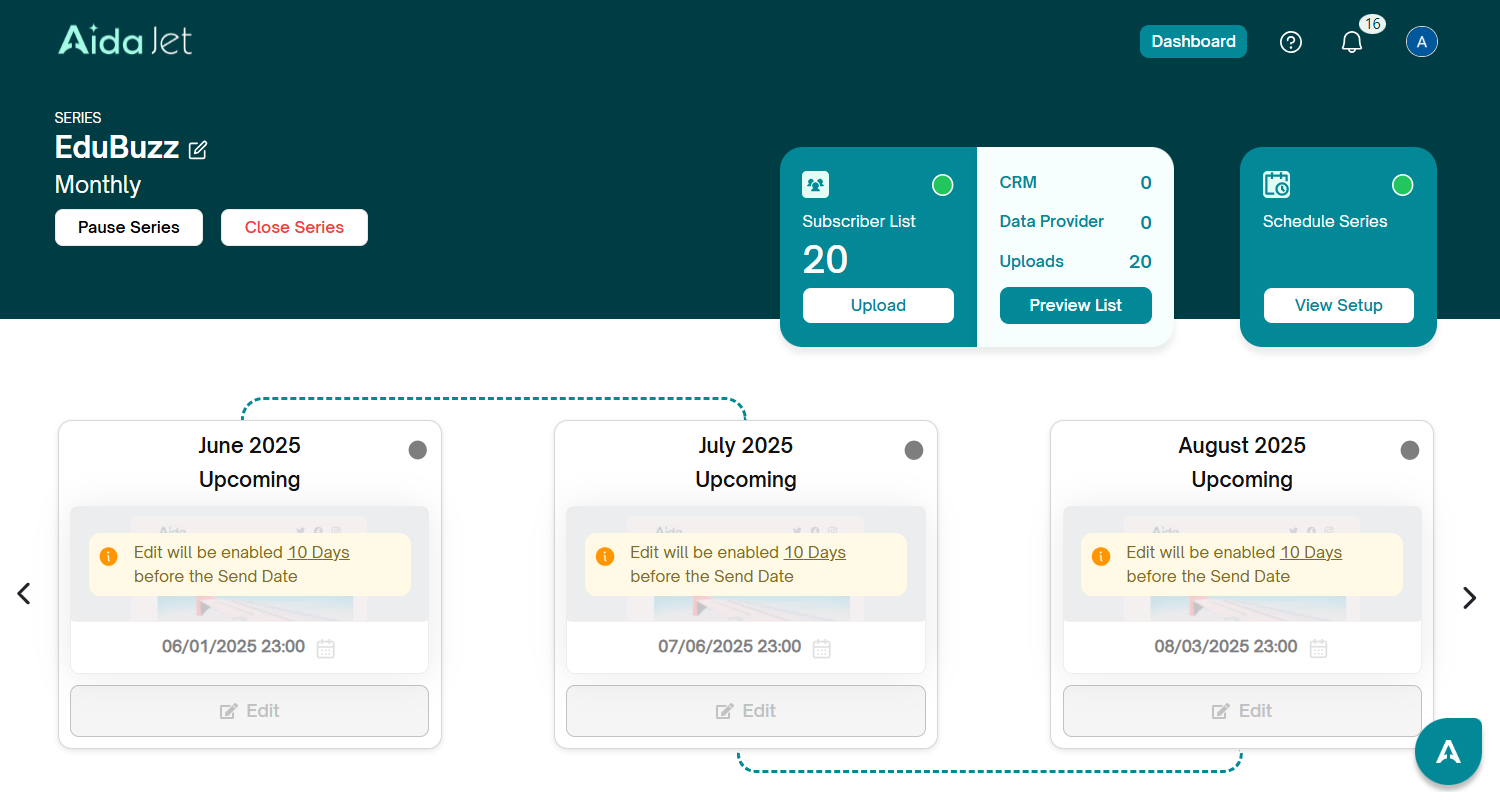
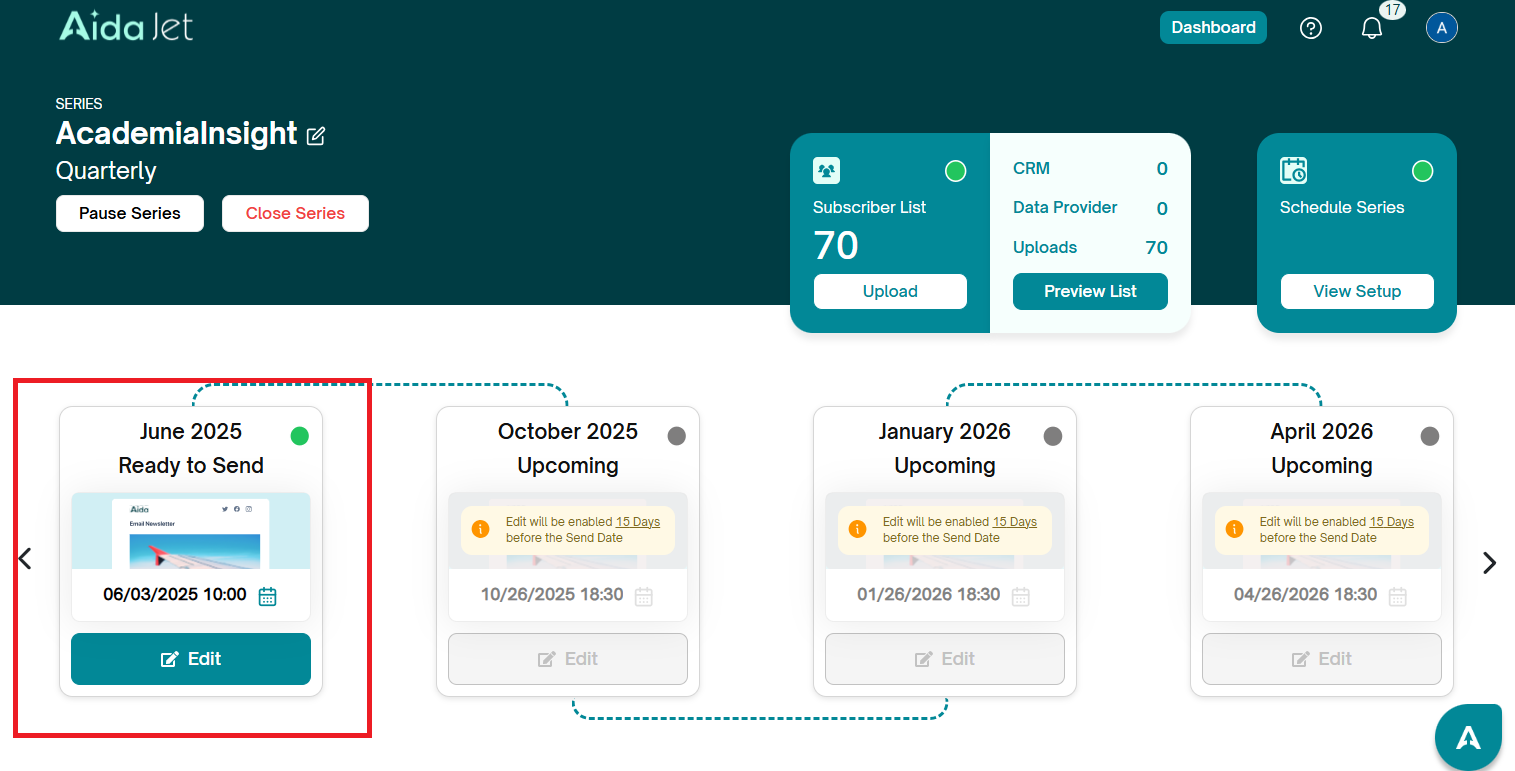
The newsetter series will update to reflect the schedule you have selected. AidaJet automates the scheduling of future newsletters. The current enabled newsletter and the upcoming newsletters will refect the date on which it will be sent.
Monthly Newsletter series:
1. Send Day/Week: Choose whether you want to schedule the newsletter based on the day or the week.
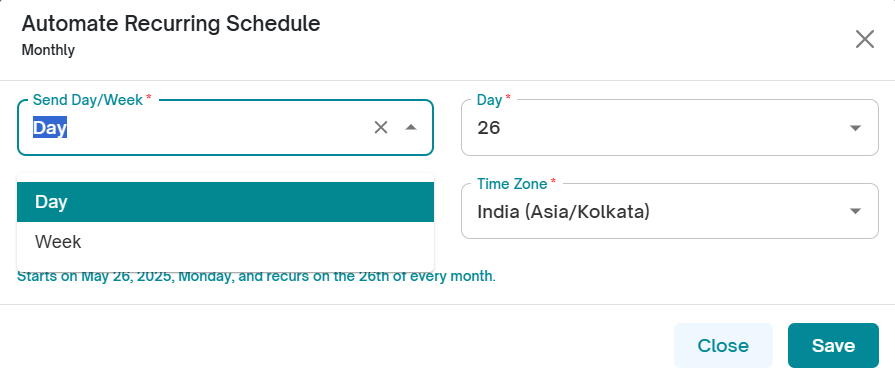
If you select Day, then all you need to do is select which Day of every month you want the newsletter to be sent.
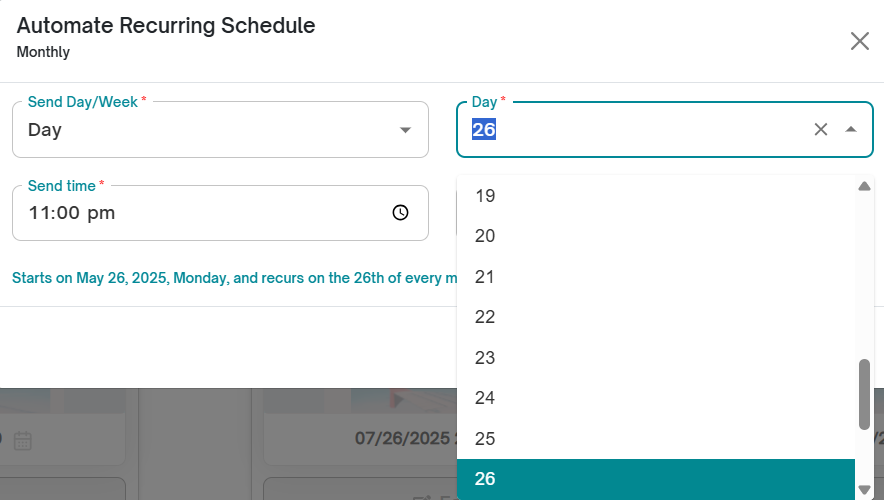
For example: For the above settings, the newsletter will be sent on 26th of every month at 11:00 PM.
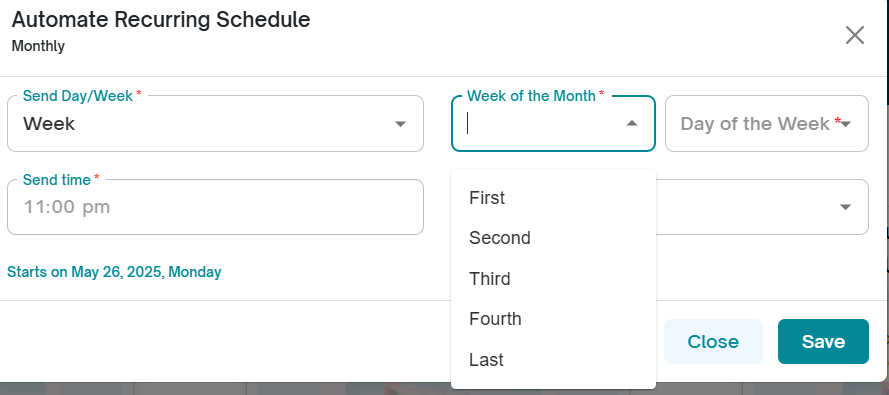
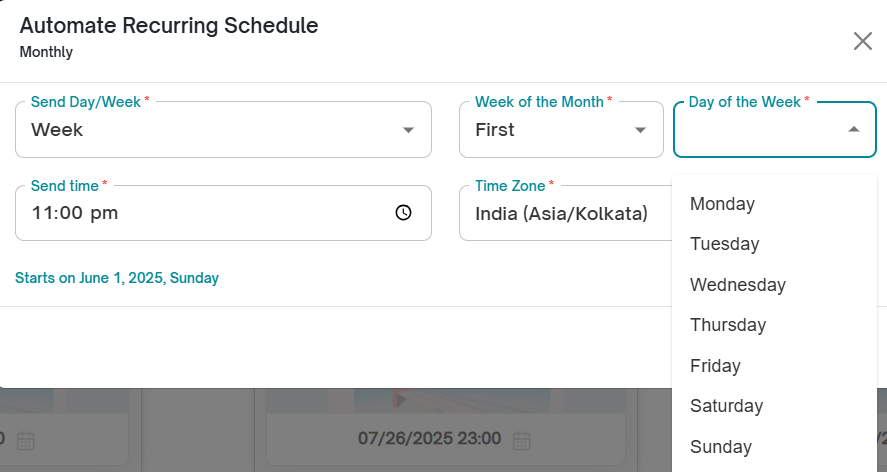
If you select Week, then you need to select which week of the month and which day during that week you want the newsletter to be sent.
 |  |
2. Send Time: Enter the time of day the email should be sent.
3. Time Zone: If the timezone of your target subscribers is different from the timezone set in the settings, select the appropriate time zone.
For Example: For the above setting, the news letter will be sent on the first Monday of first week of every month at 11:00 PM.
4. Click on Save. A confirmation message is displayed. The newsetter series will update to reflect the schedule you have selected.
Quarterly Newsletter series:
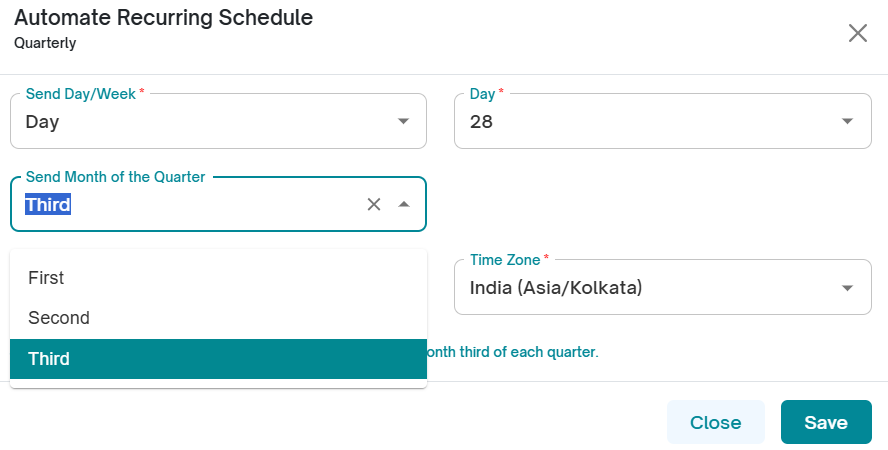
1. Start by selecting which month of each quarter you'd like to send the newsletter—first, second, or third.
For example, if you choose the third month, the newsletter for the first quarter will be scheduled to send in March.
2 . Send Day/Week: Choose whether you want to schedule the newsletter based on the day or the week.
3. If you select Day, then all you need to do is select which Day you want the newsletter to be sent.
4. Complete the selection of the day and the below data is shown:
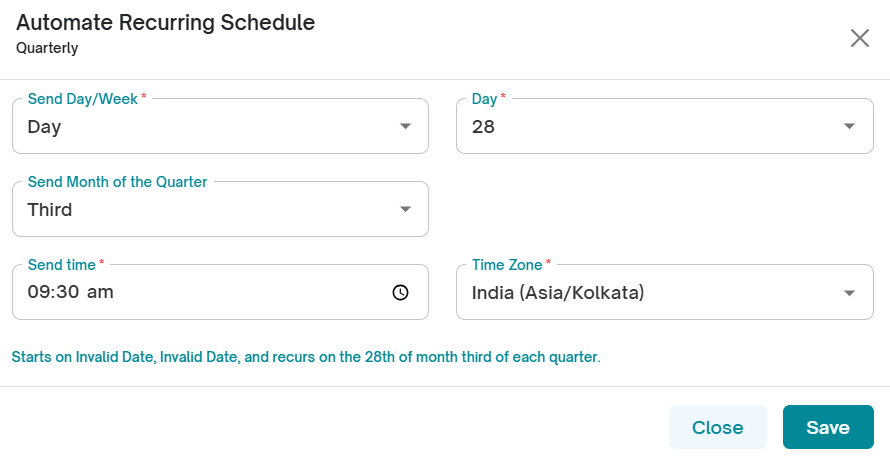
Example: For the above selection, the quarterly newsletter will be sent on 28th March at 9:30 AM in the first qaurter of the year.
5. If you select Week, then you need to select which week of the month and which day during that week you want the newsletter to be sent.
| |
6. Send Time: Enter the time of day the email should be sent.
7. Time Zone: If the timezone of your target subscribers is different from the timezone set in the settings, select the appropriate time zone.
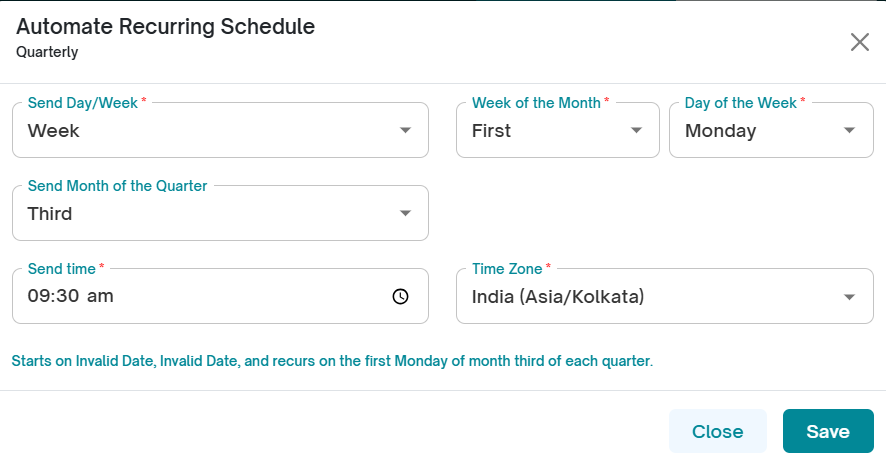
Example: For the above selection, the first quarter newsletter will be sent on 3rd March 2025 (Monday) at 9:30 AM.
8. Click on Save. A confirmation message is displayed.
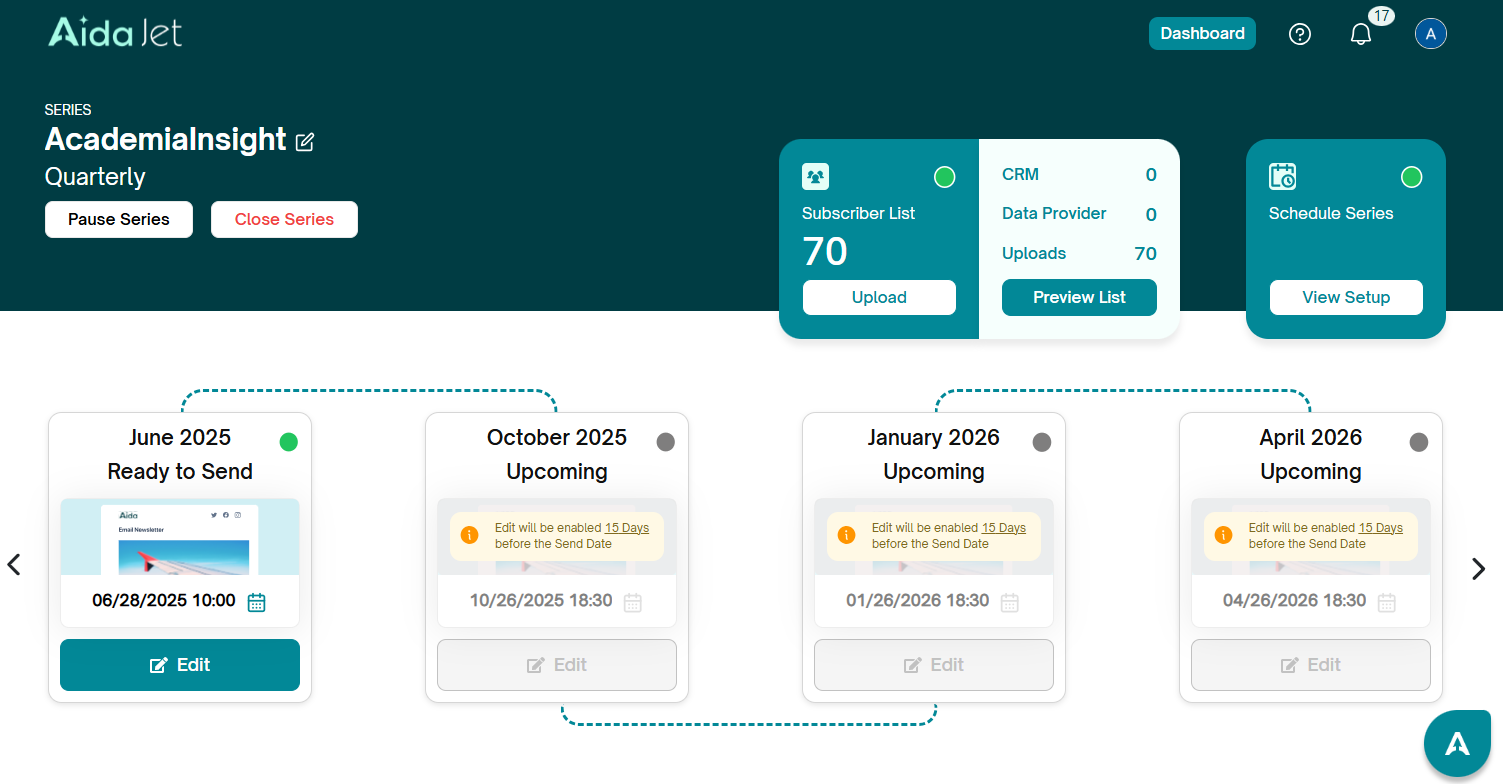
The newsetter series will update to reflect the schedule you have selected. AidaJet automates the scheduling of future newsletters. The current enabled newsletter and the upcoming newsletters will refect the date on which it will be sent.
Modify the schedule:
Once the schedule is set for any newsletter, it can be modified if the date schedule needs to be changed.
1. Click “View/Edit” to edit.
2. Make the required changes and click on Save.
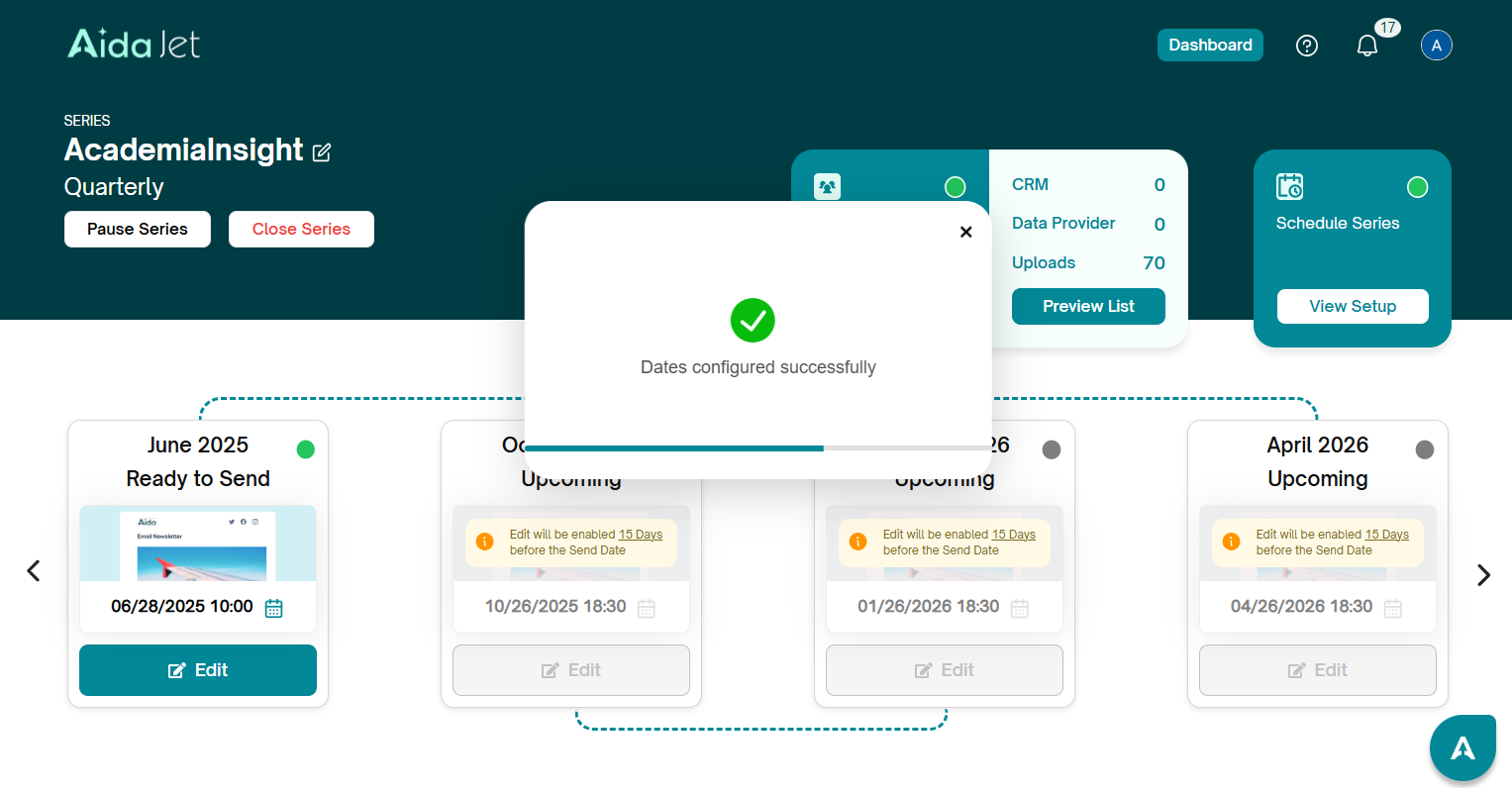
3. The successful configuration of the schedule is displayed and the series is updated to reflect the change.
Modify individual newsletter date in a series:
If a newsletter in a series isn’t ready to be sent on its scheduled date, and you want to send only this particular newsletter on a different date, you can change its individual send date. This allows you to schedule it for a later date without affecting the rest of the series.
1. Once the newsletter is enabled, click on the calendar icon under the individual newsletter.
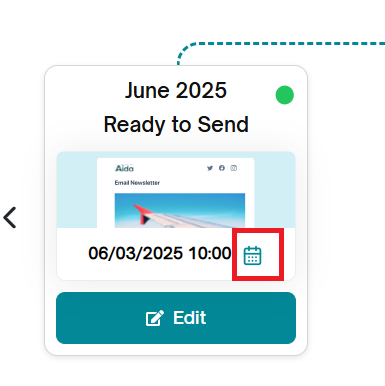
2. The date scheduler for that newsletter is displayed.
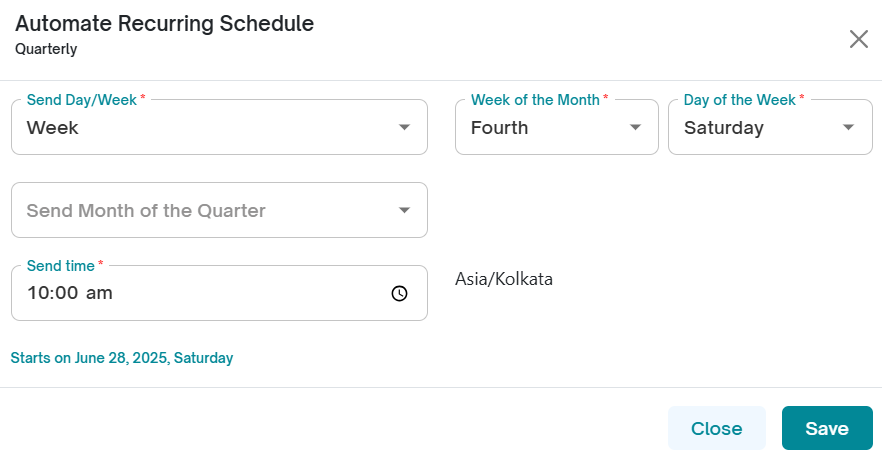
3. Choose a later date when the newsletter will be ready
4. Save the changes. These changes will only be applied to this one newsletter in the series.
Was this article helpful?
That’s Great!
Thank you for your feedback
Sorry! We couldn't be helpful
Thank you for your feedback
Feedback sent
We appreciate your effort and will try to fix the article